



Key Takeaways
- Creating AI videos is now very straightforward.
- Yes, but you will have limited options.
- A Free AI Video Generator No Watermark allows you to create/export videos with no branding.
- There are a few popular platforms which allow you to create videos, either for free or with some limitations.
Table of Contents
- 1.Summary
- 2.Can you find a Free AI Video Generator No Watermark?
- 3.What is a Free AI Video Generator No Watermark?
- 4.Best Free AI Video Tools
- 5.Free AI Video Generator Comparison
- 6.How To Create An AI Video No Watermark
- 7.What To Avoid
- 8.When To Upgrade To A Paid AI Video Generator
- 9.How Xelta AI Can Help
- 10.Top Tips For Creating Better AI Videos On A Budget
- 11.Conclusion
Quick Answer
Creating AI videos is now very straightforward. Whether you want to create cinematic videos from text, animate images of products and create quick videos for Instagram and YouTube.
However, lots of platforms will have watermarking.
Lots of platforms will offer free AI video creation, however will come with watermarking. Some will have a limit on how many times you can download your video and others will want you to pay for a higher quality export version.
Can you find a Free AI Video Generator No Watermark?
Yes, but you will have limited options.
Below we’ll go through the tools you can use, what free plans offer, how to create a professional AI video and what to avoid.
Key Points:
- Most free AI Video Generators will have some limitations including credit, resolution and watermarking.
- Just because you can download your video without a watermark does not mean it can be used for commercial use.
- Some free video editing tools will allow you to download your video without a watermark, however you will not be able to create new AI videos.
- Depending on the model and plan, Xelta AI offers text to video and image to video tools.
- Always check what you can expect from your video such as publishing, licensing and creation limits.
What is a Free AI Video Generator No Watermark?
A Free AI Video Generator No Watermark allows you to create/export videos with no branding.
There are typically three types of free AI Video Generator:
- Text to Video: Turn your text into an animated or cinematic video.
- Image to Video: Create animated videos from existing or AI generated images using a series of instructions.
- AI Video Editor: Use AI to generate videos, offering auto captioning, effects, transitions, voiceovers and editing tools.
Not all free AI Video Editors will allow you to create new videos.
Some traditional editors will allow you to create videos without a watermark, however not allow you to create new videos. Some generative AI platforms will ask you to use credits to create new videos.
Think about what you need to do. Do you need to create new videos or simply edit?
Best Free AI Video Tools
There are a few popular platforms which allow you to create videos, either for free or with some limitations.
Xelta AI – Create AI videos and creative tools.
Xelta AI is an all in one creative tool. You can create images, videos, voiceovers and much more!
Using Xelta AI you can create text to video and image to video. You can create:
- Cinematic videos.
- Product and promotion ideas.
- Quick videos for social media.
- Animated images.
- Creative videos.
You can try different AI models and editing tools.
Free – You will be given some free credits. These will depend on the model and settings.
Watermark – Will depend on the model, plan and export settings.
Best for:Content creators, marketers and businesses wanting to try multiple creation tools.
Google Flow – Quick AI videos.
Google Flow offers AI filming tools using Google’s video creation tools.
You can see how many free credits you can use per day.
Try text to video, image based and cinematic videos.
There may be some noticeable watermarking. This will depend on the location, account and export settings.
Best for: Trying out cinematic AI videos.
Pika – Create creative video effects.
Pika offers AI video creation and animation.
There are no watermarks on the free account. However you won’t be able to create unlimited videos.
There are 0 recurring monthly credits. You will generally need to purchase credits.
Licensing: Limited based on your subscription.
Good for:Trying some effects and animation using your credits.
Runway – Try out generative models.
Runway allows you to create AI videos, with a free option.
There are 125 one off credits.
However the videos will be watermarked.
Best for:Trying out AI video capabilities.
Microsoft Clipchamp – Edit videos no watermark.
Clipchamp is a great option if you have some footage to edit.
You can create videos up to 1080p with no watermark. This will depend on the features and media you are using. Using the free personal plan.
Create collages, titles, organise scenes and create social media content.
However you won’t be able to create unlimited AI videos.
Best for:Editing footage and creating professional looking social media videos.
Free AI Video Generator Comparison
| Platform | Free access | Watermark situation | Best For |
|---|---|---|---|
| Xelta AI | Introductory credits | Depends on model and export. | AI video creation |
| Google Flow | Limited daily credits | Depends on location and account | Cinematic AI clips |
| Pika | no recurring credits | No watermark. | Creative animation |
| Runway | 125 one-time credits | Free videos watermarked | AI experimentation |
| Clipchamp | Free editing tools | No watermark (Eligible) | Video editing |
Please note that free options can differ, therefore it is always best to confirm pricing, credits, licensing and exporting.
How To Create An AI Video No Watermark
Choosing the correct AI Video tool is imperative to getting professional results.
Step 1: Choosing The Right AI Video Tool
Consider what you want to create.
Are you looking to create an advert for your product, Instagram Reel, YouTube Short or a cinematic animation
If you want to create new videos then look for a text to video/image to video tool. If you have some footage to edit then look for a free editing tool.
Step 2: Create A Detailed Prompt
Your prompts will affect how your AI video looks.
Avoid: “Create a cinematic car video.”
Try this : “Create a cinematic night scene with a black sports car driving down a rainy city road. Include realistic reflections, smooth tracking shots, realistic movement and professional lighting for car adverts.”
A good prompt will tell you what your video is of, what the scene looks like, what movement is present, what lighting and what style you would like.
Step 3: Decide On Video Format
Decide what aspect ratio you would like to use. This will depend on what you are uploading your video to.
- 9:16 – Instagram Reels, TikTok, YouTube Shorts.
- 16:9 – YouTube videos and banners.
- 1:1 – Square social media.
Keep your videos short as much as possible.
Step 4: Create & Check
Watch your full video. Check if there are any issues with faces, hands, objects, lighting and camera movement.
AI videos can look amazing but can have obvious issues.
Step 5: Export Settings
Check that there are no watermarks.
Make sure that you have the correct resolution to export your video, and that you can use it for commercial use.
If you have to pay to remove the watermark, make sure you are on an authorised plan, or try using another platform.
What To Avoid
Whilst free AI tools can be useful there are some common mistakes.
Mistake 1: Assuming It’s Free
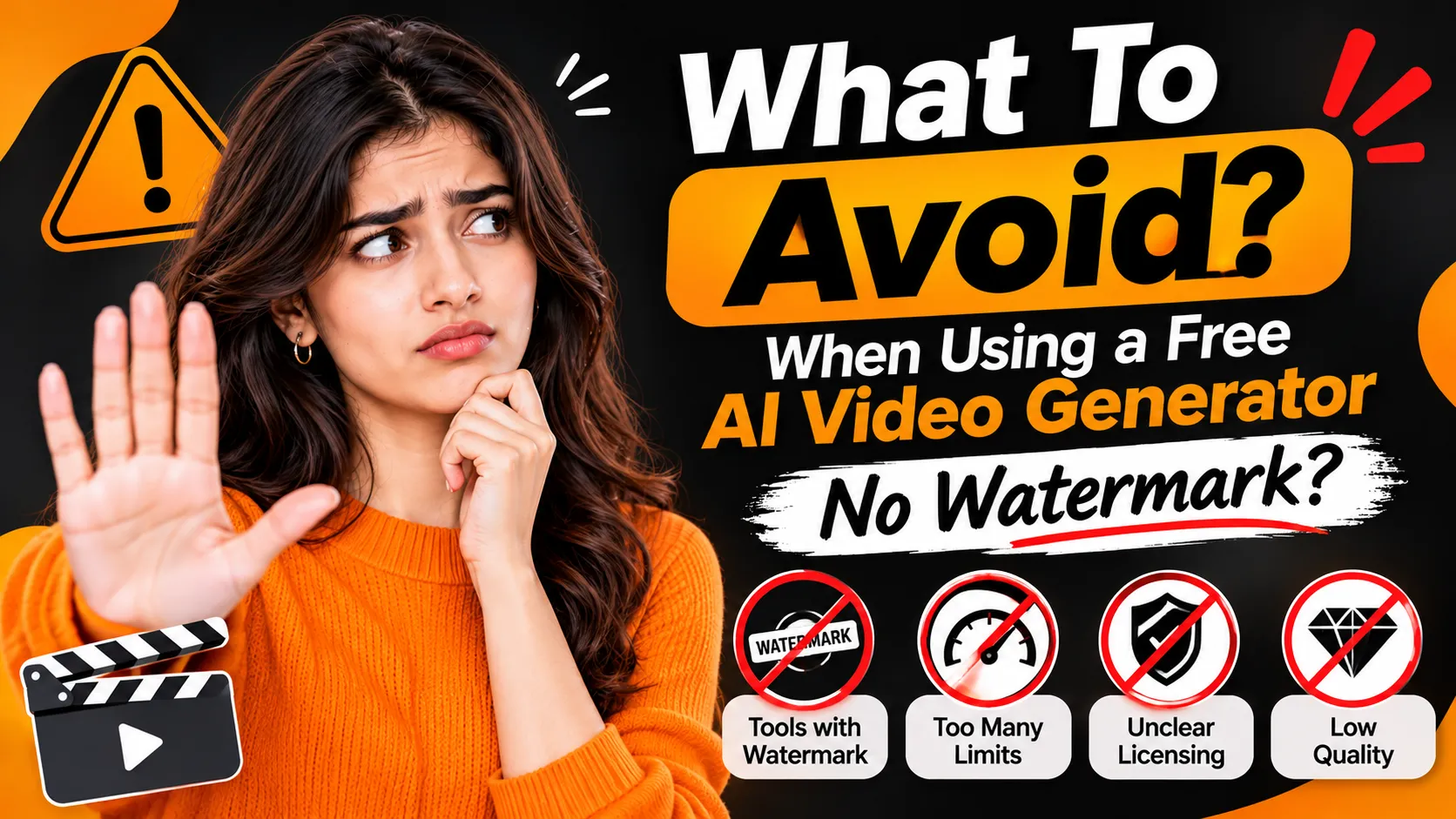
Many platforms will only offer you some free credits. This can mean if you want to create multiple versions, higher resolutions or longer videos you will need to use more credits.
Always check how much it will cost to create.
Mistake 2: Not Checking If It Can Be Used For Commercial Use
Just because there is no watermark does not mean you can use it for advertising. Some platforms will allow you to try it out personally but will ask you to pay to use it commercially.
If you are creating videos for clients, advertising or brand promotions then check the licensing.
Mistake 3: Not Checking Quality
Although it may look high quality in the preview, the export may not be as high quality. There may also be some branding.
Download a short video to see how it looks.
Mistake 4: Removing the Watermark
Cropping, masking or using a 3rd party tool to remove the watermark is against the rules. Find a platform that allows you to export your content without a watermark.
Mistake 5: Copyright
Do not upload any copyright videos, licensed music or likenesses.
AI does not mean you have the rights.
When To Upgrade To A Paid AI Video Generator
Free tools are great for learning and trying out, however if you need to create regularly then upgrading could be more beneficial.
Upgrade if you need:
- Regular video creation.
- Higher resolution exports.
- More models.
- Commercial use.
- Longer videos.
- Fast creation.
- Consistent monthly cost.
If you are only creating one experimental Reel then you may not need to upgrade. However if you are a marketing agency creating adverts for multiple clients then you will likely benefit from consistent credits and clear commercial rights.
It doesn’t matter if it is free or paid, just whether the features are what you need.
How Xelta AI Can Help
When creating content you may need to do more than just create one video.
For example, when creating a social media campaign you may need to create images, animate, create voiceovers, edit and finalise.
Xelta AI has an AI Video Generator within their creative suite. This means you can use multiple AI creation tools.
For example, if you are creating a product promotion then you can start with an image of your product, animate and enhance using the editing tools.
This can be helpful if you often need to create images, videos and audio.
Xelta AI also has editing tools such as Xelta Cut. Always check what credits each model requires and what you can export.
As a beginner it is best to try out a simple scene and then decide if you want to upgrade.
Top Tips For Creating Better AI Videos On A Budget
You don’t need unlimited credits to create useful videos.
Keep it simple. Usually it is easier to create consistent videos with one subject and movement.
Image to Video. If you are creating product shots or character scenes then start with a well prepared image.
Try out. Create one scene to try out. Do not use credits to create a full video.
Save your prompts. Save your prompt structure so you can reuse them. Simply change individual sections.
Use AI and traditional editing. Only create what you need and put your clips, captions and audio together.
This will help to prevent any failed generations and create more consistent videos.
Conclusion
It can be tricky to find a Free AI Video Generator No Watermark.
Some tools will allow you to create for free however will have branding. Some will allow you to export clean videos but will limit how many videos you can create. Some free video editors will have great export options but will not allow you to create unlimited AI videos.
If you are an occasional creator then a limited AI generator and free editing tools will be sufficient. If you are a marketer or business creating videos regularly then consider the quality, licensing, credits and editing options.
Using a platform such as Xelta AI will help as they offer multiple creative tools. This makes it easier to try out AI video creation.
For AI video creation solutions, please contact our team or follow us on Instagram for AI video creation ideas, creativity and tutorials. We will keep you up to date with the latest AI content trends.