

Key Takeaways
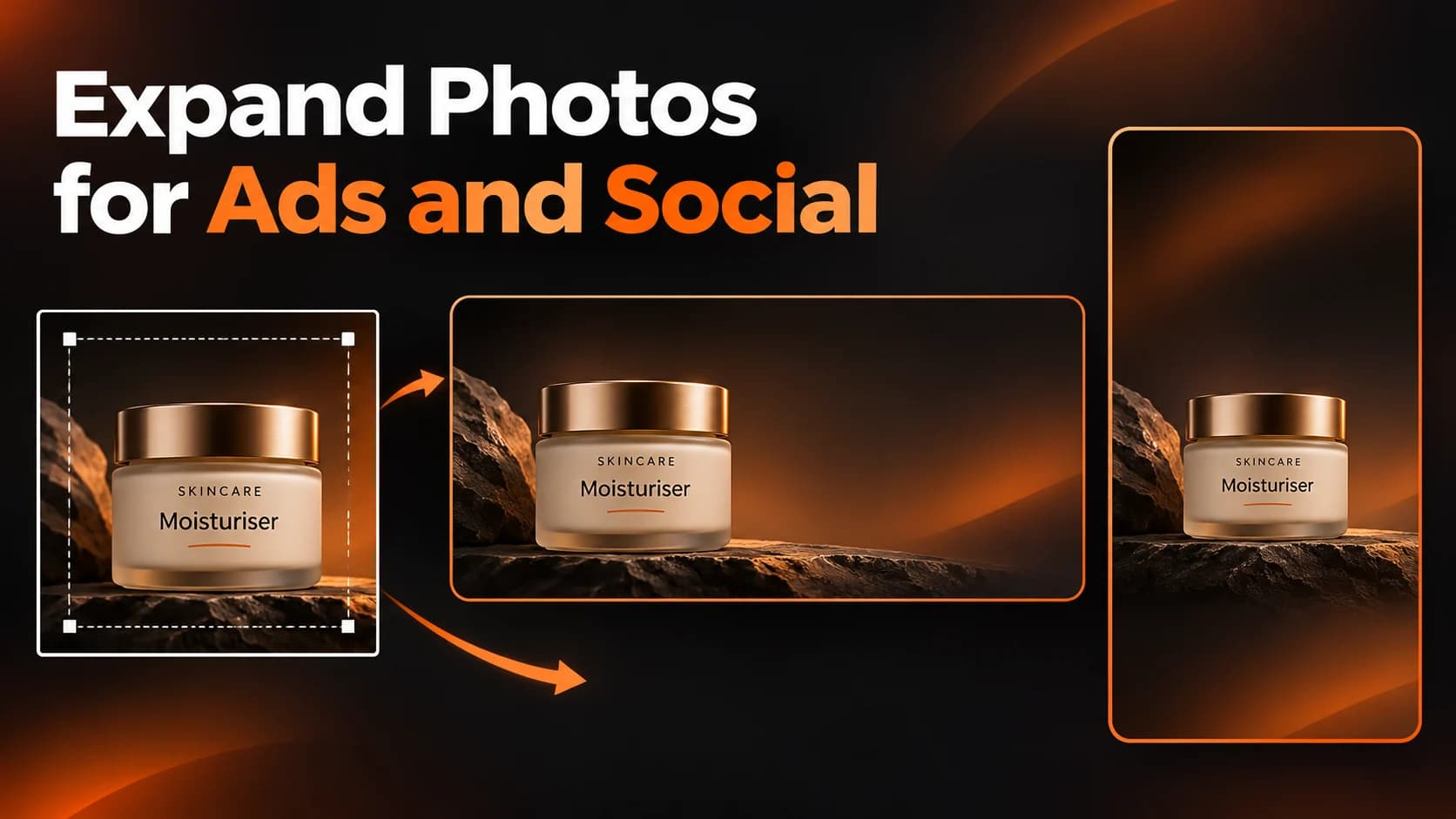
- An AI image extender adds new pixels and background areas around an existing image, helping adapt it to different layouts without cropping or stretching the main subject.
- Image extension is different from resizing: it generates additional scene content rather than simply changing the dimensions of existing pixels.
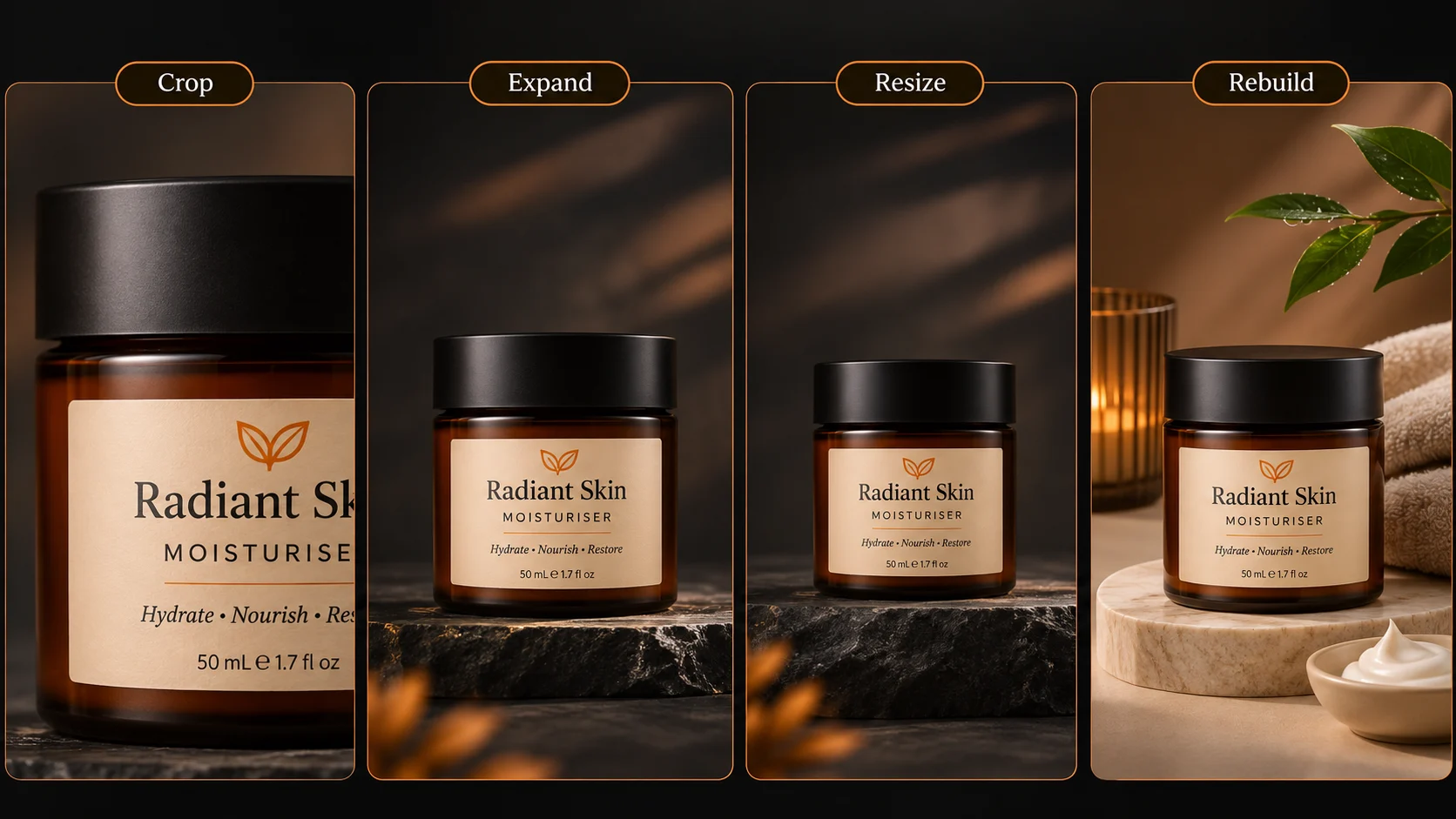
- Choose between cropping, expanding, resizing, or rebuilding based on the image and its intended use. Use the least invasive method that solves the layout.
- Write clear prompts that describe the area to extend, background textures, lighting, perspective, and required empty space while protecting the original product, labels, and branding.
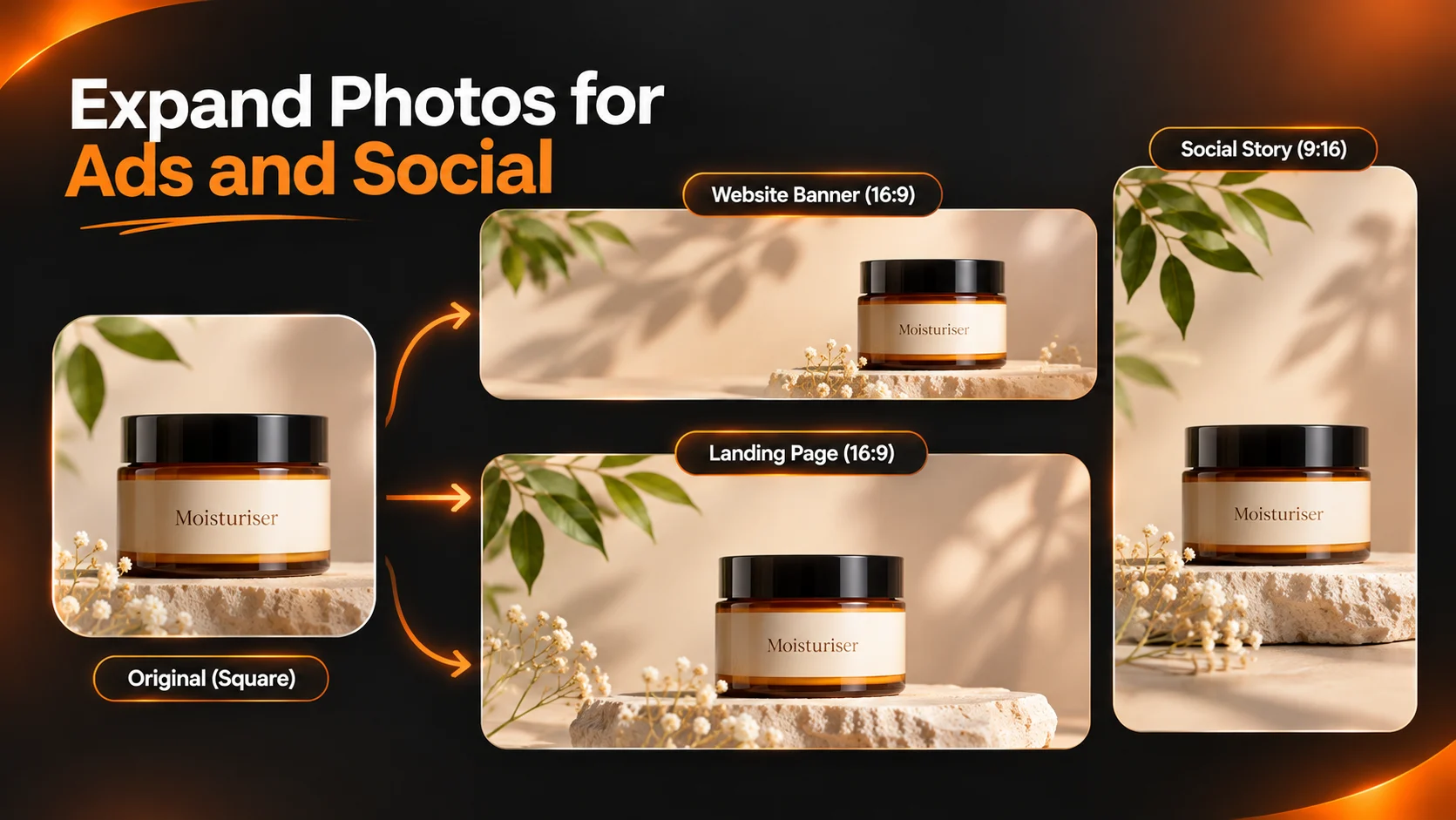
- Adapt compositions for different placements: wide banners need horizontal copy space, vertical stories need room above or below the subject, and square ads need a clear focal point.
- Create and approve one master image before adapting it for different advertising and social media placements.
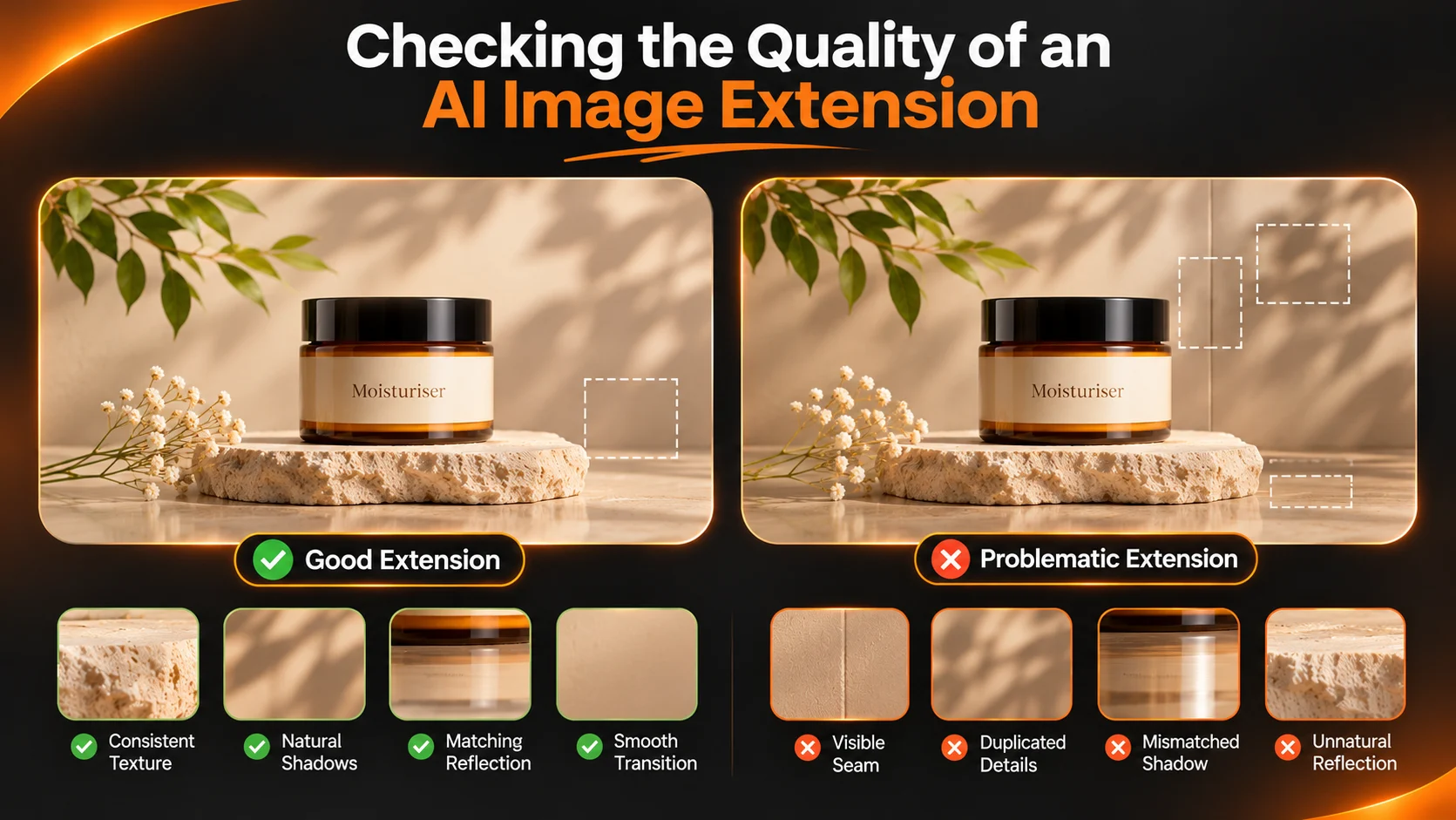
- Inspect extensions for duplicated objects, inconsistent textures, unnatural reflections, mismatched shadows, and awkward composition.
- Before exporting, check mobile crops, text readability, product accuracy, resolution, file format, commercial rights, and whether the generated details could mislead customers.
- Keep the original image and track edited versions so campaign assets can be reviewed or updated later.
Table of Contents
- 1.Expand Photos for Ads and Social
- 2.Quick Answer
- 3.What Does Image Extension Actually Change?
- 4.Should You Crop, Expand, or Rebuild the Image?
- 5.How Do You Extend an Image for a Landing Page?
- 6.What Changes When You Make an Ad or Social Crop?
- 7.Which Prompts Work for Common Marketing Images?
- 8.How Can You Spot Fake Looking Extensions?
- 9.What Should You Check Before Exporting?
- 10.Final Thoughts
Expand Photos for Ads and Social
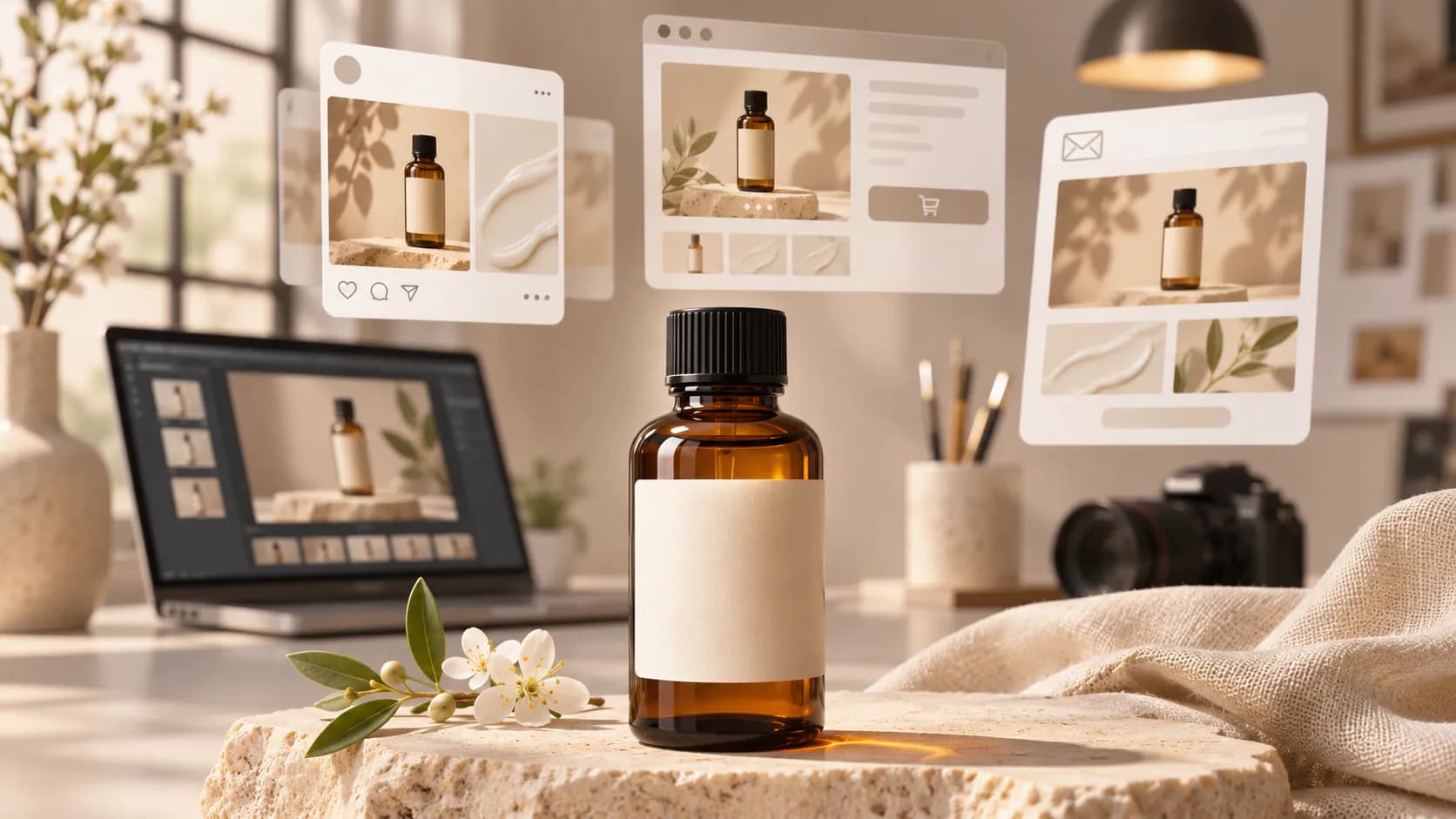
You have one approved square image for a moisturiser from your skin care brand. You need a large horizontal banner for your advertising team, but your social team wants something more of a vertical story. If you crop the image you will cut off the jar and if you scale you will get an odd looking image.
Using an AI image extender means you can add realistic space to your image without having to redesign your product.
Quick Answer
This AI powered image extender can help you generate new areas of an image. For example you can turn your square images into banners or create headspace within your images. When using this tool you need to ensure you protect the main subject of your image. You will also need to describe the background area that you want extending, check the new edges, lighting, product and final cropping.
What Does Image Extension Actually Change?
An image extension adds pixels to the edge of your image. This is different to resizing as you're imagining what could be in the background of your image. Whilst this is useful, it isn't actual proof of what was there.
If you have a bottle of moisturiser in your image, on a light stone surface. You will need extra surfaces to the left of your image if your banner is wide. The extension will continue the surfaces but you shouldn't create a new jar, any reflections that don't match the lighting or add extra products.
Using an image editor can help you brainstorm your ideas. However, not all image editors will allow you to extend your canvas. It is best to check if your image editor allows outputting. Just because you can change the aspect ratio doesn't mean it will extend the source, it may just recreate it.
Should You Crop, Expand, or Rebuild the Image?
| Method | Best choice when | Main risk |
|---|---|---|
| Crop | The subject already fits with enough breathing room | Important details get cut off |
| Expand | You need more believable background or copy space | Artificial seams or invented objects |
| Resize | You only need smaller output dimensions | Stretching if aspect ratio changes |
| Rebuild or reshoot | The angle, lighting, or source itself is unsuitable | More production time |
Choose the least invasive method that solves the layout. If a simple crop works, don't pay for additional generated pixels.
How Do You Extend an Image for a Landing Page?
We want the jar to be on the right side of the landing page and have a headline on the left.
Create a new large canvas and place the original image to the right. This will leave you with some space to add to.
Use an Image Extender.
Add to the light grey limestone surface and warm off white studio background to the left of the product image provided. Ensure that it matches the perspective of the original. It should be soft with natural lighting, slight grain and the shadows should be naturally placed. The jar, label, lid and original pixels should remain unchanged. The left side of the image should be clean so we can add our headline. Don’t add any objects, text or additional packaging.
The image generator allows you to create images based on prompts and referencing.
This is different from an accurate outpaint. If you need your pixels to remain exactly the same use a tool with a specific canvas for expanding.
What Changes When You Make an Ad or Social Crop?
For landscapes you need horizontal space for your copy. Vertical stories could require more space above and below the subject to give extra space for your ceiling/tabletop. Square feed ads will typically need an instant focal area.
- Ads: Ensure there is space for your product and clear, editable offer.
- Landing pages: Keep in mind where your responsive text overlays may appear on mobile devices.
- Social stories: Make sure key product features & captions aren’t covered by platform buttons.
Don’t create a full batch in one go. Create a master which has been approved and adjusted for each placement. Check all exports.
The background used for a wide banner can become repetitive when stretched.
Which Prompts Work for Common Marketing Images?
1. Product Ad
Extend canvas to leave a blank white background at the top right of the image. Maintain the texture of the floor and soft shadows. Maintain the shape and branding of the shoes including laces and colours.
2. Web Hero
Extend the image to the left. Maintain the wood look, and soft lighting on the wall. The laptop and cup should remain the same. No extra screens, hands, logos or text.
3. Vertical Social Media
Extend the image by adding more to the top and bottom. Maintain the table look and warm lighting. Maintain the food, decorations and size of the plate. No made up ingredients or tools. Ensure there is space at the top for the title to be added.
Depending on the editing process the pixels may be maintained.
How Can You Spot Fake Looking Extensions?
Look for any abrupt textures. Edges of counter elements not matching. Duplicated elements in the window frame. Irregular reflections. Double shadows.
Zoom out.
The extension looks technically good, but not compositionally correct. The jar may be too high up within the header area, or the white space may have too much contrast making it hard to read any text within it.
Photo editing software can be used to make small adjustments, however there is no guarantee that there will be any seamless outpainting options. Any editable features will be noted.
What Should You Check Before Exporting?
Keep a copy of the original. Check the edited image against the crop and insert into the ad/webpage.
Ensure that the final crop works well on mobile sizes, text is readable, products are labelled clearly and that extending the background doesn’t create any claims.
Export in the required resolution and format. Increasing the size won’t necessarily increase the clarity of a low quality source.
Ensure you have the rights to use the photo and editing service.
Keep track of which version was used, where and what changes were made in case you need to edit the campaign in the future.
Final Thoughts
An image extender can be useful if you have a great image that doesn’t quite fit your design. Rather than stretching a square image to fit a wide banner, or cropping out parts of your subject to fit a vertical layout, you can add extra background to your image.
The best way to work with an image extender is by having an accurate source image and a clear crop line. Work to keep your product intact and only add the required background. Make sure your joins look good within your final design.
If the image extender adds key details then you could try a simpler crop, manually editing your image or taking a new image.
Different platforms will have different options available. Choose one that will help you keep your original image intact. If you are able to successfully extend your image, you will have given yourself more space to convey your message while keeping your product genuine.
For more examples of creative editing, explore tutorials.