Key Takeaways
- AI inpainting allows users to edit or replace specific areas of an existing image using masks and text prompts while preserving the surrounding composition.
- Inpainting is different from outpainting, which extends images beyond their original boundaries, and retouching, which focuses on correcting imperfections and adjusting existing details.
- Common marketing applications include removing unwanted objects, cleaning product backgrounds, replacing decorative props, and repairing damaged areas.
- Use the smallest practical mask to avoid unintentionally changing product shapes, packaging, logos, labels, shadows, or reflections.
- Write precise editing prompts that describe what should be replaced, the expected texture and lighting, and which elements must remain untouched.
- Always compare the edited image with the original. Check mask edges, lighting, shadows, reflections, perspective, proportions, and different crop sizes.
- Common mistakes include masks that are too large or too small, unclear prompts, inconsistent lighting, visible editing artefacts, and AI-generated changes to important product details.
- Maintain an approval process by recording the original image, mask, prompt, editing version, final export, and reviewer details.
- Manual editing is preferable when accuracy is critical, particularly for logos, product outlines, regulated labels, faces, clothing, and other details that AI may distort.
- Before using inpainted images commercially, check the tool's usage terms, source-material rights, and whether the edits could mislead customers or create unsupported product claims.
- The best inpainting result solves a specific visual problem without changing the product's genuine appearance or misrepresenting what the business offers.
Table of Contents
- 1.Prompts, Examples & Review Rules
- 2.Quick Answer
- 3.What Is Inpainting, and How Is It Different From Other Edits?
- 4.Which Brand Images Benefit From Inpainting?
- 5.How Do You Write a Mask Based Editing Brief?
- 6.Which Inpainting Prompts Can Marketers Reuse?
- 7.How Should a Team Review an Inpainted Image?
- 8.What Are the Most Common Inpainting Mistakes?
- 9.When Is Manual Editing the Better Choice?
- 10.Final Thoughts
Prompts, Examples & Review Rules
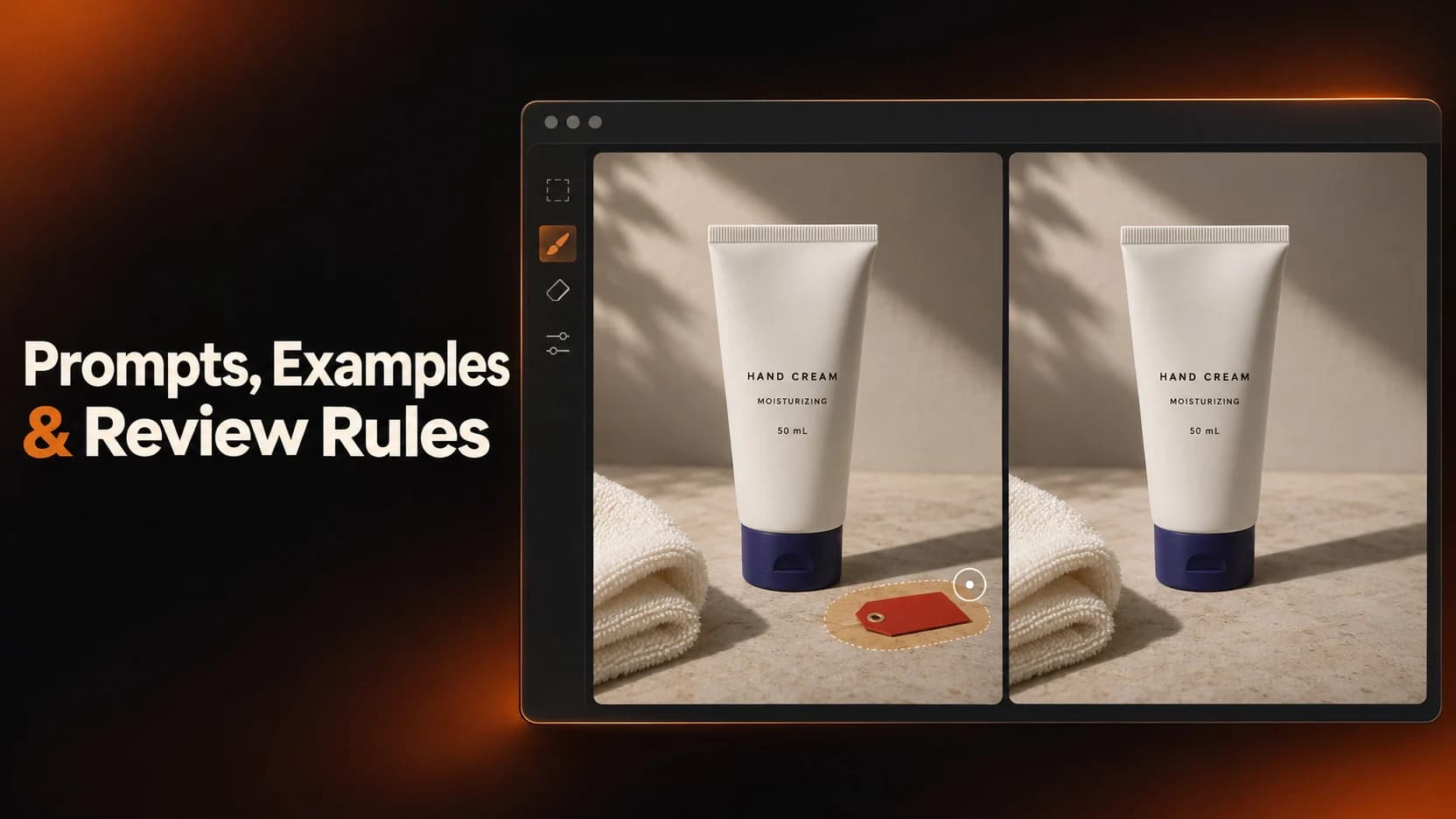
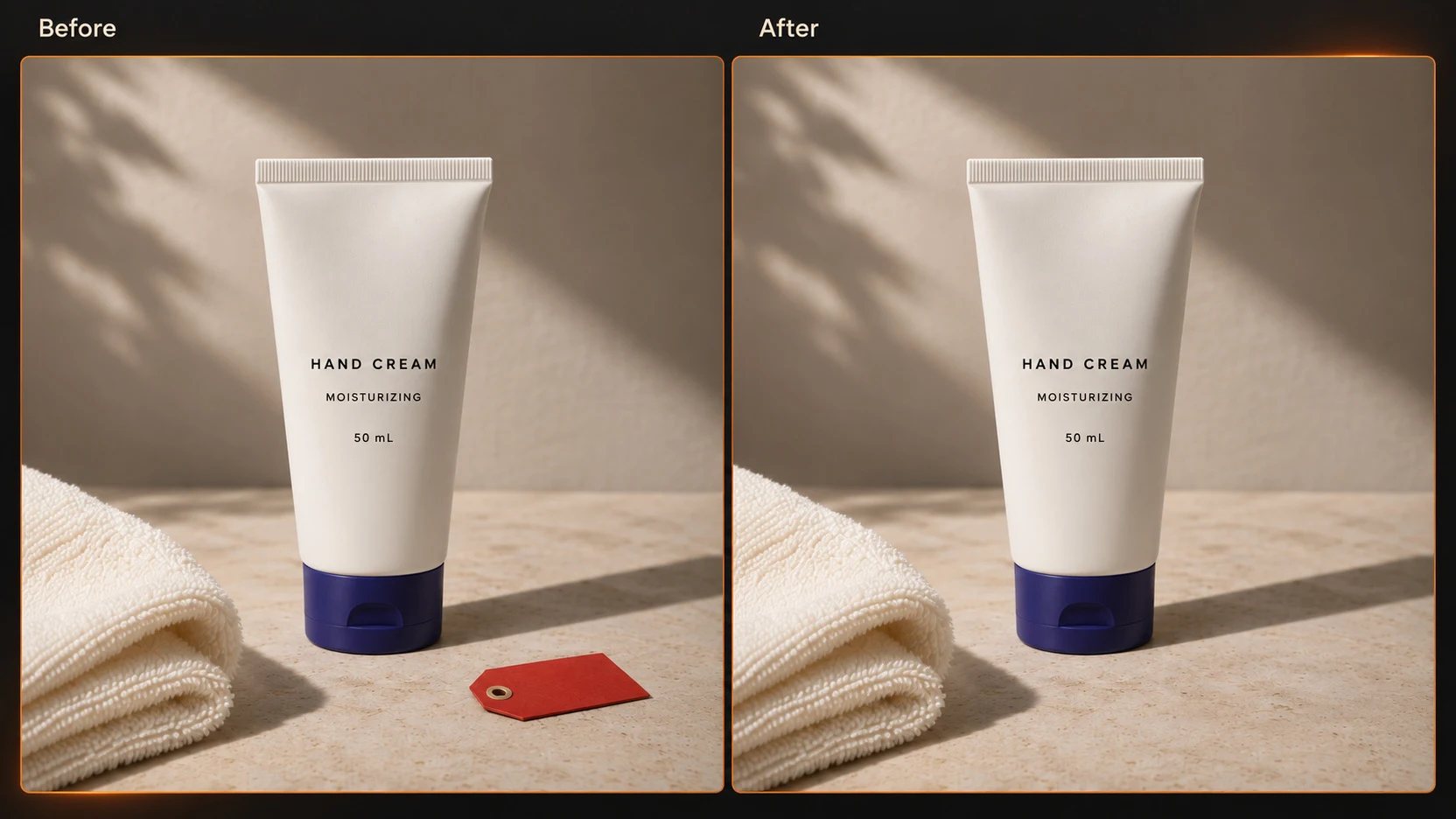
The beauty team have a perfect image of the hand cream tube but there is also an accidental price tag on the table. This can be easily removed. However, when edited there are some changes in the shadows and the lid is slightly fatter.
Using an AI inpainting tool we can edit a specific section of the image. When working with brands, it can be difficult to know exactly what will and won’t change.
Quick Answer
AI inpainting can be used to alter or repair an area in an existing image using a mask, and sometimes text to guide the changes. You can use this to eliminate any distractions, change the background or replace props. When creating reliable marketing assets ensure you choose the smallest possible area to edit, avoid altering any product detail, check the edges and lighting and get approval from a person.
What Is Inpainting, and How Is It Different From Other Edits?
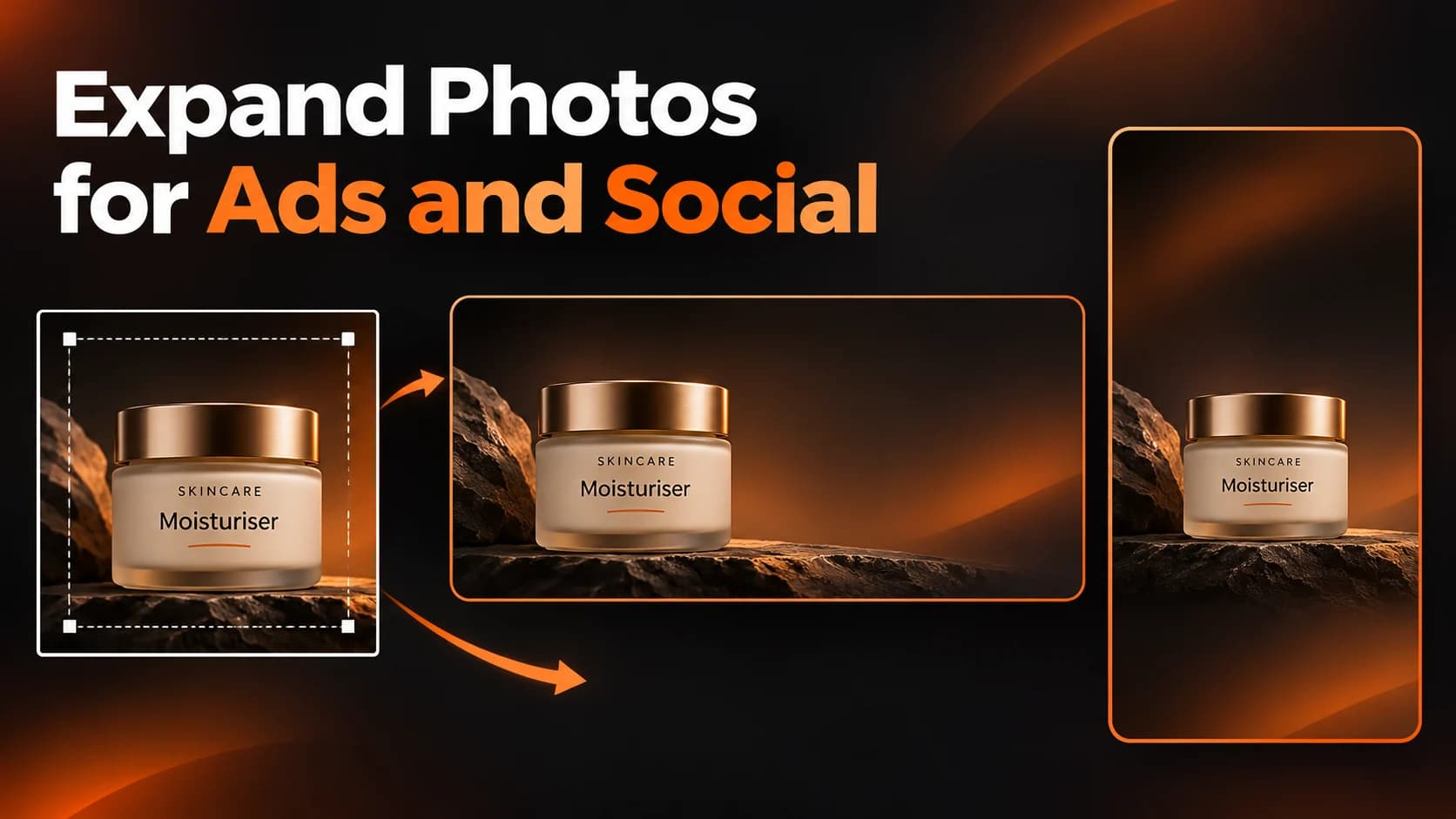
Inpainting allows users to generate new content within the selected area. Whereas outpainting adds new content outside of the image. Retouching may be used to fix imperfections, adjust colours, but won’t create new scenes. Image to image generation can be used to re-interpret the original image significantly.
Using the mask based method users will use a brush or select their area. The selected area is filled with surrounding pixels using instructions. This can be seen in Adobe Firefly’s Remove feature, and Canva’s Magic Edit.
This can be useful if you want to use a mask editor, or general editor. However not all AI image tools will allow you to generate a precise mask, despite being able to use reference images.
Which Brand Images Benefit From Inpainting?
| Asset | Reasonable edit | What must stay accurate |
|---|---|---|
| Product hero | Remove dust or a stray background prop | Packaging, cap, logo and shape |
| Paid ad image | Replace a distracting background item | Product claims and approved offer |
| Website banner | Simplify clutter behind headline space | Original product and realistic lighting |
| Lifestyle photo | Replace an unbranded decorative object | People, location and context where material |
Avoid editing away a product defect, changing the number of items sold or implying a feature that does not exist. A cleaner composition is useful; an inaccurate representation is not.
How Do You Write a Mask Based Editing Brief?
The real product is a white matte Tube with an indigo Lid and three lines of black Text on the label. We want to remove a red Price tag from the tabletop.
Selected area
Ensure the pale stone Tabletop has been reconstructed to match the fine grain, perspective and soft shadows created by window lighting. However, ensure the original tube of Hand Cream, indigo Lid, Text label, nearby Towel and any areas not selected remain untouched. There should be no text, objects or reflections.
Selection
Select the price tag with a little padding to allow for the shadow. Ensure you do not select the entire surface of the table. This may cause your image to have a halo effect so consider adjusting edges or alternatively doing this manually.
Which Inpainting Prompts Can Marketers Reuse?
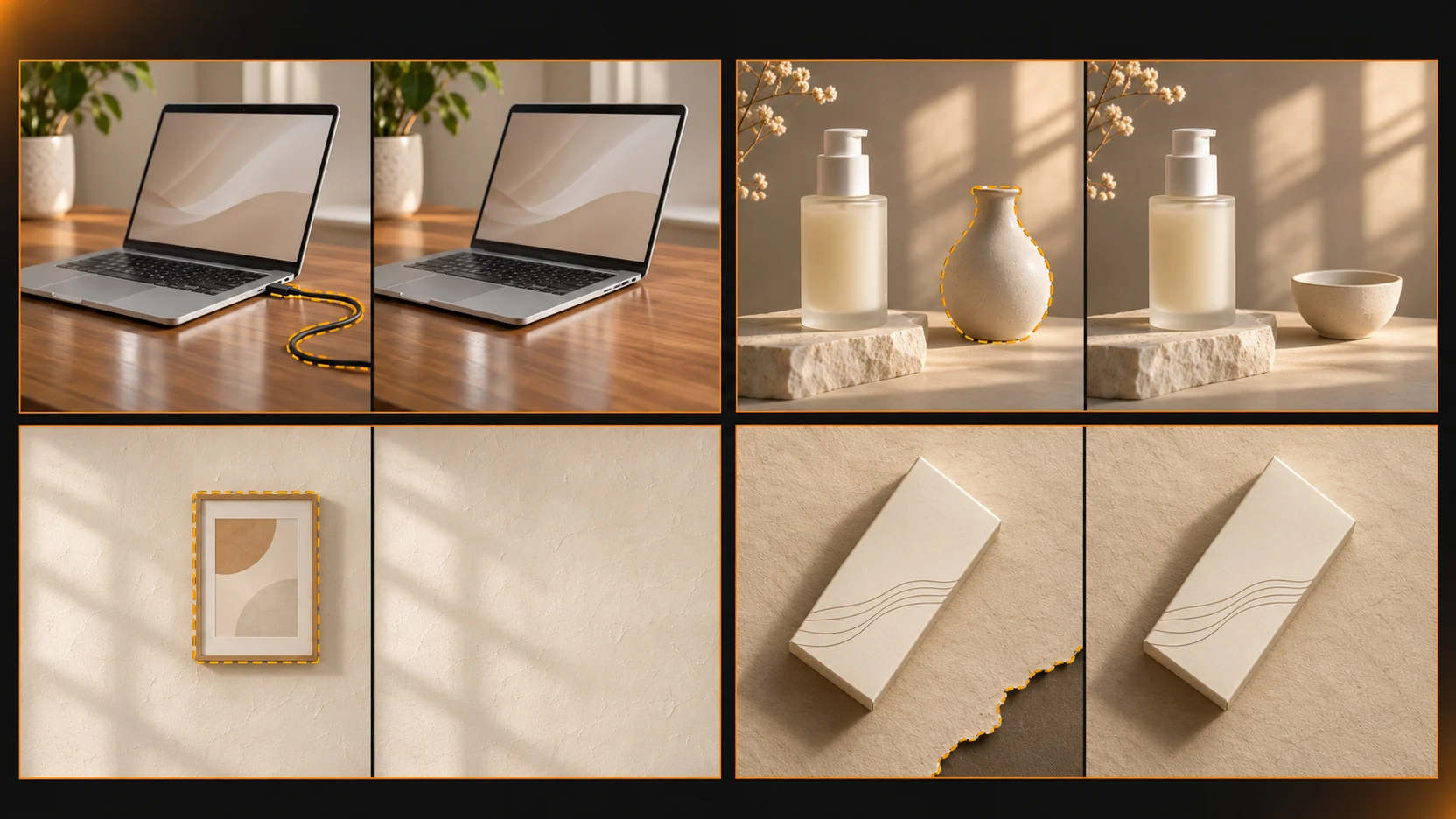
- Remove charging cable: Remove the highlighted charge cable from the desk surface. Replace this area with the natural wood texture. Retain the laptop and its reflection. Do not edit any other items.
- Replace Decorative Prop: Replace the chosen empty vase with a small, plain ceramic bowl. Ensure the camera angle and warm afternoon lighting remain consistent. Retain the product and shadow.
- Remove clutter from Website Hero: In the highlighted area of the wall, remove the framed print. Continue the textured warm off white plaster. Retain the furniture in the photo and ensure there is a clean area for the headline to be edited.
- Fix paper tear: Cover the masked tear with a seamless beige paper texture and soft studio lighting. The product should remain exactly as per the source, including its shape, outline and text.
These are examples and may not be exactly what you get. Check the output, especially where the generated areas meet the real subject. If you are using a reference based image generation tool you may find that more of the image is reinterpreted than if you were using a masking tool.
How Should a Team Review an Inpainted Image?
Two pass review
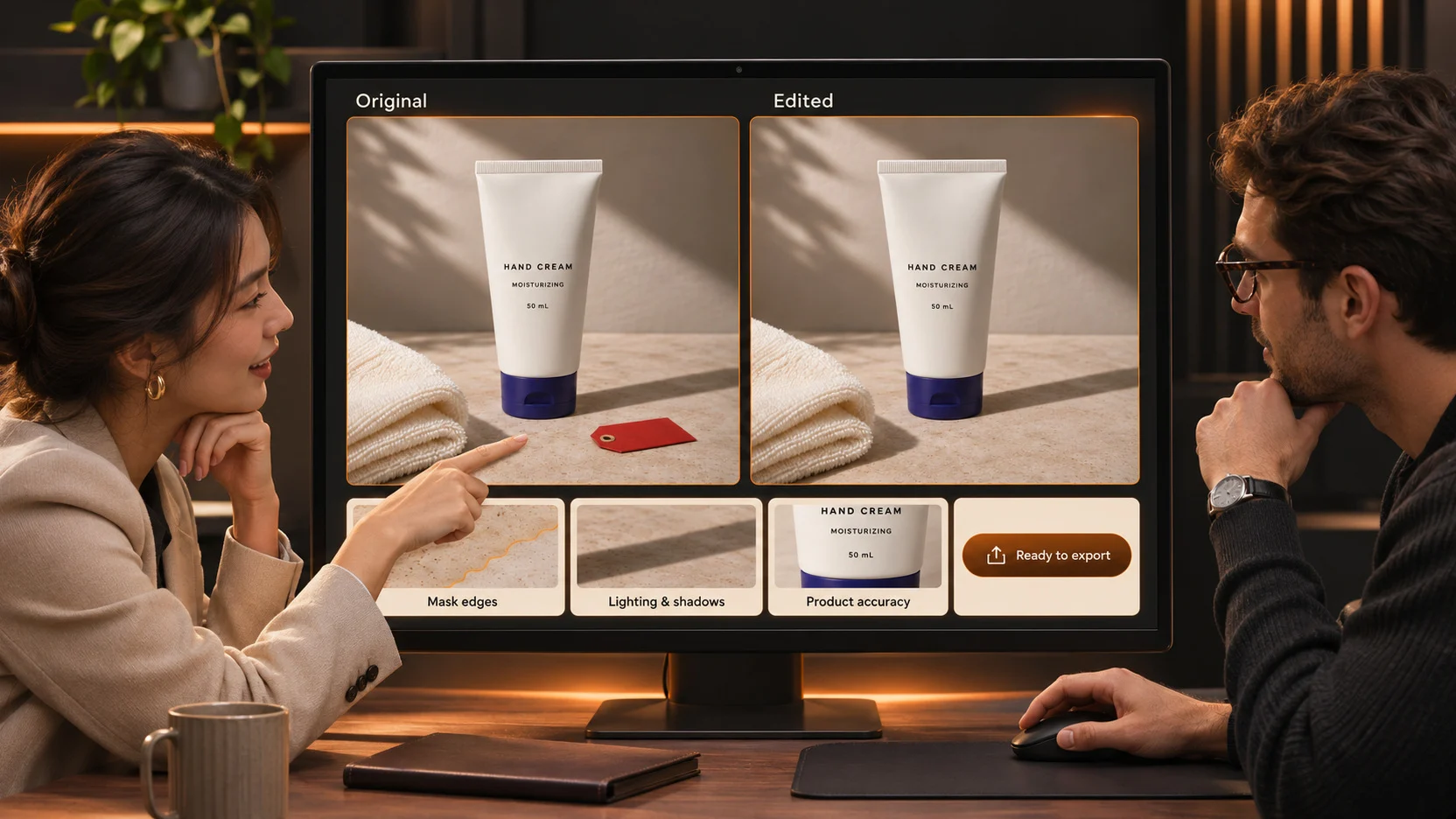
- Compared to source. Make sure you have a side by side of your edited and original assets. This will help you to make sure any protected elements of your product are correctly edited, text and colours.
- Check the edges of the mask to ensure there are no haloing, bleed, double lines or sudden changes in grain.
- Scene consistency. Ensure shadows, reflections, perspectives and scaling are consistent with the surrounding area.
- Check the crop. A small artefact may be visible if the product is in a square advert or mobile banner.
- Claim. Has the change altered what the customer thinks is in, available or proven?
- Approval. Save your source, mask/edit note, prompt, version and final export. Include the name of the reviewer.
Sometimes an edit will visually pass but not be truthful. For example, if the photo has been edited to suggest the room is bigger than it actually is or if damage has been hidden in a resale listing.
What Are the Most Common Inpainting Mistakes?
Mask too large: Areas of the model have been incorrectly edited. Reduce your selection & try again.
Masks too small: Shadows/reflections have been left behind. Include more of the background but ensure none of the protected edges of the product are edited.
Unclear prompt: The prompt may be causing unexpected edits to your objects/lighting. Be specific with what material you want, and where, to keep it consistent.
Adding false details: Text on your packaging has been edited, or extra features have been added. Or your model's clothing has been altered. You should reject this image or rebuild using real references.
Teams can sometimes get confused about what level of editing they want. Whilst you can use your photo editor to help, you won’t have as much control with the brush masks as you would with an inpainting editor. How much you need to edit will depend on what needs fixing.
When Is Manual Editing the Better Choice?
Manual touch up should be used if the text within a logo, product outline, regulated labelling or other specific details can’t be reconstructed. Or if there are recurring issues with changing someone’s face or clothing. Using a traditional cloning, patch or layer tool may take longer however is more easily verifiable.
If the original image is too blurry or incomplete then it’s better to re-shoot. Often the best workflow is to generate some quick initial edits and then do very detailed finishing touches.
Final Thoughts
Inpainting can be a useful tool when you want to reduce your scope. You can fix a specific area without having to recreate the whole product image. However you need to know the edit area and what parts you wish to keep safe.
Start with the original, select the smallest possible mask you can use and decide what you want to replace. Check the seam, lighting, accuracy of the product and crop. Keep a note of your prompt and approval so your colleagues know what has been edited. If you need something to be very accurate then it is better to manually edit or take another photo than guess.
The best result won’t be the most edited image. It will be the one that solves the issue but doesn’t change what your business can genuinely show.
For more examples of practical image workflows, explore tutorials.
Frequently asked questions