

Key Takeaways
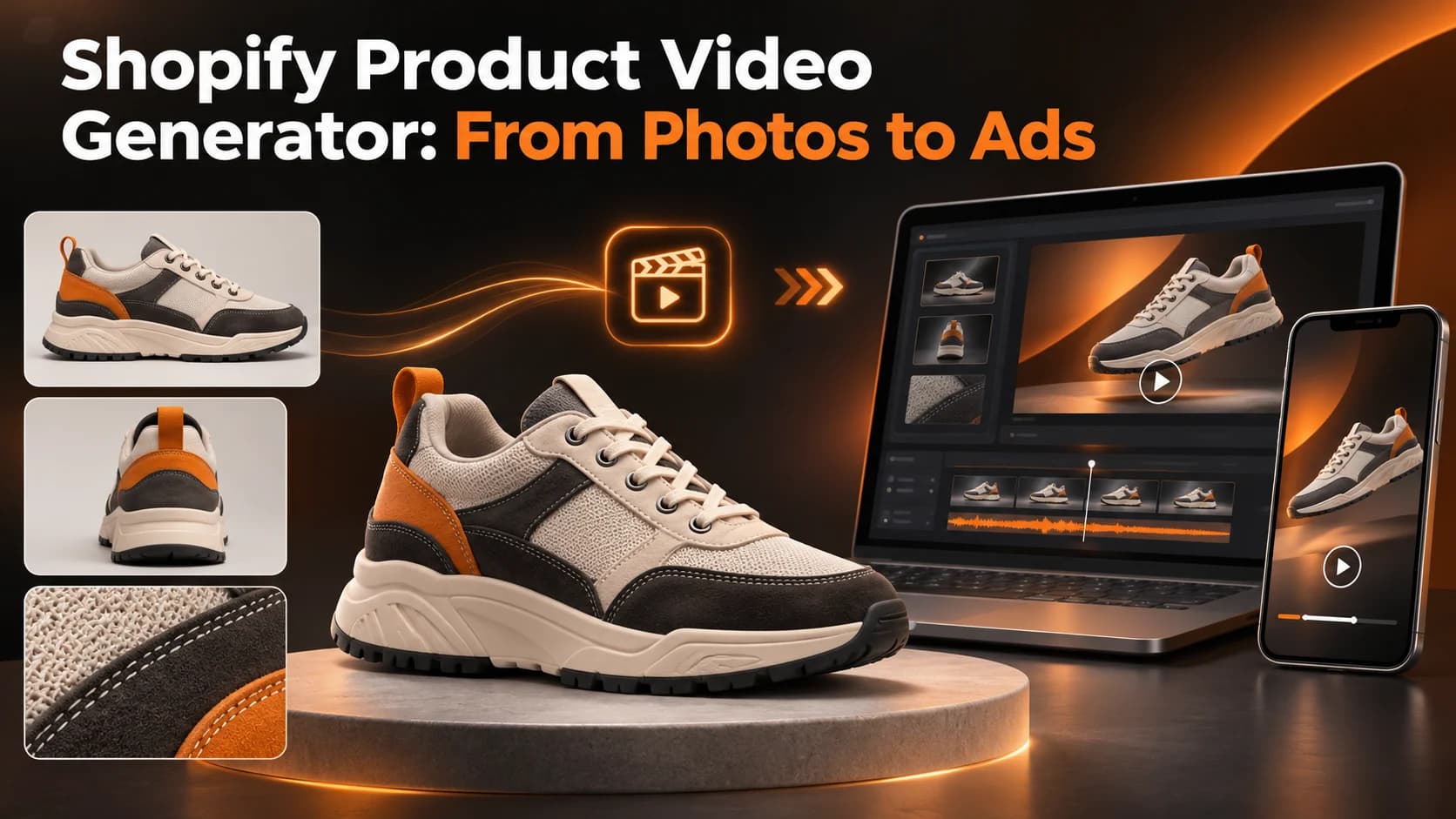
- A Shopify product video generator can turn approved product photos into short videos for product pages and advertisements without requiring a complete reshoot.
- Start with accurate catalogue images for the exact product variant, keeping different colours and designs in separate groups.
- Use clear reference images showing the product's front, side, and important details such as logos, stitching, soles, and materials.
- Create separate edits for product pages and advertisements. Product videos should clearly show genuine product details, while ads can include approved headlines and calls to action.
- Use simple camera movements and short prompts to reduce the risk of AI changing product colours, logos, proportions, or construction details.
- Compare AI animated clips with slideshows or manual photo animations. When product accuracy is critical, preserving the original photographs may be the safer option.
- Shopify supports product videos in MP4, MOV, and WebM formats, subject to its file size, duration, and resolution limits. The theme must also support video media.
- Shopify product videos cannot be assigned as variant media, so check how the product gallery behaves when customers switch between variants.
- Before publishing or running ads, review every frame, check mobile playback, verify product accuracy, confirm music and image rights, and test page loading performance.
- Keep records of prompts, models, export settings, rejected versions, and approved videos to make future product video production more consistent.
Table of Contents
- 1.From Photos to Ads
- 2.Quick Answer
- 3.What Should a Product Page Video Show?
- 4.Which Catalog Images Should You Prepare?
- 5.How Do You Build Two Videos From One Product?
- 6.How Can You Generate the First Draft?
- 7.Should You Use a Slideshow or an AI Animated Clip?
- 8.How Do You Add a Video to Shopify?
- 9.What Should You Check Before Spending on Ads?
- 10.Final Thoughts
From Photos to Ads
You have 6 clear images of your new sneakers ready to go on your Shopify store. However, your marketing team wants a vertical video to run by Friday. It would be quite costly to re-shoot. It may be tempting to animate the images you have. But you may end up with an unbuyable midnight blue shoe.
This can be made easier with a Shopify product video generator. However, you need to make sure that the final product uses your catalogue images as a base.
Quick Answer
A Shopify video generator can be used to create short videos for product pages and advertisements. You will start off by ensuring you have the correct images from an approved source for the specific product variant. This will allow you to create simple animations using prompts for your videos. Ensure the colours, logo and build of your product is kept the same. Once this is ready you can export the video for your store and advertisement. Check the video meets the required specifications, loads and shows the correct product.
What Should a Product Page Video Show?
You want a product video to help answer questions about your product that can’t be answered with images, such as how a bag opens or the texture of shoes. Your adverts need to be attention catching and make people want to visit.
Within your product page, an example could be showing the side of the sneaker, the orange heel tab and the texture of the knit. For your advert you could start with the same approved sneaker but include some quick text about the launch and a CTA. Neither should make any references to comfort levels or waterproofing as they can’t be confirmed by the brand.
Whilst having multiple creative tools available within your workspace may be convenient, this will not replace correct catalog information and Shopify publishing controls.
Which Catalog Images Should You Prepare?
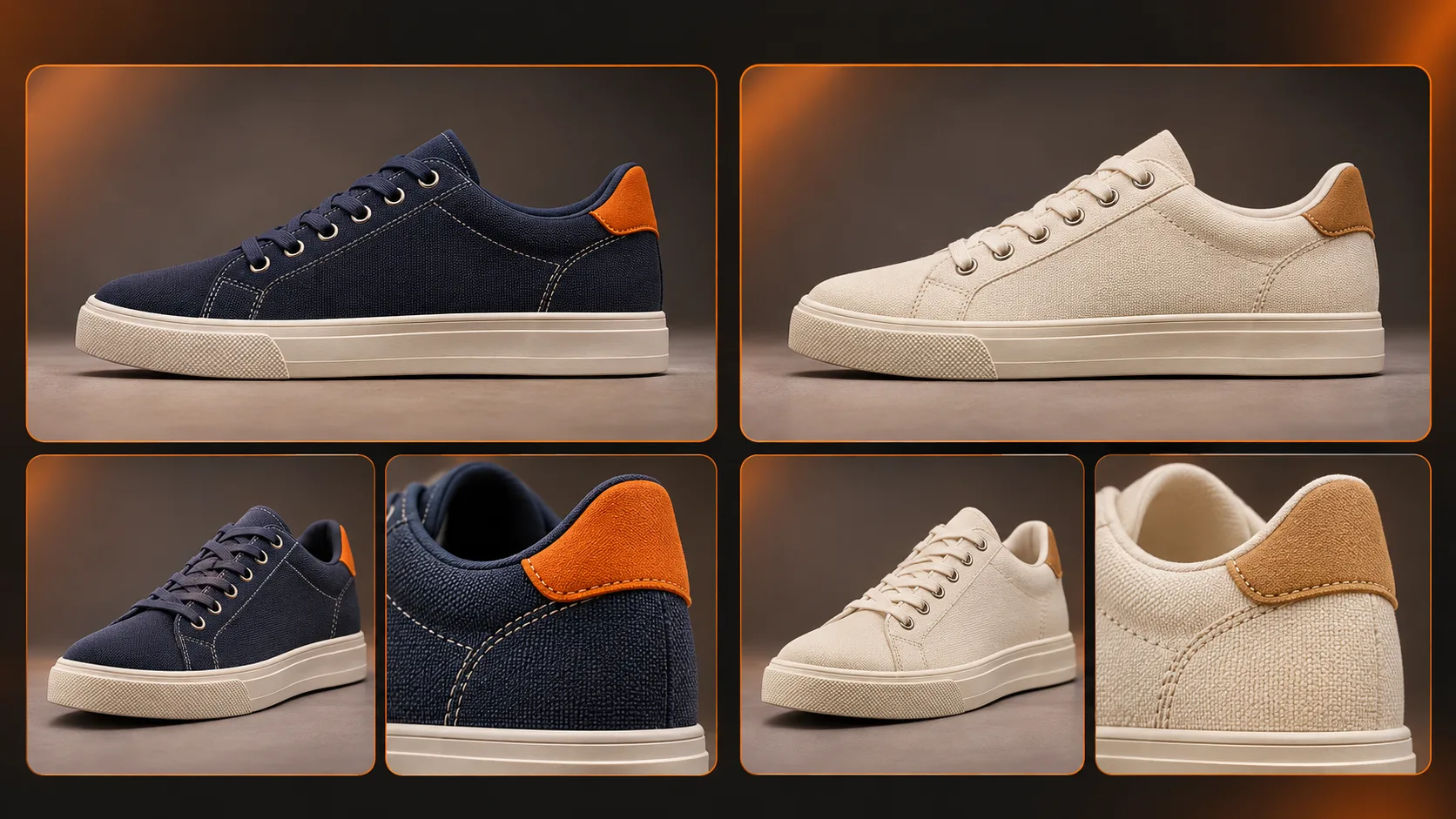
Product grouping should be based on the actual different variants of the product. For example if there are two variants of shoe, one being midnight blue with an orange heel tab and one being cream with a tan tab they should be separated into individual groups. File names should be clear and include actual photos of the front and side, with detail on the close up. Brand info should also be included which has been approved.
Note colours, soles, stitching, eyelets and where the logo is. Be sure to remove any personal details.
Start with the most unambiguous photo. A side on photo with a plain background can often be the best option for animating your product.
How Do You Build Two Videos From One Product?
A simple storyboard keeps product page footage and an ad consistent without forcing the same edit into both placements.
| Shot | Product-page version | Ad version |
|---|---|---|
| Side profile | Slow camera slide, product clearly visible | Open with an immediate close view |
| Heel and fabric | Pause on real construction details | Short detail shot supporting the visual hook |
| Final frame | Return to an accurate product still | Add approved headline and shop-now message |
Choose one motion per shot. A subtle push is easier to inspect than a sweeping camera move. The page clip should work without sound.
How Can You Generate the First Draft?
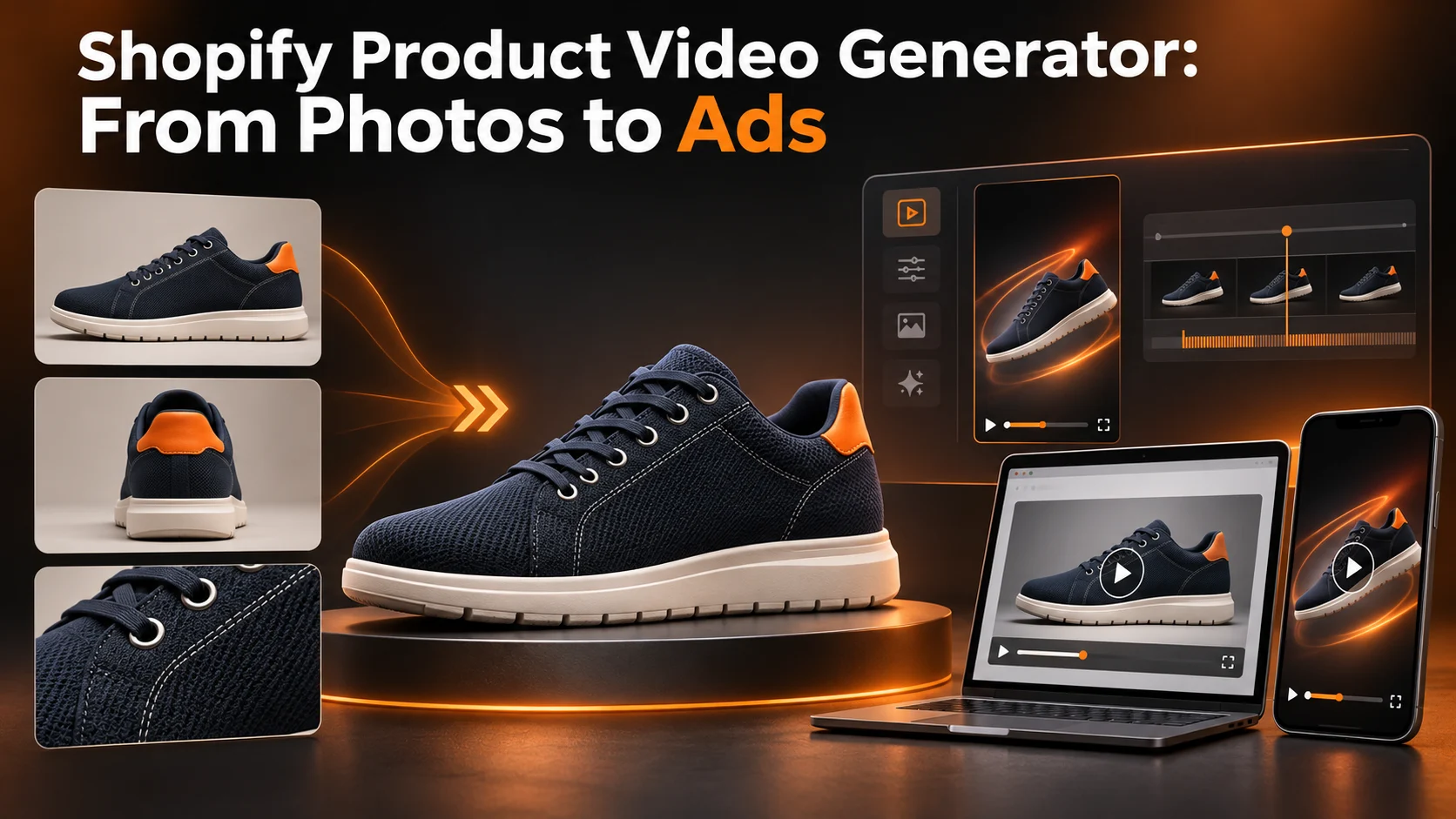
Use an AI video generator and make sure your aspect ratio, length and resolution are compatible.
- Upload your specific image variant. Produce a video with one shot.
- Add a prompt describing motion. Make sure you keep the physical properties intact.
- Use a short prompt. Ensure that the middle frames are consistent with the original.
- Make sure that the colours are the same. Keep the logo, stitches and sole design the same.
- Keep track of any successful inputs, prompts, models and outputs so they can be used in the future.
Prompt example:
Animate the side image. Keep the shoe static however the camera should move slowly towards the orange tab on the heel. Keep the sole the same design, 6 eyelets, knitting, stitches and logo. Make sure the scene has neutral lighting. Smooth movements and no additional accessories or text.
Text to video can be a good option if you want a general lifestyle video. If you require very specific details then using real images or footage would be a more reliable option.
Should You Use a Slideshow or an AI Animated Clip?
Slideshows offer a way to keep your photographs intact, but animations can cause features to become stretched.
Use the lowest risk option to convey your product. Manual zooms on your real photograph might be better than multiple times generating a bent shoe.
If you are creating a longer advert, a product video will take your product images and your advertising idea and give you options for output and credits. It does not automatically link to your Shopify catalogue or publish your campaigns.
How Do You Add a Video to Shopify?
You can upload videos to Shopify of up to 10 minutes long, in MP4, MOV, or WebM format. Videos can be up to 1GB and 4K resolution. You can also embed a video by using a valid link from YouTube or Vimeo. Your theme needs to support the video media type, which all Online Store 2.0 themes currently do.
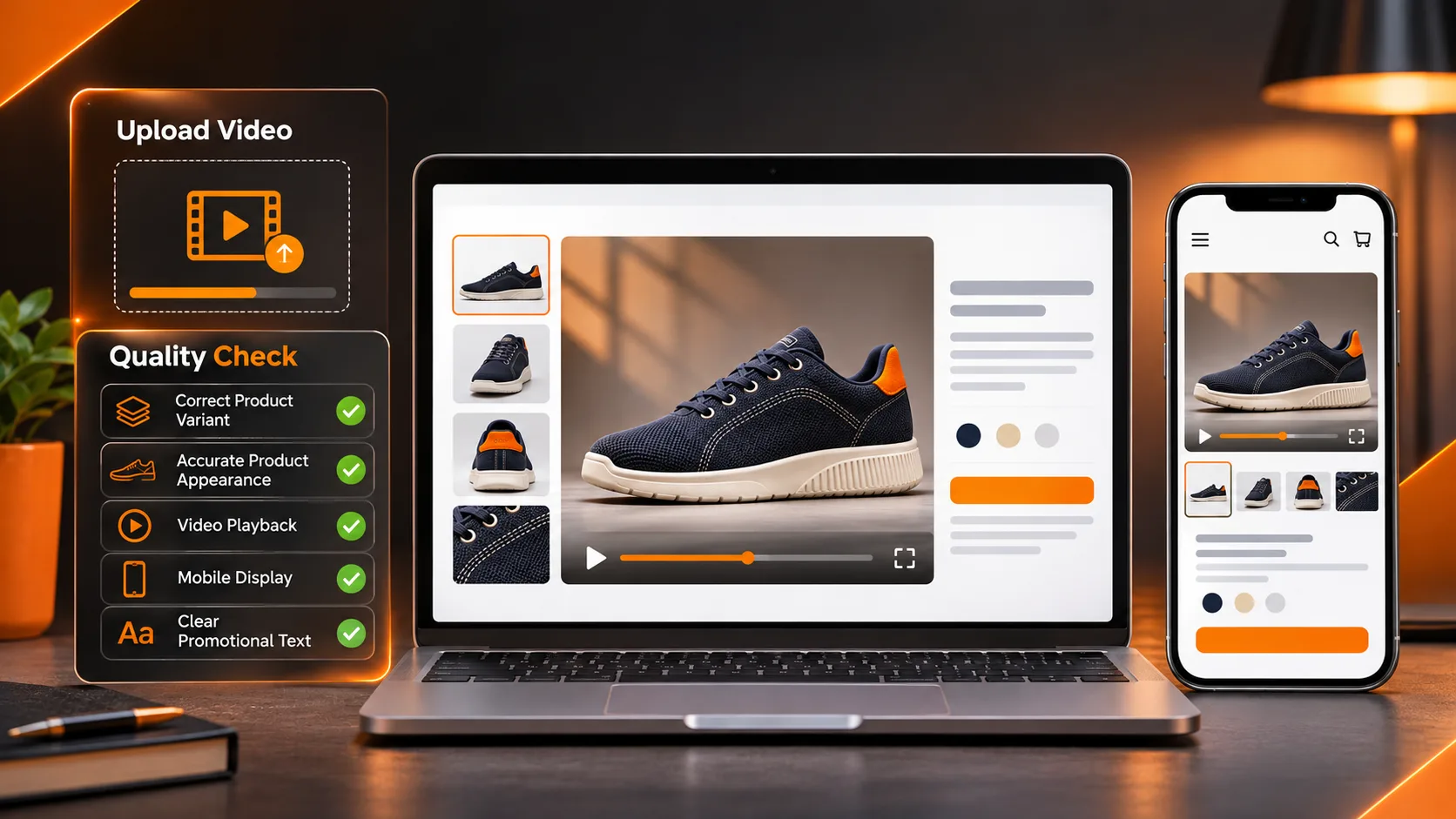
Within your Shopify admin go to Products. Find the product you want and add your exported file to the Media section. Ensure that your gallery is set up so that your most useful genuine image is highlighted. Check that it will play on mobile devices once published.
A key thing to note here is that you will not be able to allocate videos as variant media. If your product has multiple colours, take a look at the gallery display within your theme. This will ensure that if customers change variants they do not see a video for blue shoes when they have selected the cream shoes.
What Should You Check Before Spending on Ads?
Make sure that all of your video frames have been viewed and that everything looks good on a mobile device. Ensure your footwear matches your chosen variant, text is clear to read and captions are correct. Check your music has been appropriately licensed.
Make sure that all of your adverts are offering something relevant to your landing page. This means that if you wish to change your promotion then you can easily just edit the overlay. Just make sure that you have the correct rights to use any photos and likeness.
Test your store. Additional videos, apps and scripts may affect loading times and visuals. Make sure that your pages are loading correctly with and without the extra media.
Ads should be tracked using the advertising platform reports.
Final Thoughts
Creating video content from a catalog can help provide a merchant with some more useful creative. However it's best to keep it simple and consistent. If you create something which involves changing the stitching or colours of the shoe throughout the video it will cause more issues than just having a well presented still.
Use one product and one exact variant. Create a simple page clip with an additional edit for ads. Ensure these match your approved source images.
Keep track of your prompts, rejection reasons, export settings and finished files to make it easier when creating the next colourway.
Ensure you look at what media Shopify will allow and how it will perform on mobile. You want to create a reliable set of accurate product assets that will help your customers know what they're purchasing.
For more visual production examples, explore tutorials.