

Key Takeaways
- You have authorised photos of a new linen collection by a clothing brand.
- Select crisp authorised images of the clothing.
- A lookbook is used to showcase the styling and mood of a collection.
- Ensure the images you are using already show the collection well.
Table of Contents
- 1.How to Turn Fashion Photos Into AI Lookbook Videos
- 2.Quick Answer
- 3.What is an AI Fashion Lookbook Video?
- 4.Which Fashion Photos Make the Best Starting Images?
- 5.Step 1 – Create a Garment Accuracy Document
- 6.Step 2 – Plan out your storyboard
- 7.Step 3 – Create a Simple Prompt to Animate One Image
- 8.Step 4 – Try 5 Different Prompts for your Lookbook
- 9.Step 5 – Combine Approved Clips
- 10.5. Prepare the edit and channel variants for Fashion Photos Into AI Lookbook Videos
- 11.Can You Use a Reference Video to Guide Fashion Motion?
- 12.Common Issues to Look Out For
- 13.Where Should You Publish the Finished Lookbook?
- 14.What Rights and Disclosures Matter?
- 15.Final Thoughts
How to Turn Fashion Photos Into AI Lookbook Videos
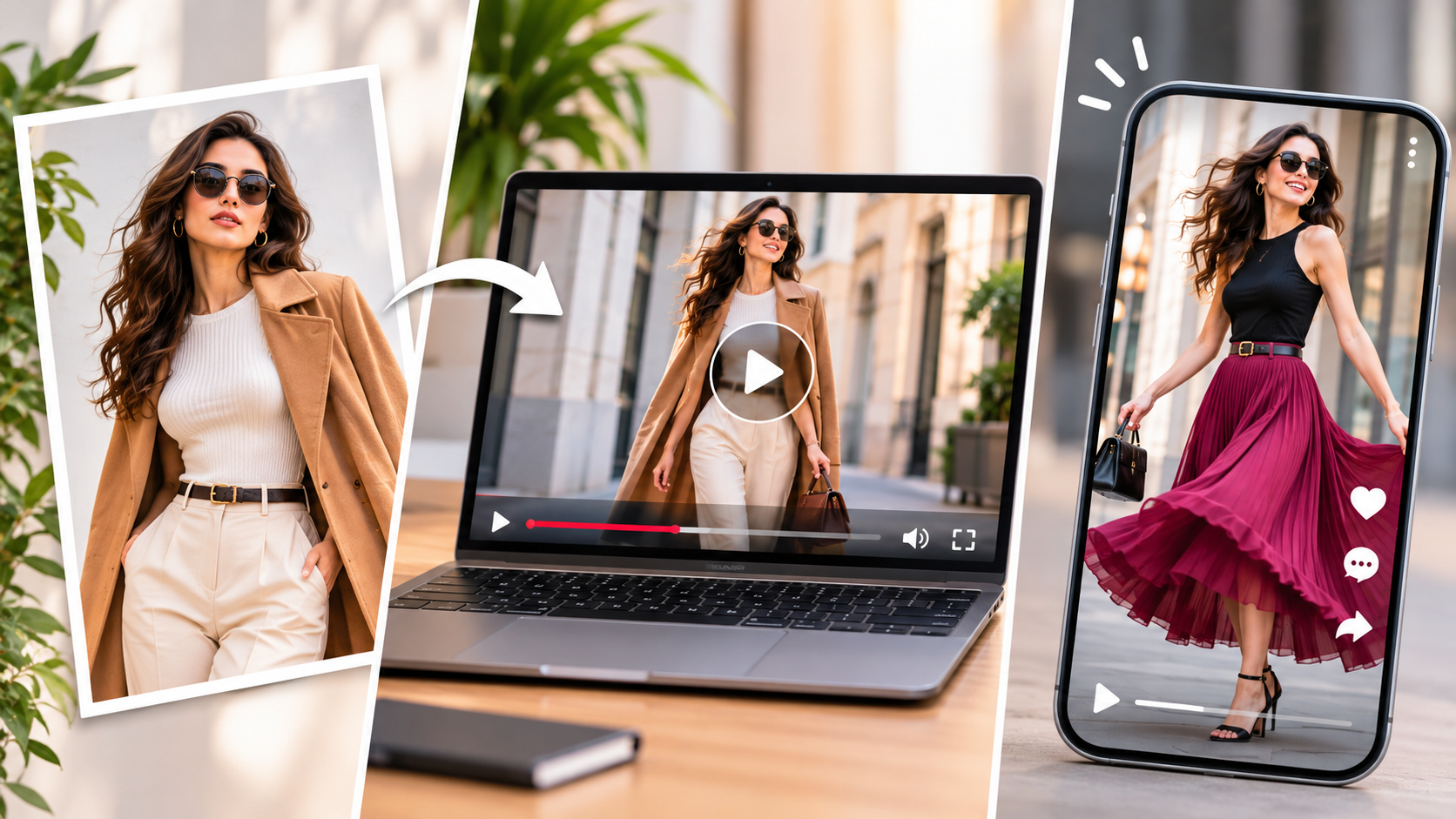
You have authorised photos of a new linen collection by a clothing brand. However, you don’t have budget to take new photos. Your goal is to create a quick 15 second lookbook. You want the video to slowly zoom into the jacket, zoom into the fabric and end with a full look.
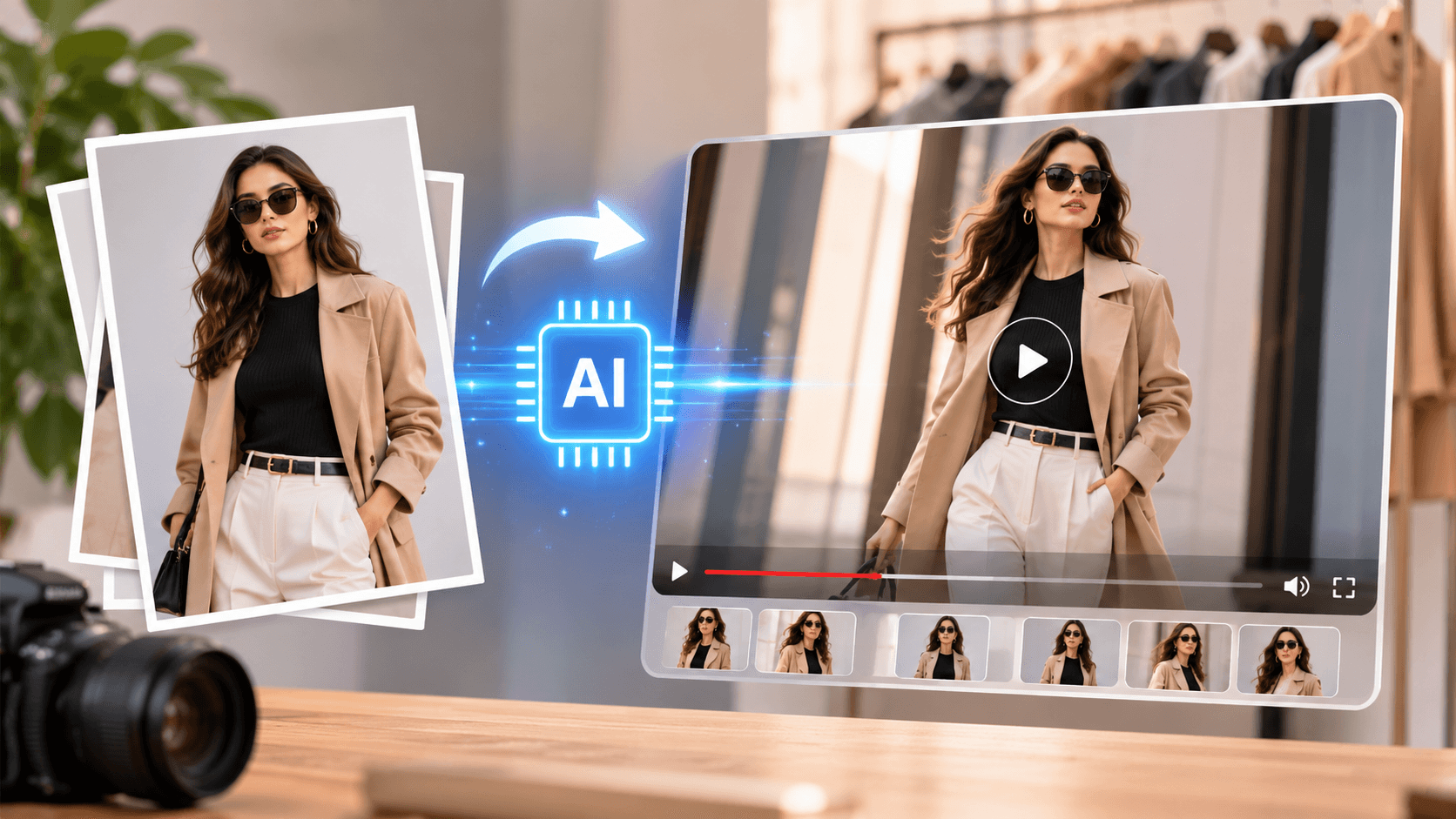
Using AI, you can bring your fashion photos to life to create an engaging lookbook. You need to ensure that you keep the clothing accurate throughout.
Quick Answer
Select crisp authorised images of the clothing. Plan out your short video and add subtle camera or subject movement to each image. Include words in your prompts to keep the colour, pattern, stitching, fastening and fit accurate. Check through the whole video and combine approved images with captions, authorised music and clear product information.
What is an AI Fashion Lookbook Video?
A lookbook is used to showcase the styling and mood of a collection. Unlike a promotional video that focuses on discounts, it will usually encourage people to explore the designs.
By creating a video, you can see the images come to life with subtle camera movement, fabric movement or intentional close ups.
This isn’t a virtual try on tool. These tools are used to show how the clothing could look on someone. Image to video lookbooks are usually based on an existing reference image and should not be seen as proof of sizing, comfort or how it would behave on someone in real life.
Imagine we are creating a lookbook for a moss green linen blazer. This blazer has two tan buttons, notch lapels and a matching pair of trousers. We’ll want to ensure these details are kept accurate throughout.
We can use a creative production tool like Xelta.ai to help create our visuals. However, the authorised clothing images should be used as our reference.
Which Fashion Photos Make the Best Starting Images?
Ensure the images you are using already show the collection well. The AI won’t be able to show us any extra details like a hidden pocket, obscured cuff or fabric construction from a blurry image.
Create 4 different references:
- Full length image of the model: This will show the overall silhouette and shoes. Ensure there is space around the model to crop.
- Three quarters or side on image: This will show us the drape of the jacket, length and shoulder line. This will also stop you asking the model to create a back view they cannot see.
- **Close up image:**This will show us the stitching on the lapels, colour, texture or pattern of the buttons.
- Flat lay or mannequin image: This can be a good option if the model keeps causing the clothing to distort.
If possible, ensure the lighting and colour grading are consistent. Crop away any distractions but don’t edit out any real details on the clothing.
Ensure you have a clean master version of all your original images. Ensure you have permission from the photographer and any identifiable model.
Create copies of your images to use in different positions. If you use a vertical frame you may lose the shoes from a full length image. If you use a wide frame you may cause an awkward border.
Ensure you check the garment from the neckline to the hem in the frame you want to use. Any small issues in the original image will be difficult to fix once animated.
Step 1 – Create a Garment Accuracy Document
List out all the details we want to keep.
For our blazer we want to include the colour reference, number of buttons, notch lapels, pocket positions, sleeve length and how it fits with the trousers. We can include real product images alongside.
Include any non-negotiable details.
The cut and fastenings cannot be changed, however the background, lighting mood, camera movement and music can.
This will help speed up approvals as the reviewers will know what they are looking at.
If the fabric is a textured linen don’t ask for it to be blown around too much to make it look like silk. Don’t ask for a 360 turn if you only have a front on image. Don’t assume the back will be recreated correctly.
Use an authentic back image or keep it simple.
Step 2 – Plan out your storyboard
When creating a 20 second vertical lookbook, ensure each image has one purpose. Keeping it simple can make it look more considered.
| Time | Starting photo | Motion and purpose |
|---|---|---|
| 0–4 seconds | Full outfit | Slow push to establish the silhouette |
| 4–8 seconds | Jacket mid-shot | Gentle sideways slide across lapels and buttons |
| 8–12 seconds | Fabric detail | Subtle close-up movement to show texture |
| 12–16 seconds | Side-view outfit | Minimal model movement to show layering |
| 16–20 seconds | Clean approved still | Collection name and call to action added in editing |
The timings are just an example. Create your video within your chosen model and the time it can run for. Then cut it down.
Decide where you want to use the video. Vertical videos will need different framing to a wide collection page hero. You may need a square social post.
Step 3 – Create a Simple Prompt to Animate One Image
Upload your approved image to an image to video generator. Choose a model that can use reference images. Check how long it can run for, how much you can crop and how much it will cost in credits.
Some models will allow more movement options. Others will rely on your prompt.
Be specific about what you want to move.
For example:
Using the provided image of our moss green linen blazer, keep the model in a natural position and keep the outfit the same. Slowly zoom in using the camera. Keep both tan buttons, notch on lapels, sleeve length, pockets and fabric colour. One shot, soft lighting, minimal movement and no changes to the outfit.
Watch the whole video.
Ensure the first image is accurate. Sometimes the last second may have an extra button or sleeve change. If it doesn’t work, try reducing the movement.
As per Runway’s official image to video guidance, we should keep prompts focused on movement. We should also keep the input clean.
Keep a record of your renders. Include the filename, model used, prompt, cost in credits and any notes. Include if the take was approved, can be fixedor rejected.
This will stop you having to pay multiple times for the same unsuccessful movement. It will also help you recreate the look if the next outfit works. However, results may vary with the same prompts.
Step 4 – Try 5 Different Prompts for your Lookbook
Editorial Hero
Keep the outfit and model consistent. Slowly zoom in from full body to torso. Keep the model in a natural position. Minimal fabric movement. Keep the exact cut and accessories.
Lapels & Construction
Gently swipe the camera left to right. Focus on the weave of the linen, notch on lapels, stitching and 2 tan buttons. No new seams or hardware.
Calm Outdoor Look
Use the approved model image and keep it in the original outdoor setting. Add subtle movement to the leaves around. Keep the model in a still position. Keep the colour and fit of the clothing the same.
Flat Lay
Top down view of the provided blazer and trousers. Keep the clothing completely still whilst slowly zooming in. No new creases, labels or accessories.
Side Profile
Use the provided side on image. Show subtle weight shift and very minimal camera drift. Keep the length of the jacket, shoulder line, width of trousers and original hairstyle.
These can be used as prompts. Some models may change details, especially with larger movements on the body.
Sometimes it’s best to use a static image with controlled zoom created by the editor if the fabric/logo needs to be exact.
Step 5 – Combine Approved Clips
Choose the most accurate take. Add to your video editor.
Cut any unsure frames. Avoid any transitions that cause the buttons, face or shoes to morph between images. Often a clean cut or gently fade will work.
Add the collection name, product information and CTA using editable overlays.
Ensure your text fits within the visible area of where you will be using the video. Choose music that fits the mood of the collection. Ensure you have the rights to use the music. If there is narration included, ensure it is captioned.
Try to keep the colour temperature and exposure consistent. Don’t let the green blazer look like an olive in one scene and teal in another.
If possible keep an uncompressed or high quality master. Export for your platforms.
Ensure your original stills are easily accessible close to the video on the product pages.
5. Prepare the edit and channel variants for Fashion Photos Into AI Lookbook Videos
Once the scene is stable, create the versions needed for the actual placement. Add captions, audio, timing, and safe-zone adjustments in the right stage. Review shape accuracy, packaging or brand details, motion boundaries, crop safety, and visual realism. The output is a small approved package rather than one isolated clip.
Can You Use a Reference Video to Guide Fashion Motion?
Sometimes you want to create a specific movement. Maybe a slight turn of the shoulder, controlled step or hand adjustment.
A motion control workflow can be used with a still image and short movement. This is worth trying if you’re getting an inconsistent movement with text only.
Ensure you have a movement reference you either own or have authorisation to use.
The transfer won’t guarantee realistic fabric physics or product accuracy. Compare to the garment spec sheet.
If the brand needs to show how the jacket really drapes when walking, it’s best to use real footage.
Common Issues to Look Out For
The first expert-level detail is that the quality of Fashion Photos Into AI Lookbook Videos is often decided before generation. A clean brief and protected reference details reduce more uncertainty than adding extra adjectives to.
| Failure | What it looks like | Better next step |
|---|---|---|
| Button or logo drift | Details multiply, vanish, or move | Reduce motion; return to a clearer close-up |
| Fabric distortion | Linen stretches like rubber or changes texture | Keep the model still and animate the camera |
| Changing silhouette | Jacket becomes shorter or trousers narrower | Compare against the original full-length photograph |
| Face and hand errors | Fingers merge or facial identity shifts | Choose a simpler pose or crop to a garment detail |
| Flickering colour | Green changes shade between frames | Adjust lighting and match colour in editing |
Slowly go through the start, middle and end of each clip. Pause when there is movement.
Watch the whole video on your phone. Sometimes an issue may seem like a small issue on your desktop monitor but can be a distraction in a short video.
Where Should You Publish the Finished Lookbook?
Use a vertical cut if you’re using it for short form social media. Ensure the garment stays within safe viewing areas.
If using it on a collection landing page a wide edit may work. Ensure there is space for product information.
If using it on an ecommerce product page, include the video with honest stills, detailed images, sizing, materials and care information.
A lookbook can create interest but cannot replace product evidence.
Ensure you’re seeing useful results. For example, product page views, clicks, saves and if people are going onto the actual product details.
Don’t say it converts better without a controlled test.
What Rights and Disclosures Matter?
Ensure you have the rights to use the original images, model likeness, any music and generated output based on the terms of the service you’ve chosen.
Be careful when using third party runway footage, identifiable designer logos and reference images from other brands.
If the generated clip changes the model, outfit or fit of the garment, consider making a disclosure. Don’t make it look like real fitting footage.
Ensure you follow any advertising and platform guidelines. Always ensure the product features, colours and stock available match what customers can actually buy.
Final Thoughts
An effective AI lookbook won’t necessarily be the one with the most dramatic runway movement. It will make the collection easier to understand and ensure the garments customers will receive are accurate.
Start with high quality original images. Keep a record of any details that can’t be changed. Plan out your video to ensure each image has a purpose.
Start with simple movements and only add complexity if the results are accurate. Reject any clips that add new hardware, change the fit or fabric. Even if it looks like a cinematic lookbook.
Keep your approved stills, prompts and exports together so you can easily amend your campaign.
Remember, AI animation is a presentation tool. The reason people should watch the video is because of the clothing!
For more examples of visual production, have a look at our creative video tutorials.