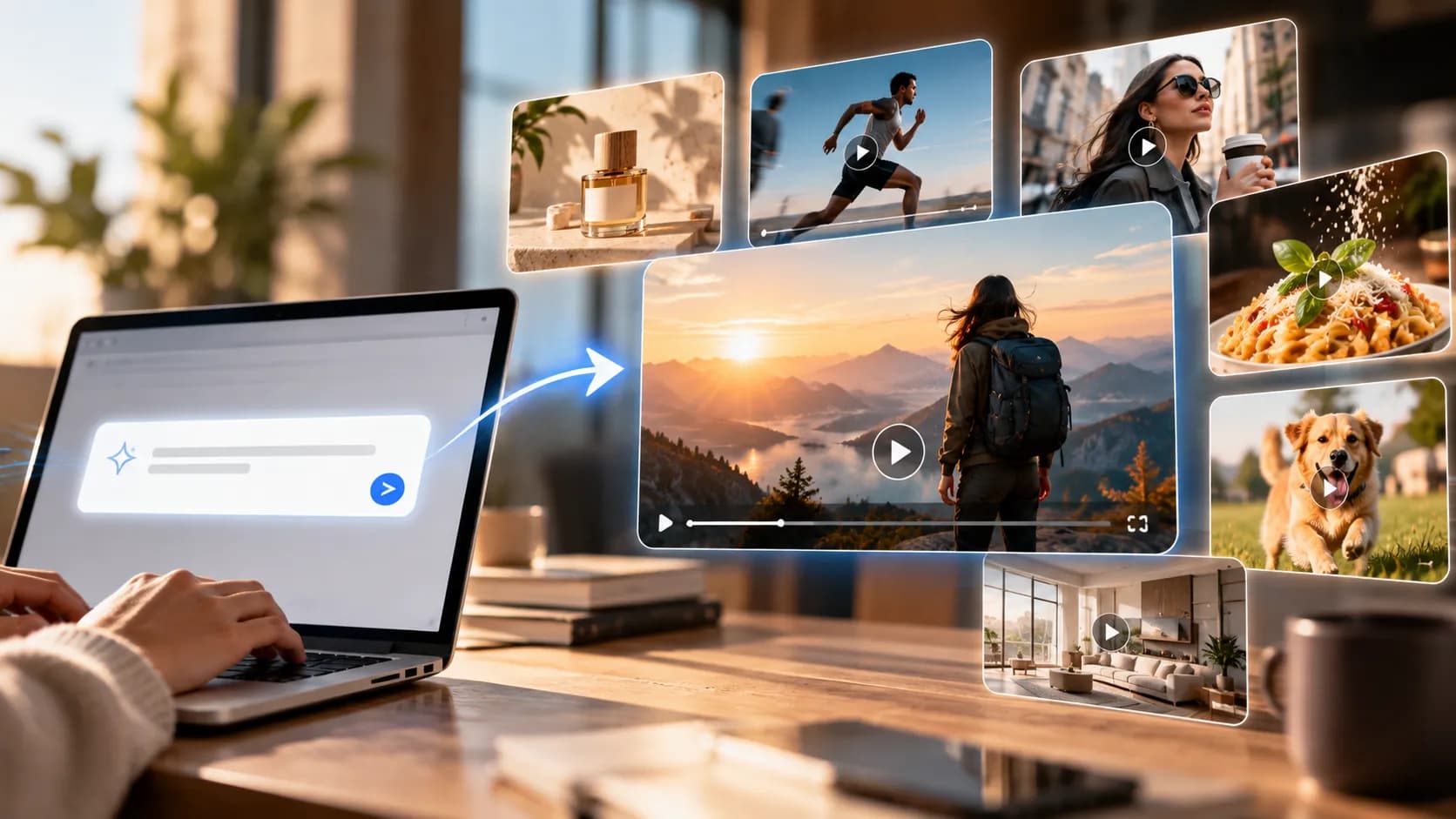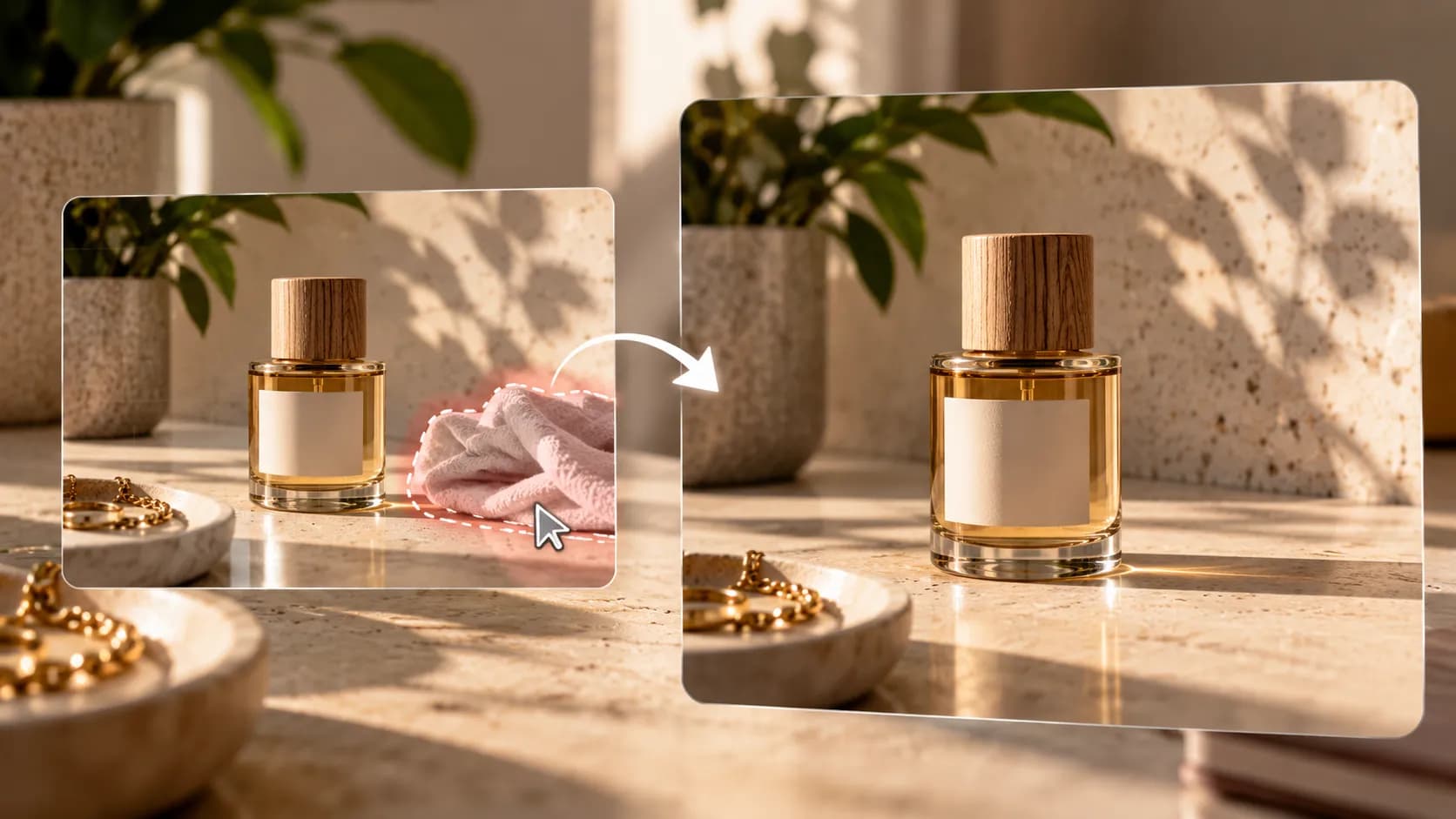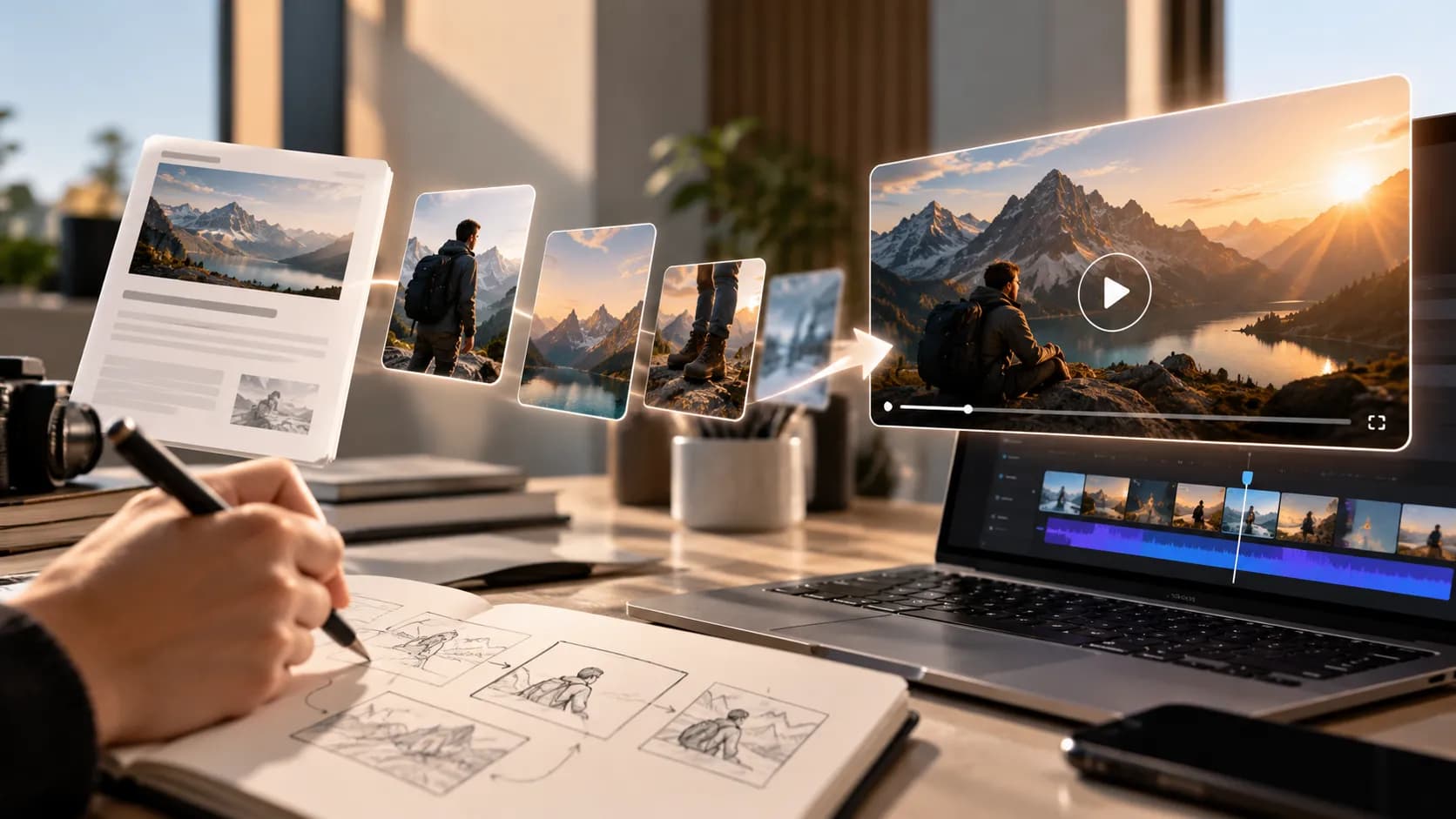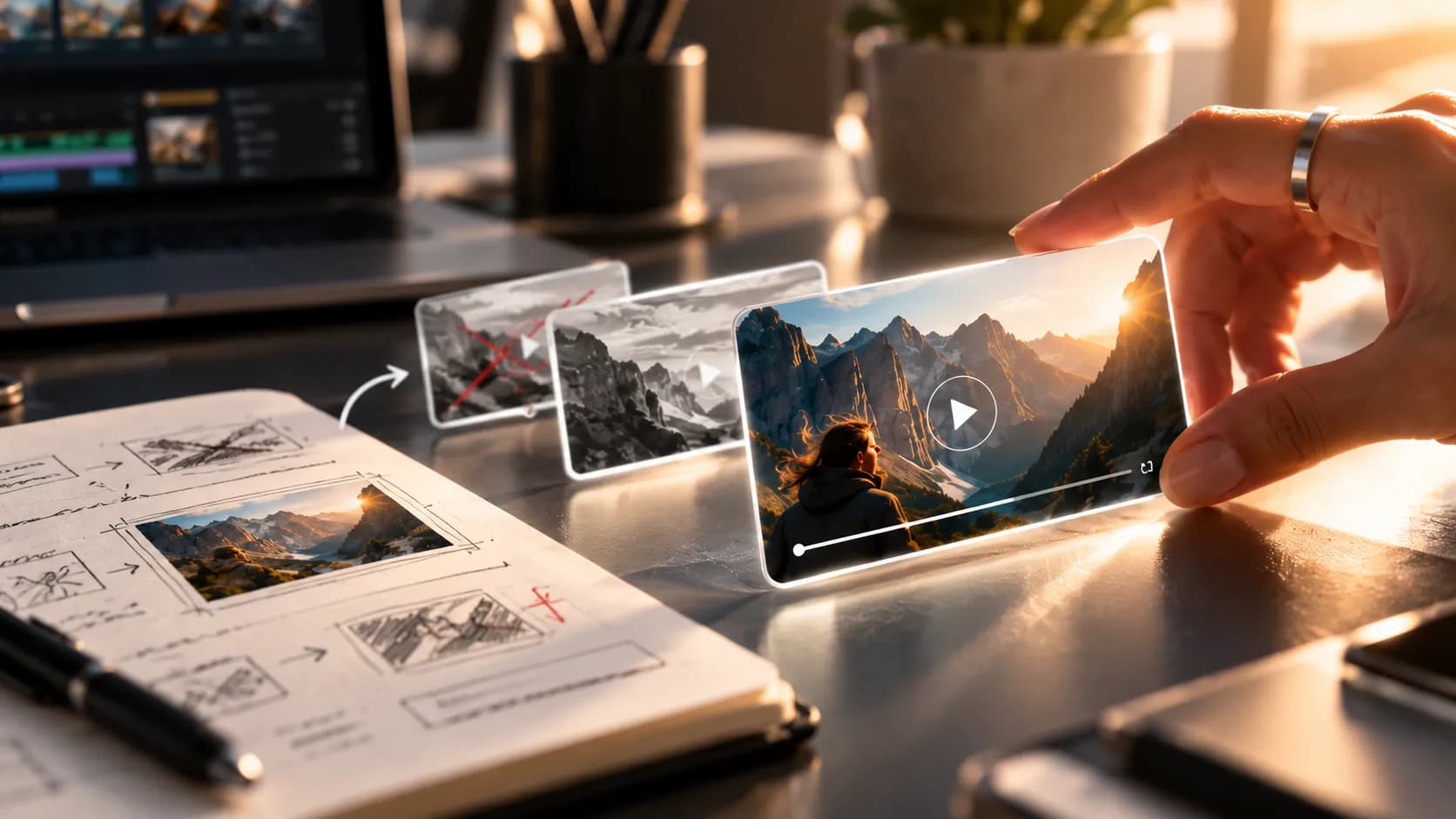


Create a Cinematic Food Video Without a Video Shoot with an AI Food Video Generator
A cinematic food video is not a collection of zooming photos; it is a sequence where every shot has a job.
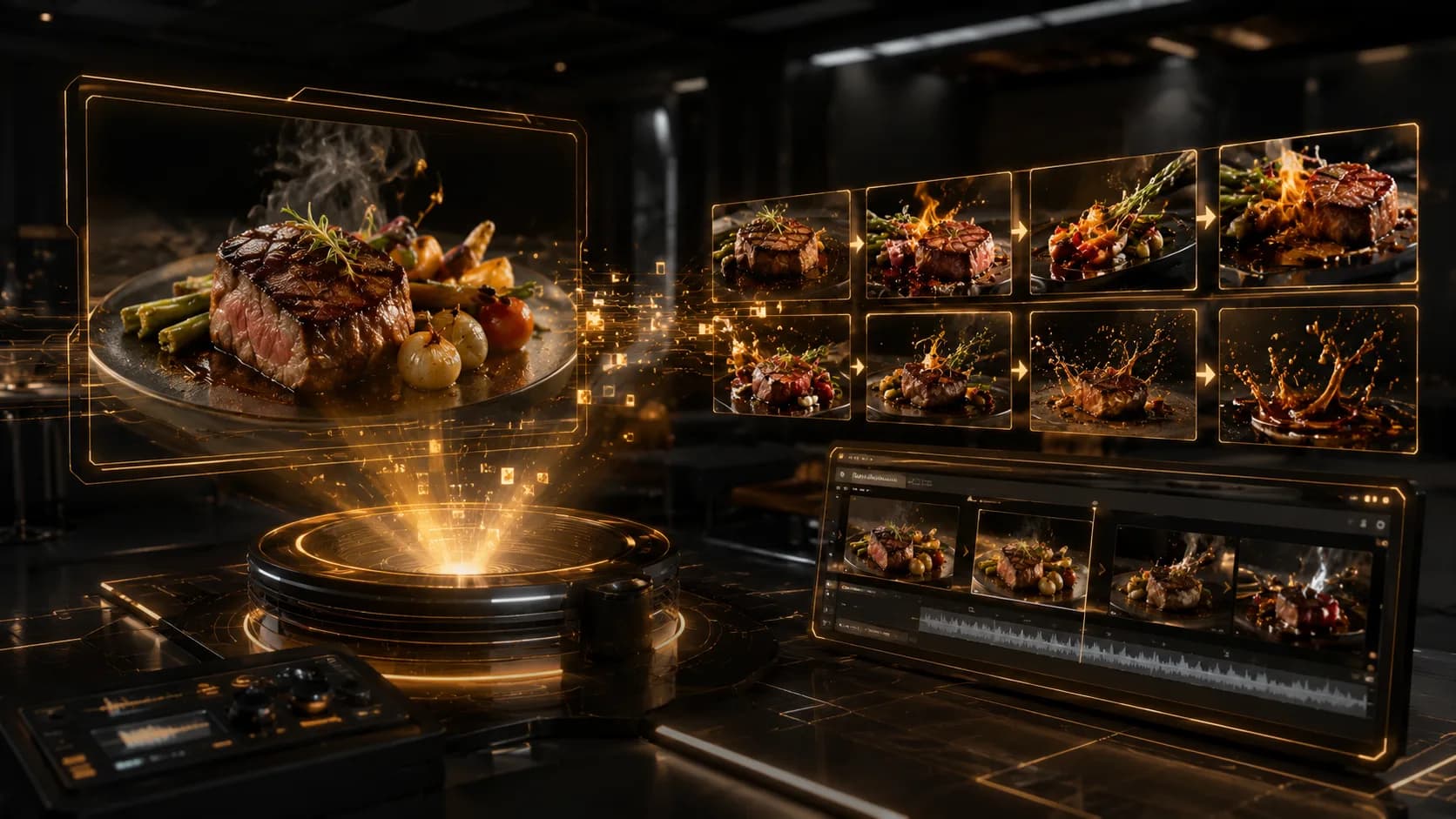
An AI food video generator can help turn approved food photographs, restaurant visuals, product details, and a short script into a coherent food commercial without video shoot. Prepare accurate source assets, plan the scene order, and use Xelta to create the draft. Review food continuity, transitions, audio, text, and final claims before publishing.
This workflow is practical for restaurants, cafés, cloud kitchens, food brands, and agencies that need repeatable promotional content but cannot arrange a new production for every campaign. The strongest result comes from building one approved master film and adapting it carefully.
Give Every Shot a Clear Role
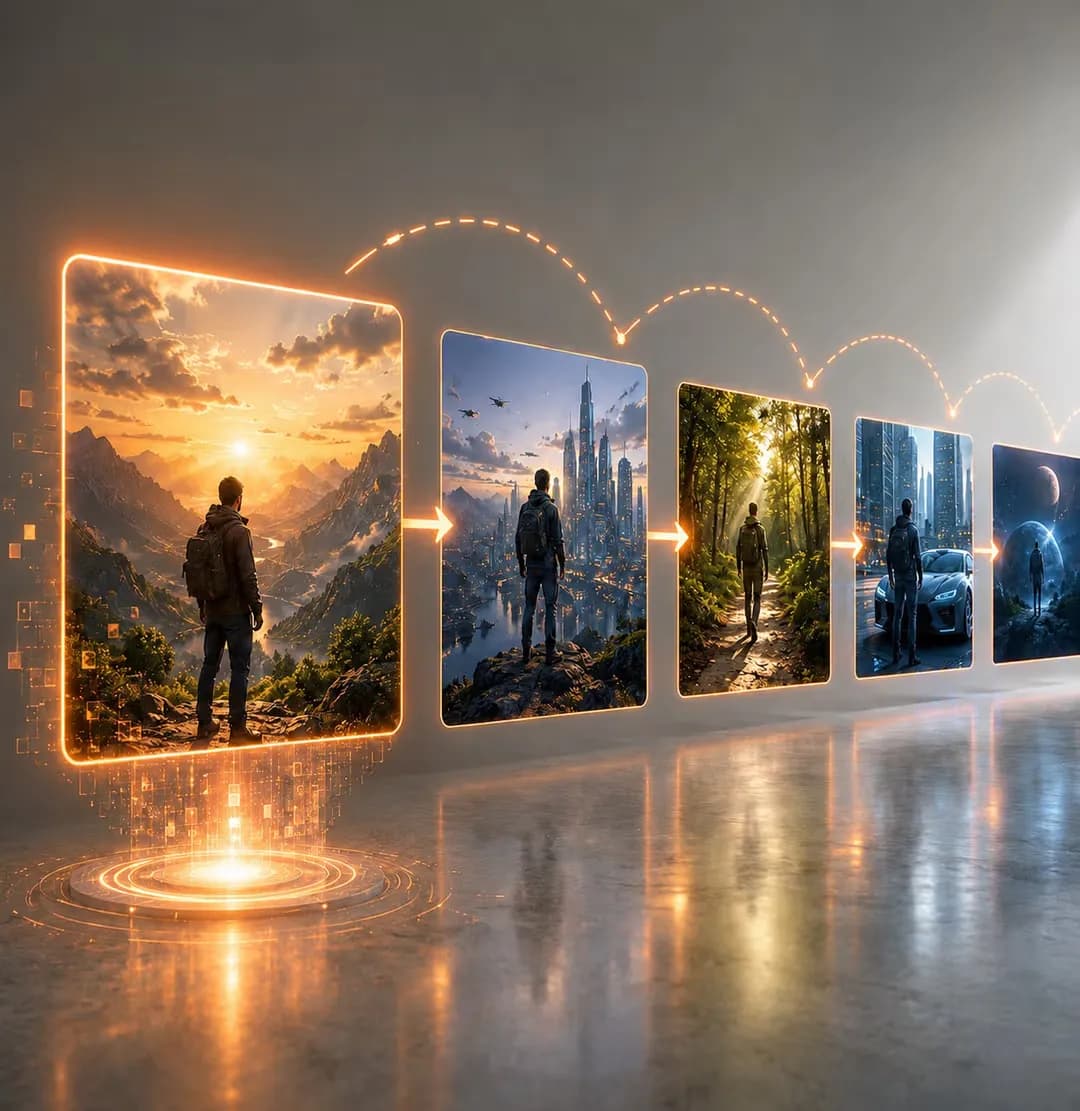
Before using a cinematic food video maker, assign a purpose to each image. A five-shot structure is enough for many short campaigns.
- Hero shot: introduce the main dish.
- Texture shot: focus on an appetising detail.
- Range shot: show a second item, side, or serving context.
- Brand shot: introduce the restaurant, packaging, or space.
- Action shot: end with the offer and CTA.
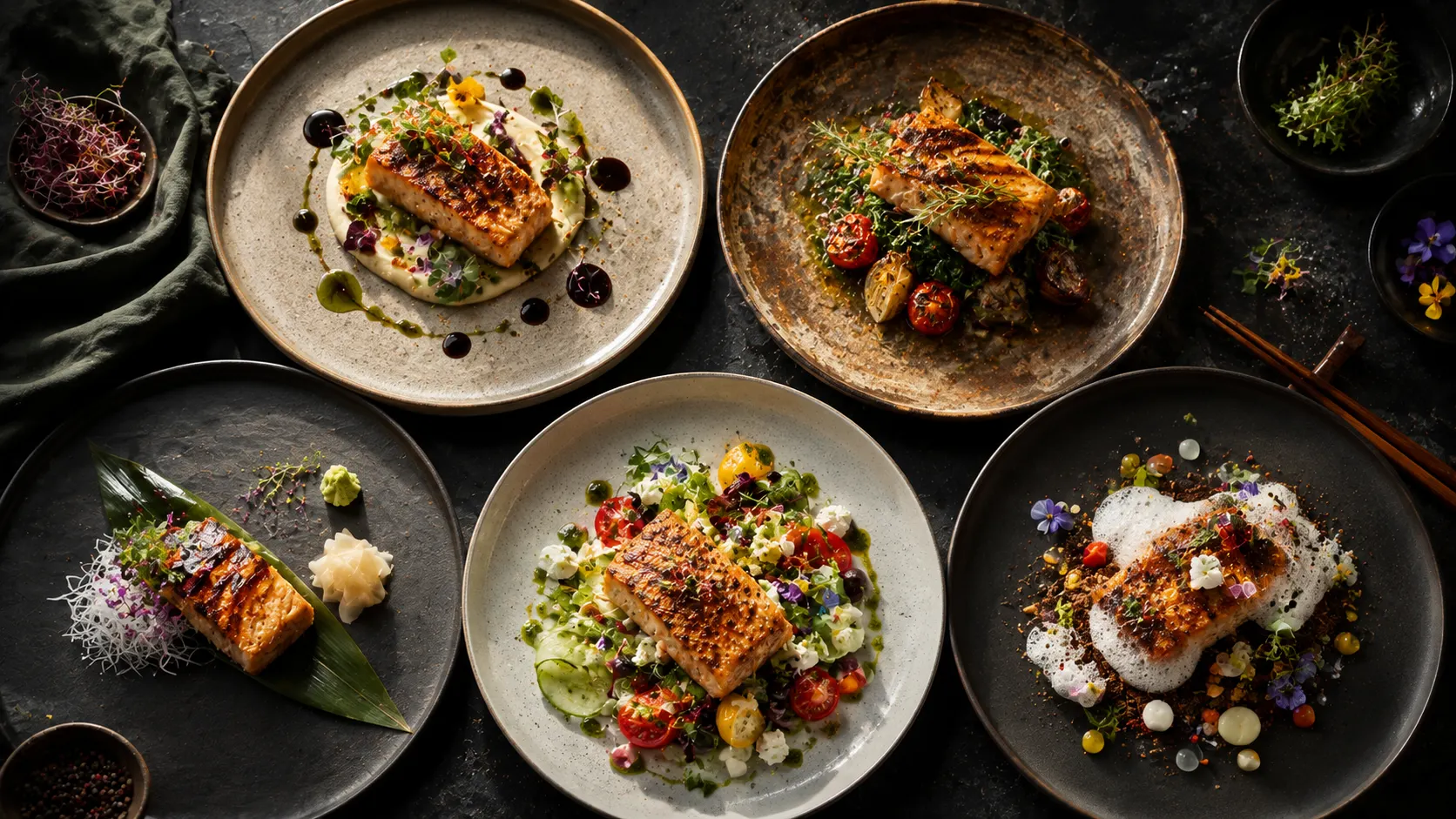
Choose only approved assets that belong to the same current campaign. Mixing old packaging, different plate styles, or unrelated lighting can make the restaurant video generator output feel inconsistent before any motion is added.
Continuity problems often begin in the source images. Opposing light directions and colour temperatures will not feel unified simply because a smooth transition is added.
Build a Visual Continuity Sheet
Create a small reference sheet before generation.
| Element | Locked choice |
|---|---|
| Lighting mood | Warm daylight, dark editorial, or another approved direction |
| Camera direction | Push-in, lateral slide, or overhead reveal |
| Surface style | Stone, wood, table setting, or packaging backdrop |
| Food accuracy | Portion, garnish, ingredients, and vessel |
| Brand system | Logo, colours, typography, CTA language |
| Ending | Stable end card and destination |
This sheet becomes the rulebook for every scene. An AI food ad maker should not be asked to invent a new visual identity in each shot.
Create the Master Film with Xelta
A practical image to video food workflow is:
Prepare the Assets in Final Order
Rename and organise the images by scene. Keep rejected or outdated files outside the production folder.
Generate Each Motion Shot Separately
Use one controlled move per image. Protect the food, plate, packaging, and garnish. Approve each shot before combining the full sequence.
Join the Shots with Motivated Transitions
Match movement direction or use a foreground object, plate edge, steam layer, or colour similarity to connect scenes. Avoid a different transition effect every time.
Add Copy, Voice, and Sound After Visual Approval
The film should make sense silently. Add a short voiceover only when it improves the message. Subtitles, offer details, and CTA should match the landing page.
Example master prompt:
Build a 15-second cinematic restaurant campaign from the uploaded approved food images. Use one slow controlled camera move per shot. Preserve the exact food portions, ingredients, garnish, plates, packaging, and brand colours. Connect scenes with soft motion-matched transitions and consistent warm side lighting. Do not add hands, people, new dishes, extra ingredients, or invented text. Reserve the final three seconds for a stable logo, offer, and CTA.
No verified Xelta test evidence was provided, so this is a transparent production workflow. The first output should be logged as a draft. Note any changed food detail, inconsistent transition, or unreadable text, correct the relevant shot, and rebuild the master.
Make the Film Feel Cinematic Through Restraint
Cinematic does not require constant movement. Use contrast between motion and stillness.
- Begin with a brief stable frame.
- Move slowly into the hero detail.
- Use one faster transition only when the campaign needs energy.
- Allow the final frame to settle.
- Keep sound effects connected to real visual actions.
Avoid fake ingredient explosions, impossible pouring actions, or camera paths that reveal parts of the dish not present in the source image. These effects may attract attention, but they weaken product trust.
Keep Food Continuity Across Multiple Shots
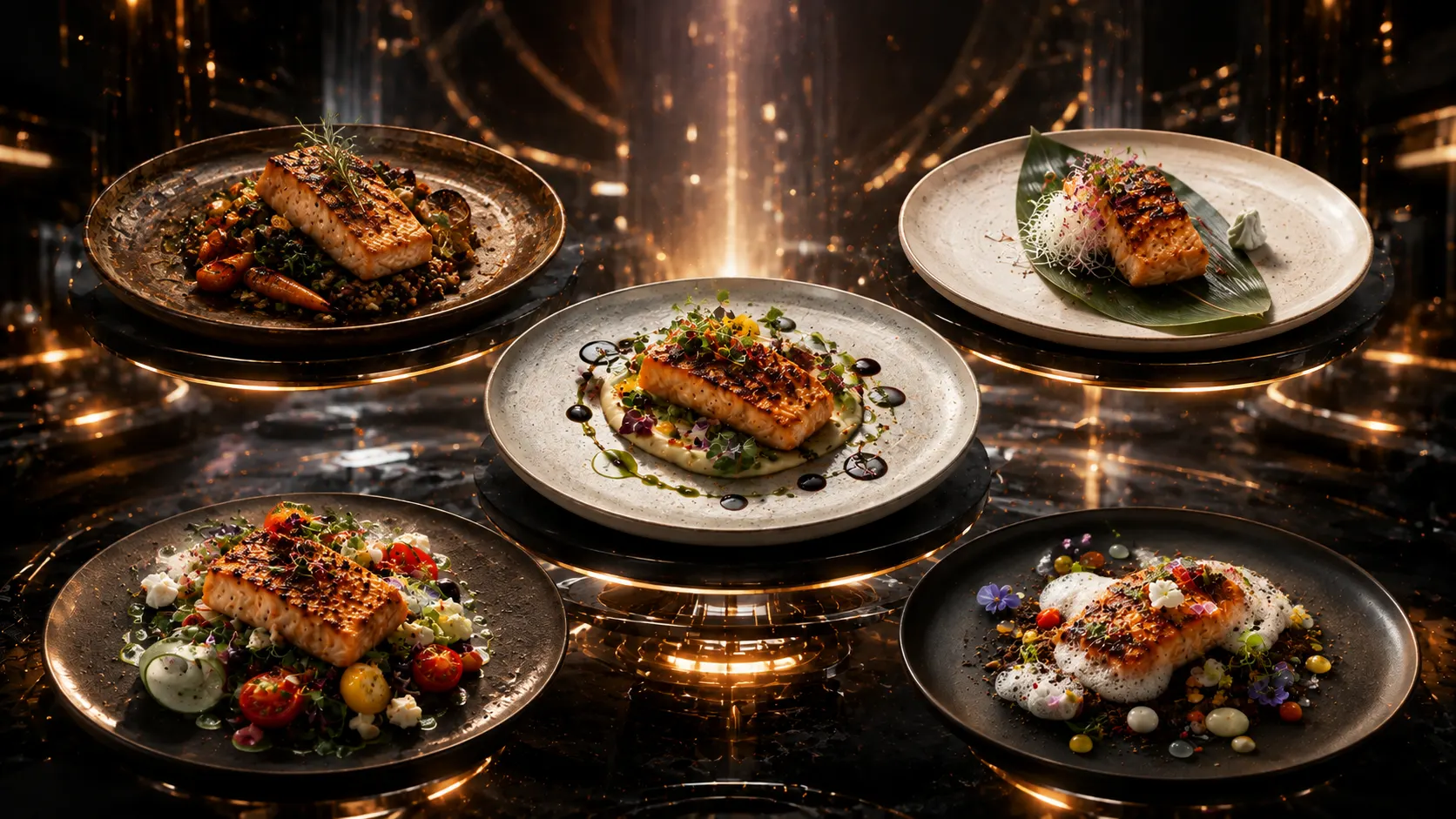
When a dish appears twice, check that its plate, portion, garnish, sauce, and colour remain consistent. Compare every final scene with the approved menu, and change only controlled fields such as location, price, language, offer date, and order link.
Review, Publish, and Scale the Film
Before publishing, check:
- Scene order and timing
- Food accuracy in every shot
- Lighting and colour continuity
- Transition logic
- Logo and brand consistency
- Dish names, price, and offer dates
- Voice pronunciation and subtitle accuracy
- Platform dimensions and safe text areas
- Final CTA and destination link
Export vertical, square, and landscape versions separately. A crop that works for a landscape banner may hide the main dish in a vertical reel.
Once the master is approved, reuse the shot structure for seasonal offers, new menu launches, delivery campaigns, and additional locations. Replace the source assets and facts, not the whole production logic.
Keep This Guide Separate from One-Photo and Full Brand Ads
A one-photo six-second guide should focus on frame stability and one camera move. A restaurant ad without a camera crew may include interiors, voiceover, localization, and broader brand storytelling. This article focuses on creating a coherent multi-shot food film from approved stills.
Common mistakes include inconsistent lighting, random zooms, too many transitions, generated ingredients, unreadable end cards, and location links that do not match the advertised offer.
When a No-Shoot Film Is Not Enough
Use a real shoot when the campaign depends on cooking techniques, people, chef performance, product handling, exact pouring or cutting, or documentary authenticity. More human control is required when source images are low quality or the generated food cannot stay stable.
Build One Film That Can Become a Content System
Start with approved still assets and a five-shot plan. Use Xelta to create and review each motion shot, assemble the master film, and then adapt the approved sequence for platforms, locations, or languages.