





How to Use AI Image Extender for Brand Safe Image Creation
A polished AI image is not automatically a useful business asset. ai image extender can produce exciting drafts quickly, but the difference between a nice-looking image and a publishable visual usually comes from the brief, the review process, and the channel plan. Xelta's creative platform is useful here because the workflow can begin with one creative idea and then move toward controlled outputs instead of random experiments.
For marketers, designers, ecommerce teams, social media managers, and founders extending visuals for new placements, the practical answer is simple: define the image job before touching style. The image may need to sell a product, explain an offer, support a blog, or stop a social scroll. Each goal changes the prompt, aspect ratio, lighting, review criteria, and final edit. A weak prompt asks for a beautiful image. A working prompt describes the audience, subject, setting, format, constraints, and approval standard.
Image Extension Should Add Space, Not New Claims
The safest way to use ai image extender is to treat the first result as a draft, not a finished asset. Start with a clear brief, generate controlled variations in Xelta's AI image generator, then review format, realism, brand fit, and usage risk before publishing. The winning image should solve one job, fit one channel, and be easy to explain to a reviewer.
What AI Image Extension Is Best Used For
Ai image extension for brand-safe crops and layouts works best when the team knows what the asset must do. A social image must read fast at small size. A product visual must respect product shape, color, and claims. A blog banner needs a clear idea without distracting text. A print concept needs stronger proofing before it becomes final art.
Start with a one-line asset job: who it is for, where it will appear, and what it should make the viewer understand. Then add the subject, style, camera angle, background, mood, and format. Keep brand terms specific, such as clean skincare launch visual, founder-led SaaS ad, or premium food delivery post. Vague words like modern, viral, or cinematic can help mood, but they do not replace the asset job.
The strongest review question is not whether the image looks impressive. Ask whether it helps the chosen user take the next step. If the answer is unclear, the prompt needs a tighter commercial or editorial purpose.
From Tight Crop to Brand-Safe Layout Options
Use a repeatable workflow instead of starting from a blank prompt every time. First, write the asset job in plain language. Second, collect source inputs: product details, offer, brand colors, forbidden claims, target channel, and any reference style that the brand can safely use. Third, generate several directions instead of one output.
Fourth, review each result against five checks: subject accuracy, style fit, composition, channel format, and risk. Fifth, refine the best direction with smaller changes. Change one variable at a time, such as background, camera distance, lighting, or callout space. Sixth, export only after the image has a clear use case and a named owner for approval.
Teams often save time by keeping a prompt log. Record the prompt, selected output, reason for approval, and planned channel. This makes future work easier because the team can reuse the thinking, not just the image.
Step 1: Define the AI image extension for brand-safe crops and layouts asset job
Input required: a short brief, the audience, the intended channel, and one desired action. Output required: a single sentence explaining the image job. For ai image extender, this first step prevents the tool from producing attractive but unusable visuals. Review whether the image goal is measurable enough for a human editor to judge. Next, convert the sentence into prompt parts: subject, scene, mood, format, exclusions, and approval notes.
Step 2: Build a prompt brief for AI Photo Editing
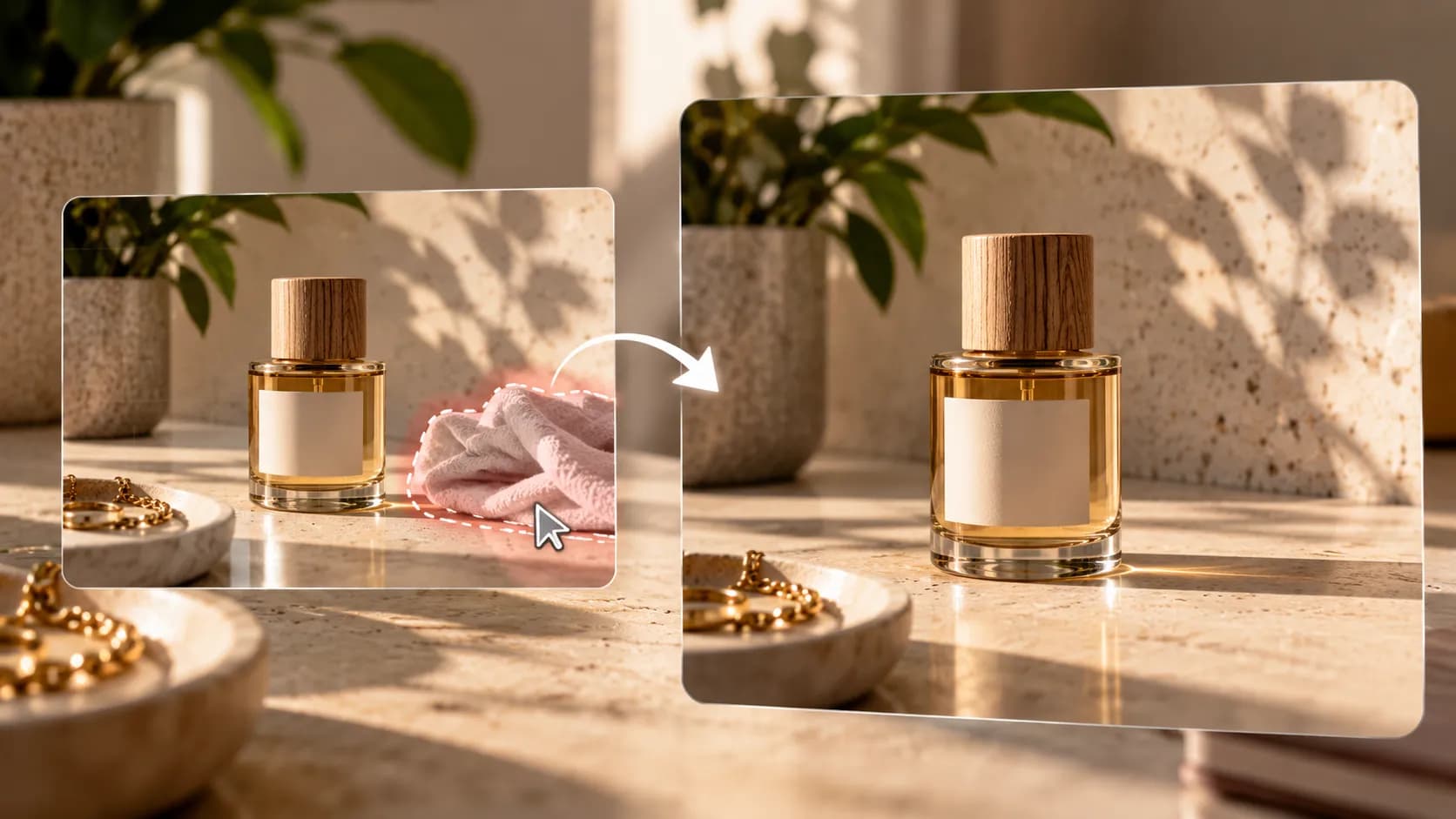
Write the prompt like a creative handoff, not a wish list. Include the subject, environment, material detail, camera view, lighting, brand mood, crop, and what should be avoided. If the image is for outpainting, aspect ratio changes, ad safe zones, hero image expansion, social crops, product page layouts, and banner variations, mention the placement early so composition follows the final channel. Review for contradictions, such as asking for a close-up and a wide product scene at the same time. Next, generate three to five controlled variations.
Step 3: Review the output before it becomes a live asset
Do not judge outputs only by style. Check edges, hands, product details, reflections, shadows, text areas, and whether the image could mislead a customer. Look for invented brand details, mismatched backgrounds, warped edges, repeated textures, incorrect shadows, fake text, and extensions that change the meaning of the image. Pick the best direction, then refine with narrow prompts rather than rebuilding everything. The output should be a review-ready asset with notes on where it can be used and what still needs human approval.
A Portrait Crop Becomes a Banner Without Rebuilding the Scene
Imagine a small team preparing a campaign around a new offer. The first prompt asks for a clean visual, and the output looks decent but generic. The revised brief names the audience, the offer, the product scene, the mood, and the format. Now the outputs can be compared as campaign assets instead of random artwork.
One direction may work as a website hero because it has negative space and clear hierarchy. Another may work as a social teaser because the subject is larger and more emotional. A third may fail because the product detail is wrong. The team keeps the first two, rejects the third, and records why. That record matters when the next campaign needs the same visual language.

Image Extender Mistakes That Break Brand Safety
Common mistakes usually come from rushing the brief. Teams ask for a premium image without saying what premium means for their category. They accept the first attractive output, then discover it does not fit the crop, audience, or claim. They also forget to check whether the image includes fake packaging, strange text, distorted hands, or visual details that could confuse customers.
Better practice is simple. Review the asset at the size where it will be seen. Compare it with the brand's existing visuals. Remove unsupported claims. Keep a note of the prompt and selected output. Use human judgment for brand fit, product truth, legal review, and final publishing decisions.
Where Xelta Fits for Outpainting and Format Changes
Xelta fits after the team knows the asset job and wants controlled visual variations. A user can start with a product idea, campaign brief, or content plan, then use an image outpainting workflow when the topic needs a closer match than a generic image request. The value is not that AI removes creative judgment. The value is that the team can move faster from idea to draft, compare directions, and keep improving the image against one clear goal.
Human review still matters. Generated visuals may need several attempts, source assets may limit quality, and text inside images may need correction. Xelta is strongest when the person using it brings a clear brief and reviews the output like an editor.
From Existing Image to Wider Layout Drafts
A typical first session starts with a brief, a source idea, or a reference asset. The user chooses an image workflow, enters a structured prompt, and selects the intended format. The first useful draft may show the right mood but still need a better crop, cleaner background, or more accurate product detail.
Iteration should be deliberate. Change the opening visual idea, adjust lighting, create another aspect ratio, test another hook, or regenerate a detail that distracts from the message. For learning and inspiration, teams can pair their internal prompt log with Xelta layout extension references while still keeping final judgment inside their own brand process.
The best-fit users are teams that need repeated visual assets, not just one novelty image. The learning curve is in prompt clarity, model choice, and review discipline.
SEO Context for Extended Images and New Crops
Publishing work does not end at export. Give each image a descriptive file name, a concise alt text when used on a web page, and surrounding copy that explains the asset accurately. Do not rely on the image alone to communicate a complex claim. For blogs, add the image near the section it supports. For social posts, make sure the visual and caption say the same thing.
For LLM and AI Overview visibility, keep the surrounding text specific. Name the asset type, use clear entities, and explain the input and output. Structured page content helps machines and people understand what the image represents without guessing.

How to Review New Edges and Added Backgrounds
A trustworthy AI image workflow separates facts from creative choices. Facts include the product name, offer, use case, and publishing channel. Creative choices include style, background, lighting, and composition. Keep those categories separate in the brief so reviewers can see what must be accurate and what can be flexible.
No verified case study or performance data was supplied for this batch, so the article should not claim conversion lifts, time savings, or guaranteed rankings. The better E-E-A-T signal is a transparent process: clear inputs, realistic limitations, human review, and no unsupported claims.
Extend Images Only Around the Original Intent
Use ai image extender as part of a controlled content system. Begin with a real asset job, generate options, review them carefully, and keep records of what worked. When a direction is strong enough to continue, move it through a topic-specific workflow, refine it, and publish only after the visual can survive brand, quality, and usage review.