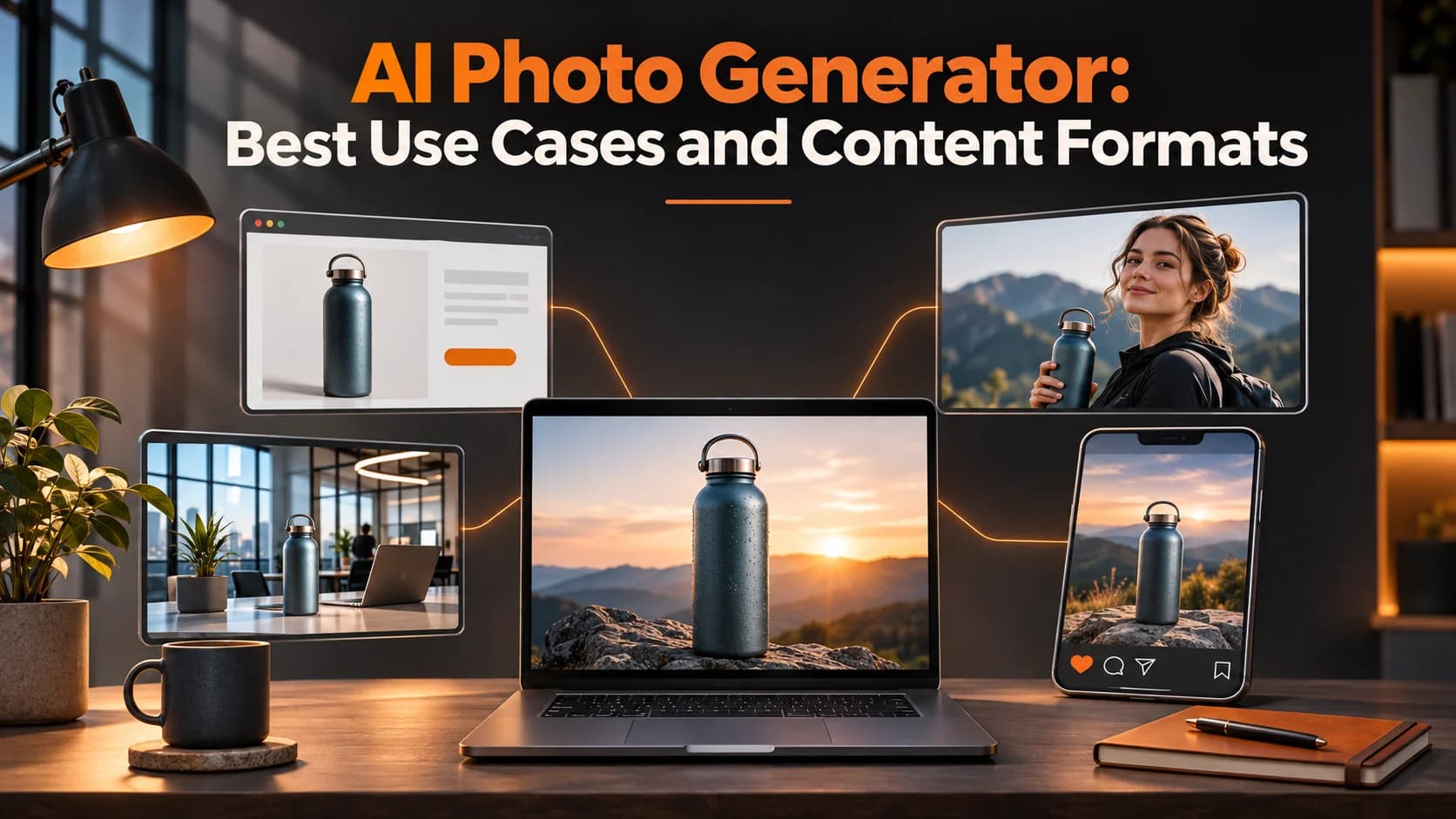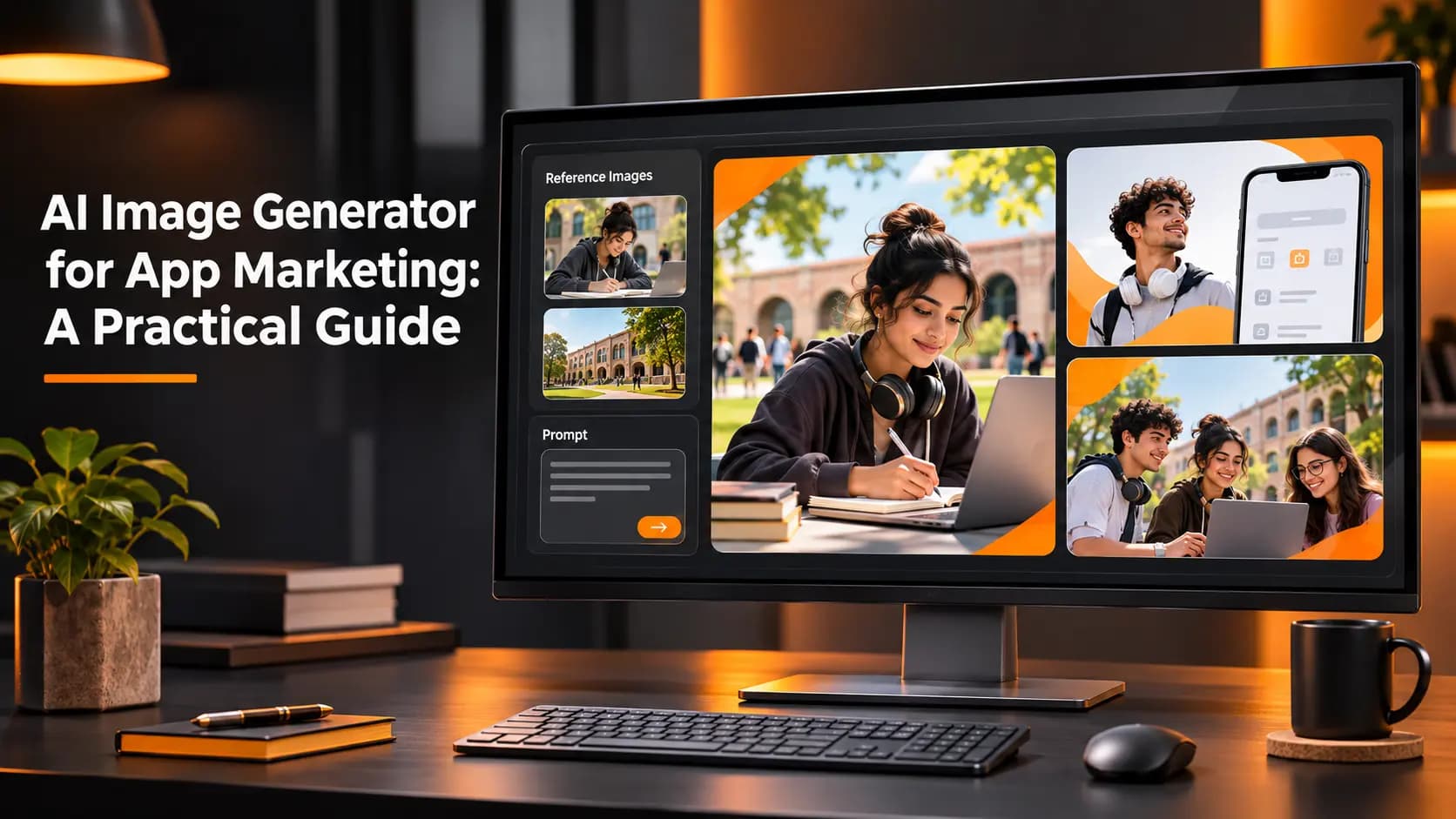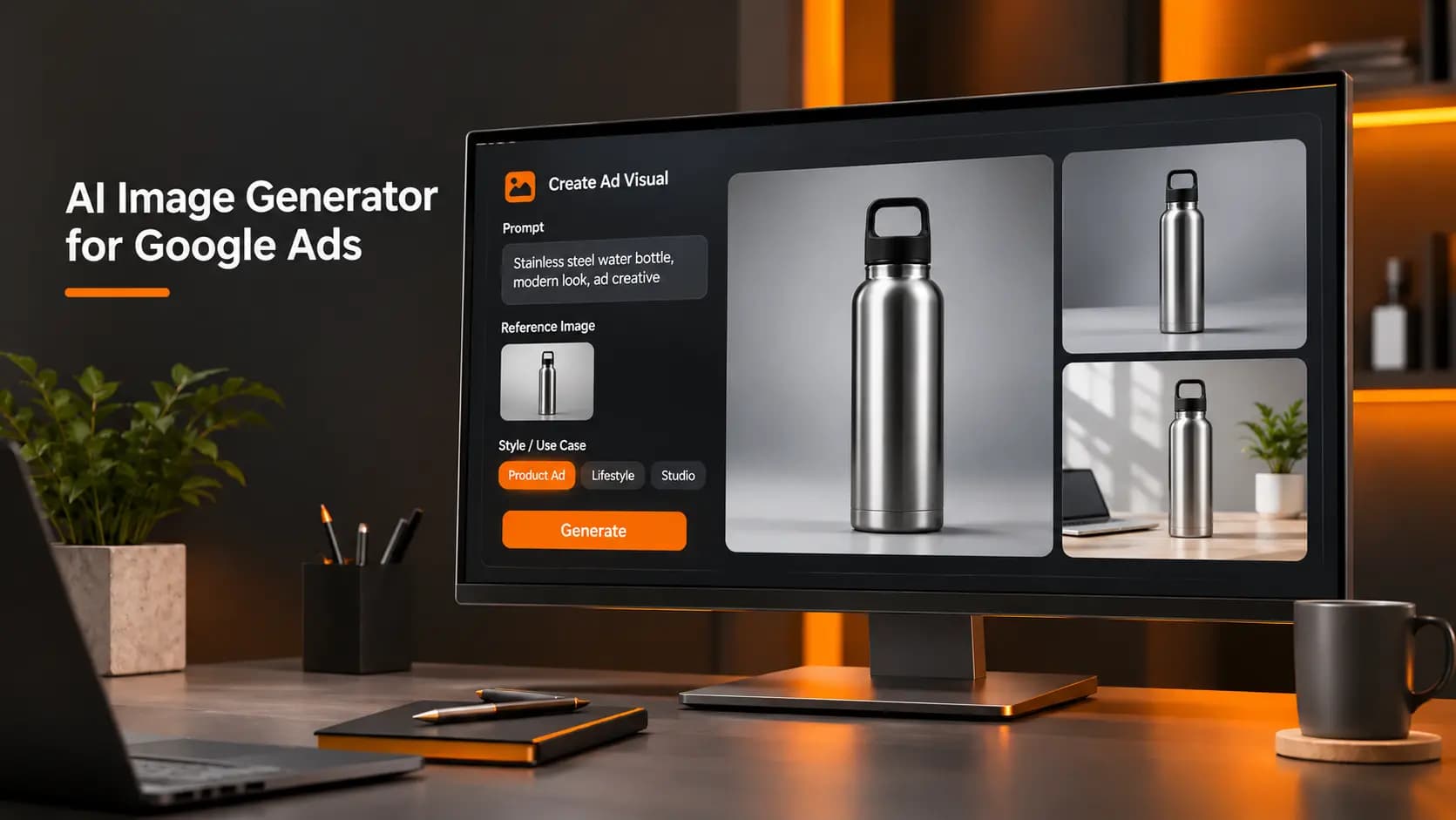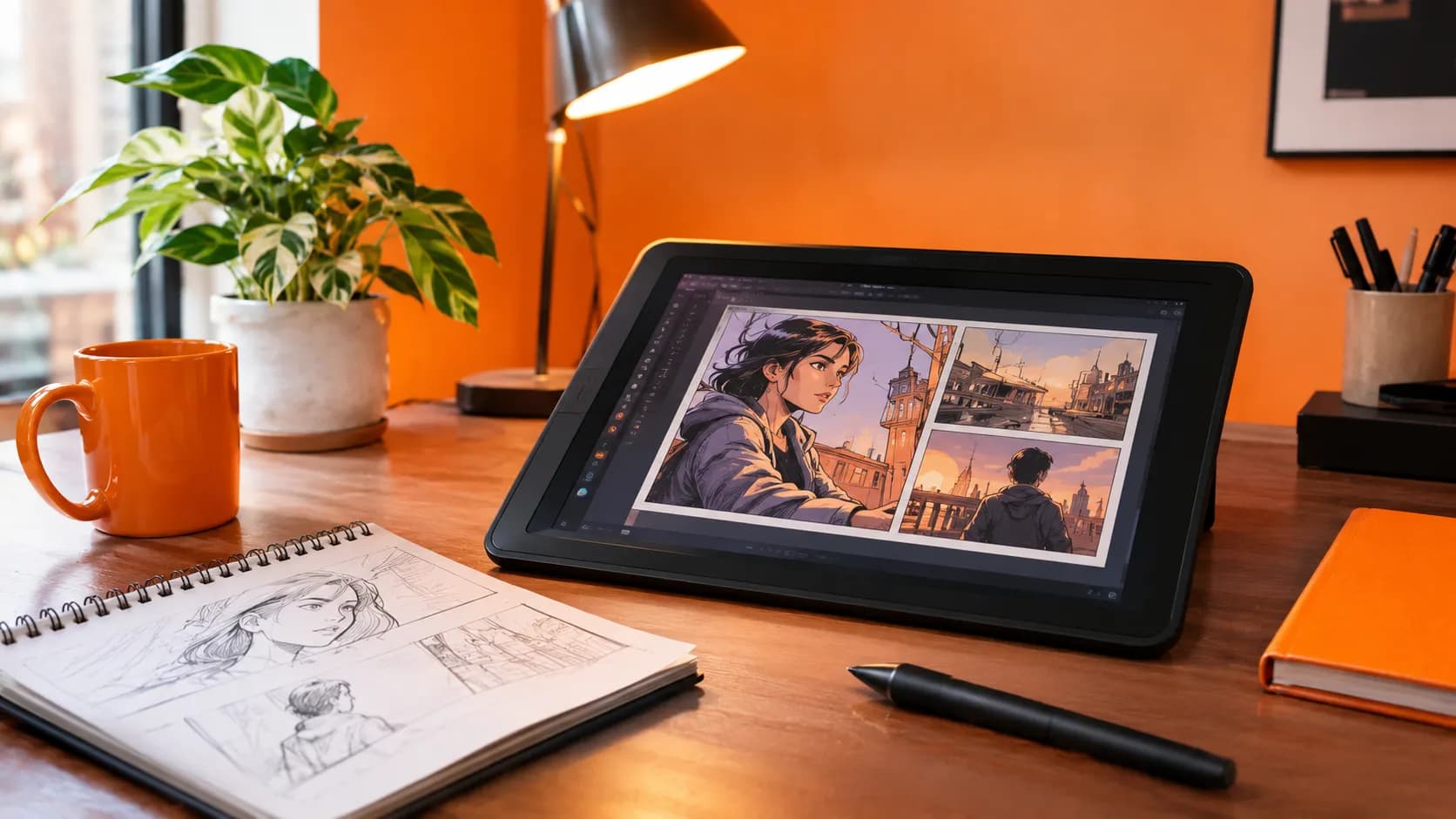
A New Approach to AI Image Generation and Editing
Grok Imagine Image 2.0 was released on the 7th August 2026. It has been upgraded so that it can produce, comprehend and manipulate images even further. It has been produced by xAI and is used for generating photorealistic images, drawings and in-depth marketing imagery.
Individual areas of an image can be edited, so that for example only certain sections such as a product's background or illumination can be altered rather than having to reproduce the whole image.
With knowledge of the relevant settings and well constructed prompts, images can be created for both professional and personal purposes.
Grok Imagine Image 2.0 can be accessed by importing it into an appropriate image designing programme. You can then produce an image based on a detailed prompt, and specify the aspect ratio and resolution of the image. Additional images can also be imported to both educate and guide the image creation. These can also be used to change the scene and style.
What Does Grok Imagine Image 2.0?
Grok Imagine 2.0 is an Artificial Intelligence which can both generate and edit images. It can work from text and/or imagery.
Having the ability to recognise and also produce text, together with the ability to consistently edit images makes Grok Imagine 2.0 ideal for use in a professional design setting where precise location and presentation is required.
The Grok Imagine model can create images and change existing ones using a specific workflow.
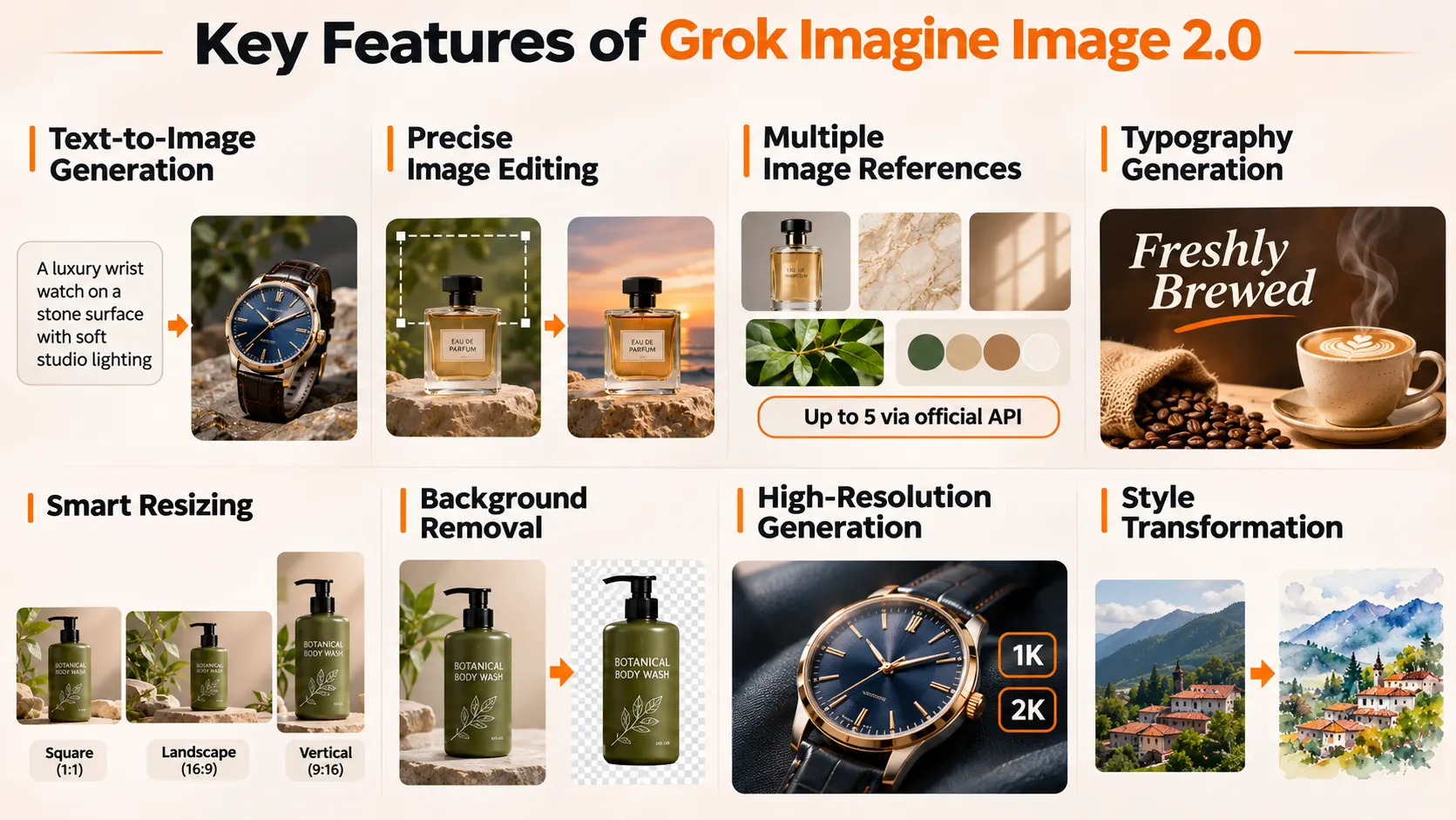
Key Features of Grok Imagine Image 2.0
The model does several things that fix common problems with AI-assisted design.
| Feature | Function |
|---|---|
| Text-to-image generation | Creates original images from written descriptions. |
| Precise image editing | Modifies selected areas of existing images. |
| Multiple image references | Supports up to five reference images through the official API. |
| Typography generation | Produces images containing written text and structured layouts. |
| Smart resizing | Adapts compositions to different aspect ratios. |
| Background removal | Separates subjects from their surroundings. |
| High-resolution generation | Supports 1K and 2K output through the official API. |
| Style transformation | Converts images into different photographic or artistic styles. |
Feature availability and generation settings may differ depending on the platform through which the model is accessed.
How to Use Grok Imagine Image 2.0 Step by Step
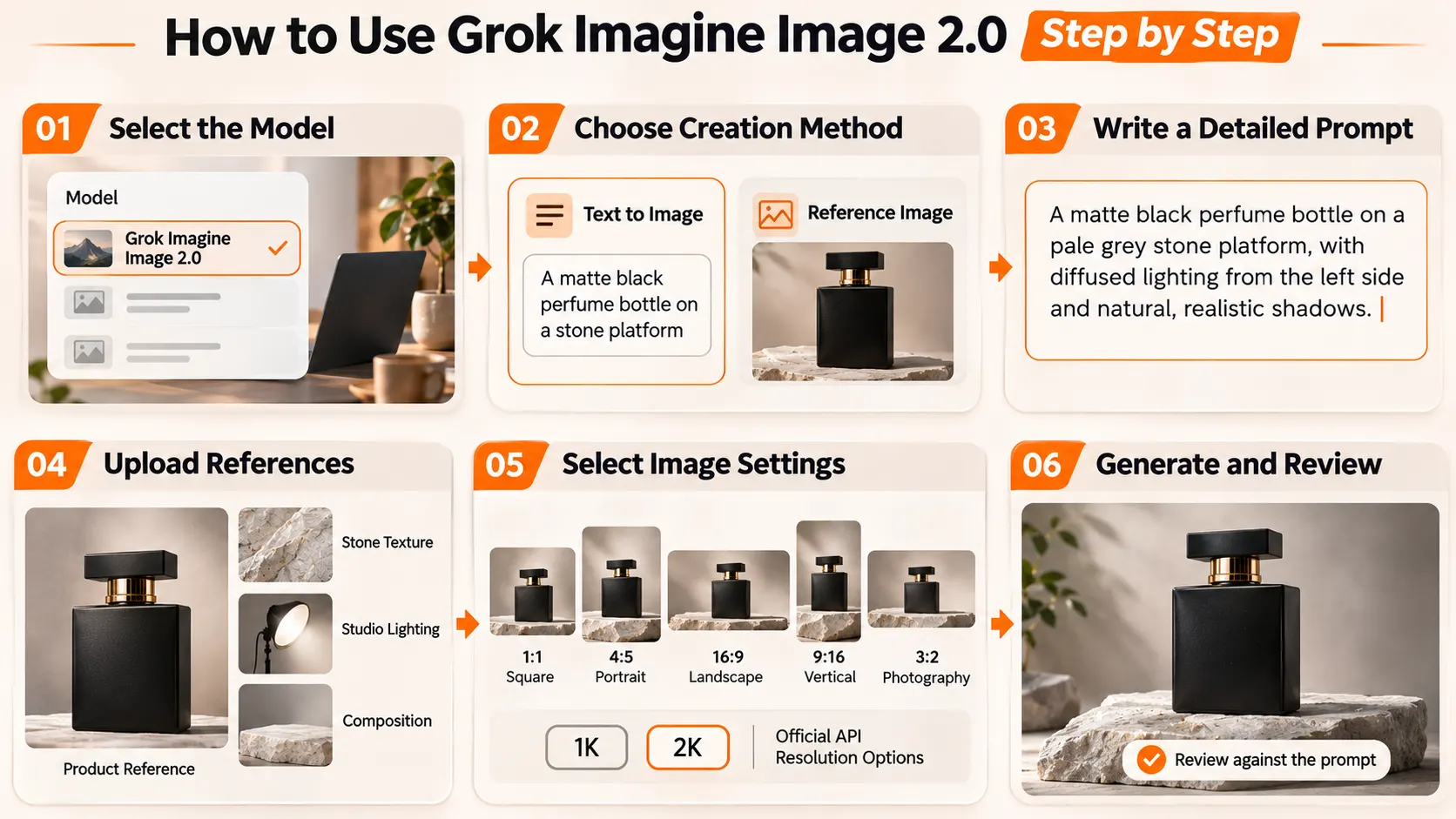
Step 1: Open the Image Generation Platform
Access a visual creation service and select ‘Grok Imagine Image 2.0’ which is known as Quality Mode on the official Grok Imagine website and on its mobile apps.
If using another artistic service, then locate the model within its visual creation options.
Step 2: Choose Your Image Creation Method
Consider whether you require new imagery, or if a current image can be adapted.
Text to image is used to create original and fictional imagery and artwork. Reference to image is used to ensure continuity of product and/or character design.
An AI image generator can also help you try different ways of showing something visually before you pick what you want.
Step 3: Write a Detailed Image Prompt
Outline the key features of your image and setting. Including information regarding light and layout may also be useful.
For example,
A realistic image of a matt black perfume bottle. The bottle should sit on a pale grey stone. There should be diffused left sided light, naturalistic shadow effects and a plain studio backdrop. The bottle should be in the centre of the shot and with adequate negative space above it.
This describes both the key item and style of the image together with information regarding materials and layout. Words such as ‘beautiful’ and ‘perfect’ are not included.
Step 4: Upload Reference Images When Required
Products and/or design can also be used.
When promoting a product, display a picture of it. Additional references can then be used in order to advise on the lighting and/or way in which the product could be presented in an environment.
For more than one reference, details should be given regarding the reasoning for its inclusion. This clearly identifies core and additional references.
Step 5: Select Image Settings
Select a suitable aspect ratio.
1K and 2K resolutions can be used along with low, medium and auto quality on the main API. Other APIs may offer different options.
| Image Format | Aspect Ratio | Recommended Application |
|---|---|---|
| Square | 1:1 | Product listings and social posts |
| Portrait | 4:5 | Social media advertisements |
| Landscape | 16:9 | Website banners and presentations |
| Vertical | 9:16 | Stories and mobile content |
| Photography | 3:2 | Editorial and product photography |
Step 6: Generate and Review the Image
Enter your prompt. View the generated image and verify that it complies with the given instruction(s).
Where an image does not meet the required criteria identify why, and then request a re-generated image. Store good images as you may need to refer back to them should regeneration cause issues.
Prompts for Grok Imagine Image 2.0
Prompts work differently depending on what you're trying to do. A product photo needs different instructions than an infographic or a drawing of a building.
| Use Case | Example Prompt |
|---|---|
| Product photography | A white skincare bottle on a beige marble platform, soft studio lighting, realistic packaging and natural shadows. |
| Social media advertisement | A contemporary coffee advertisement with warm brown colours, a ceramic cup and the headline "Freshly Brewed". |
| Fashion photography | An editorial photograph of a model wearing a navy linen jacket against a neutral studio background. |
| Interior design | A Scandinavian living room with oak furniture, cream upholstery and natural morning light. |
| Educational infographic | A clean diagram explaining the water cycle with clearly labelled stages and a white background. |
| Digital illustration | A detailed watercolour illustration of a mountain village surrounded by pine trees. |
These prompts are starting points. Add more details when the project needs particular colors, dimensions or brand guidelines.
How to Edit Existing Images with Grok Imagine Image 2.0
An image can be edited. Within Imagine, there are also tools which can ‘slice’ images.
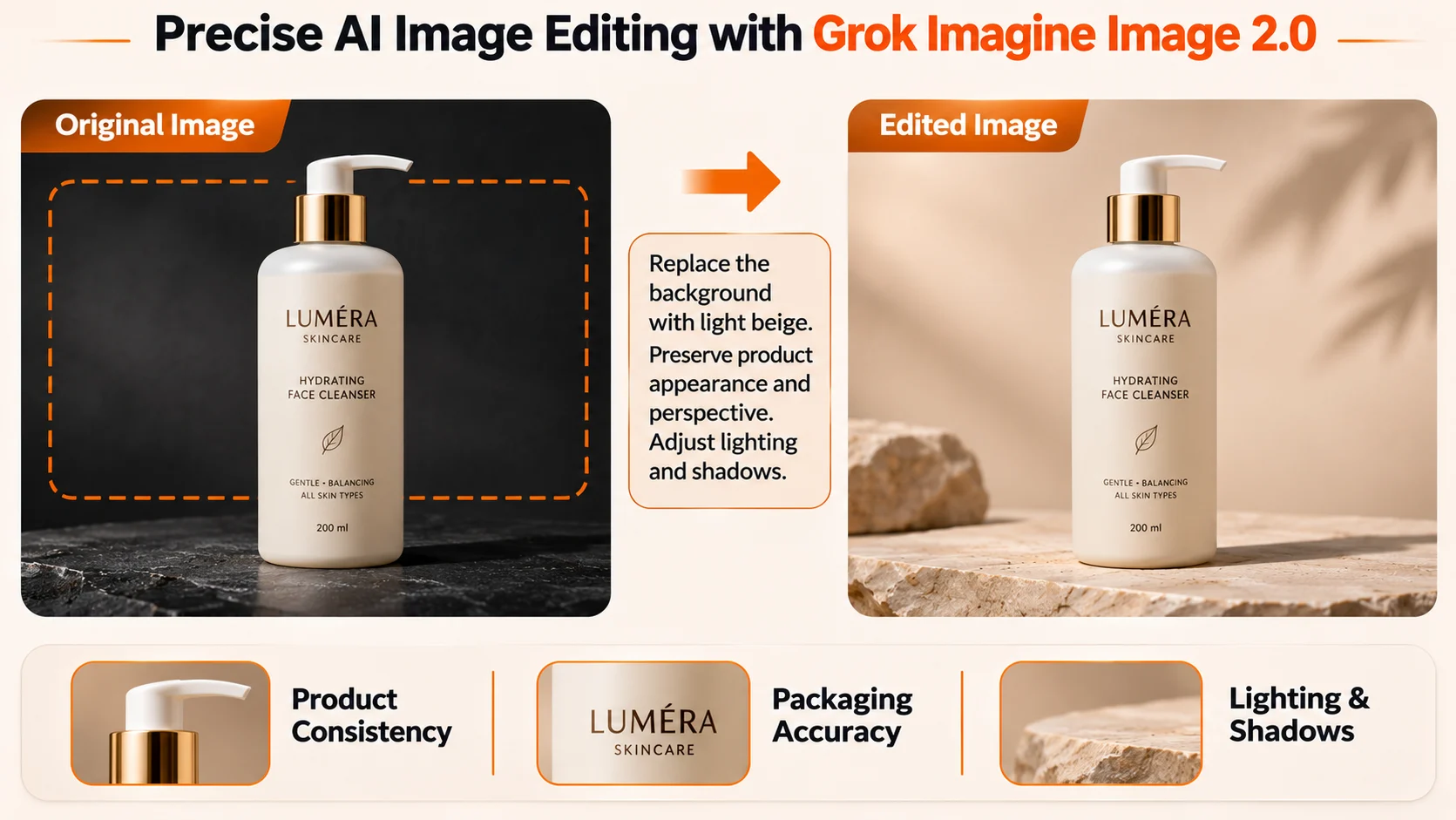
A business may wish to alter a product image so that it is displayed against a different background for a particular seasonal promotion.
Edit to show the product on a light beige studio back-drop. Maintain the product's form, packaging and branding. Ensure that the perspective of the shot remains unchanged. Also, modify the image to reflect the new lighting conditions and so update the shading.
Other AI photo editing software can also be utilised for further image enhancement.
All edited images should be analysed and compared to the original. Despite edits being specified to ensure identical results, slight alterations to the original item can occur.
Practical Applications of Grok Imagine Image 2.0
This model can also be used in various professional industries.
Marketing & Advertising
Marketing professionals can develop ideas and design advertising alongside various product backdrops. Product packaging and information has to remain correct.
ECommerce Product Photography
Retailers can establish lifestyle scenes which complement already shot product images. Again, packaging and information must be correctly represented.
Graphic Design
Designers are able to experiment with poster designs, fonts and imagery. Authorised brand and sales related material can then be incorporated into a finalised design.
Education
Teachers and content creators can design images and infographics. Scientific information, annotation and text should all be verified prior to publishing.
Common Mistakes to Avoid
Although an image may appear visually appealing there are a number of issues which may affect its suitability for use.
- Poor or conflicting prompts.
- Poor quality reference images.
- Too many amendments requested within a single edit.
- Failure to correct font spelling errors.
- Incorrectly presented products.
- Unauthorised photographic usage.
- Improper image aspect ratio for the intended location.
By implementing a structured image creation method and thoroughly checking work, the need for further amending is limited and uniformity can be achieved between associated work.
Conclusion
Grok Imagine 2.0 can produce and alter images. Images and/or further information can also be referenced. Various results can then be produced. These can be utilised for example in design, marketing and business.
Not only does the prompt used affect the result, but so does how appropriate and applicable the referenced information is. Implementation of a process can also assist in developing new and business related images.
Professionals interested in generative design can follow the latest creative industry updates.
Frequently asked questions