

Key Takeaways
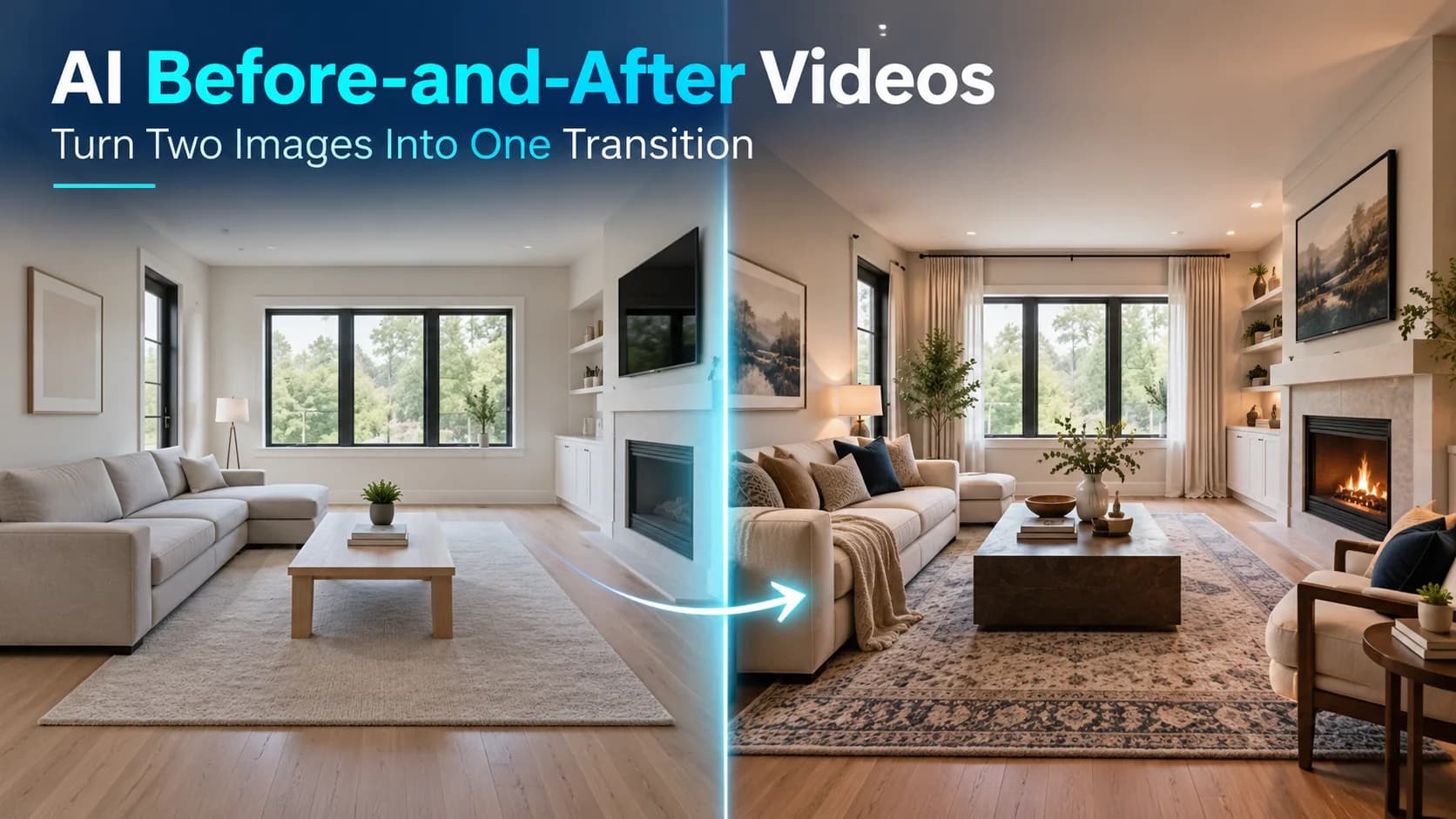
- Two room photos can be used to showcase a renovation, but a simple slideshow of them will barely demonstrate it.
- You can make an AI video before and after from two images by picking a good original picture and an ending shot at the same angle and sizes and then picking a transition.
- Make sure to choose images where the same subject is clearly visible.
- Xelta's[AI video generator](https://xelta.
Table of Contents
- 1.How to Make AI Before-and-After Videos From Two Images
- 2.Quick Answer
- 3.What Makes Two Pictures Work Together?
- 4.Should You Animate the Images or Simply Reveal Them?
- 5.How Do You Prepare an AI Video Workflow?
- 6.How Do You Connect the Start and End Frames on Xelta?
- 7.What Should You Fix Before Exporting?
- 8.Final Thoughts
How to Make AI Before-and-After Videos From Two Images
Two room photos can be used to showcase a renovation, but a simple slideshow of them will barely demonstrate it. A before and after video made with the help of an AI can smoothly transition between the two images, but the challenge is to keep the room recognizable throughout the process as the furniture and finishing are changed. As the Xelta AI page demonstrates, there are various tools for creating such a video, but they are only as good as the source images put into it.
In order to create a before and after slideshow from two images, one should first locate the corresponding start and end photos, choose a transition type, generate a short video, and go over each frame to ensure that everything is in order. The truth is that an AI can make up a transition between the two images, but it cannot document a real life renovation, remodeling, or repair. In such cases, it is better to use a simple transition effect if the documentary accuracy is crucial and required.
Quick Answer
You can make an AI video before and after from two images by picking a good original picture and an ending shot at the same angle and sizes and then picking a transition. Then upload the pictures to an app that has both beginning frame and end frame, pick an easy effect, preview and then export the images. You can use Xelta AI's VFX Transitions to create transitions between two frames. The AI could invent objects or change frames' objects. If you need a home renovation, a comparison of products, or something else that requires precision, it's best to use a normal wipe or split reveal rather than an AI morph blend.
What Makes Two Pictures Work Together?
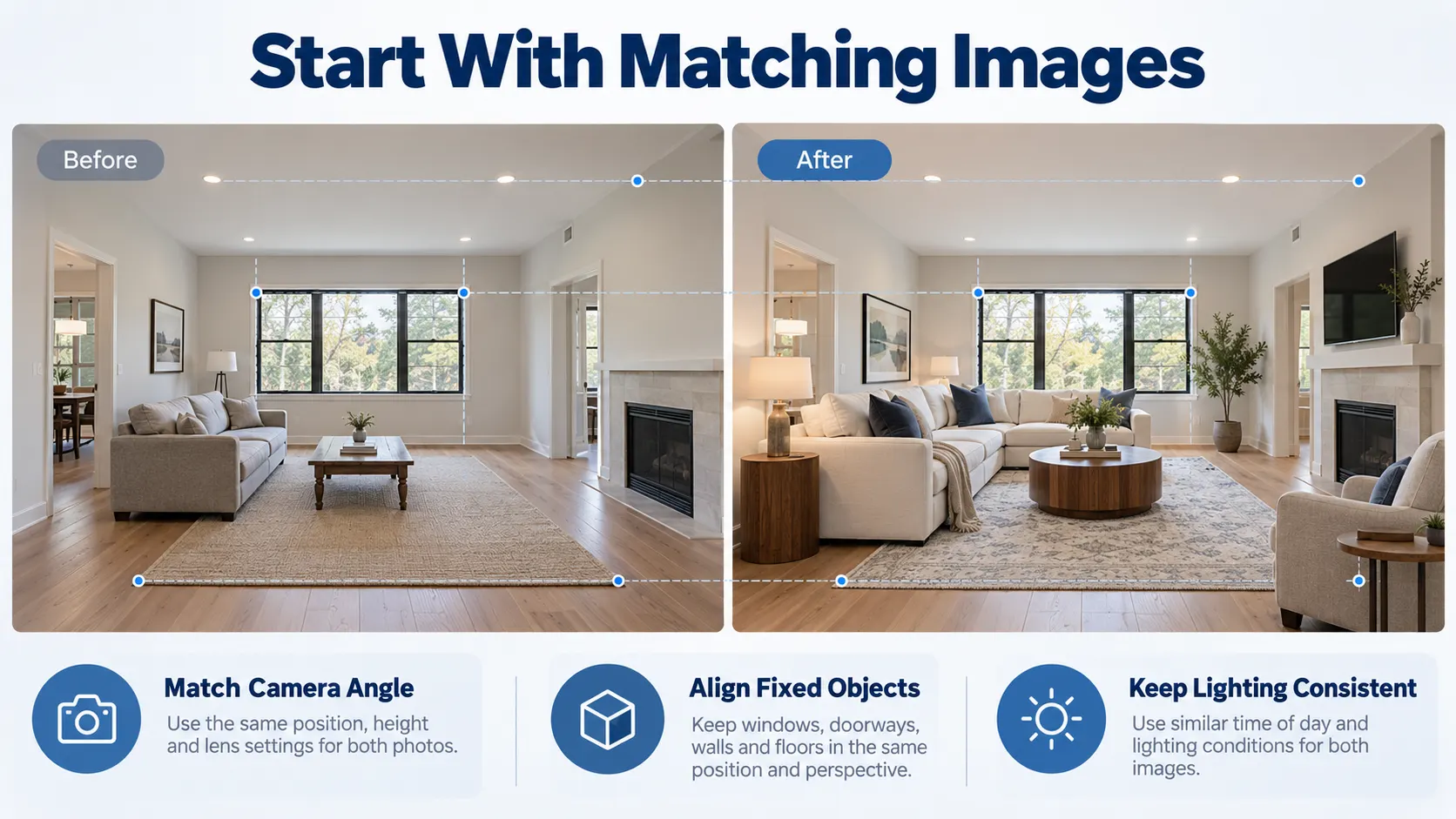
Make sure to choose images where the same subject is clearly visible.
Think about a room in your home that you would like to renovate. Now imagine taking photos of it facing the window and the room in front of you. An AI may shift the walls or move the furniture around in the room since the perspectives are slightly different.
Instead, try to use similar angles and heights when taking the photographs. Ensure that there is the same crop, and that the windows, floor edges or any product edges line up. Having very different lighting may also create strange reveals.
If you take the pictures weeks apart, this may not be possible. Make sure to not stretch one image out so the furniture in it becomes unnaturally long. Fix the horizon, and crop so there is a common part in the center with some space around it.
When the doorways and windows are in completely different places, a labelled side by side comparison tends to be more useful than trying to morph one image to match another.
Should You Animate the Images or Simply Reveal Them?
Xelta'sAI video generator supports text-to-video and image-to-video. But not every model accepts two endpoints; check its inputs first.
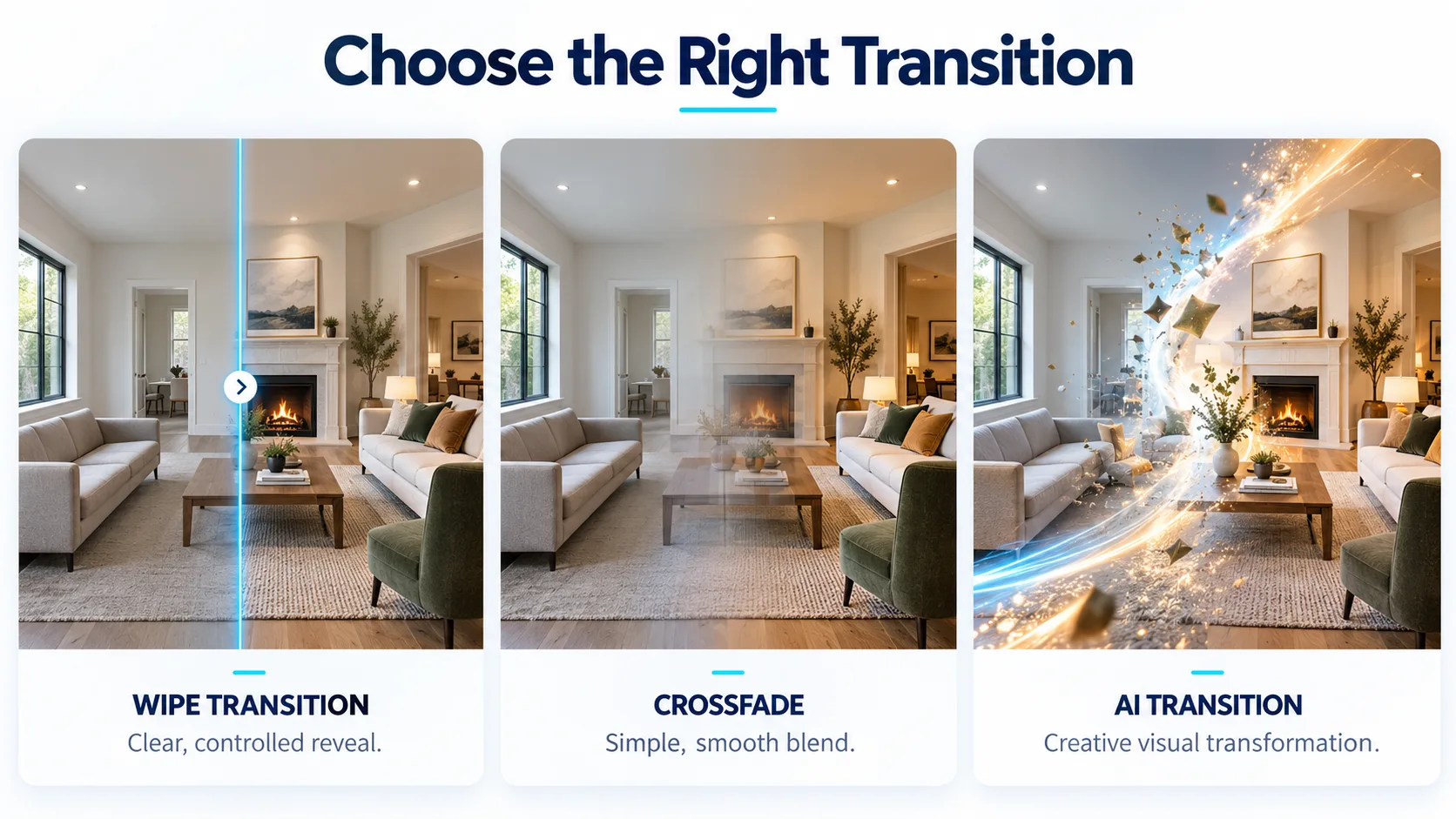
Choose the transition method before spending credits.
| Method | Best use | Main limitation |
|---|---|---|
| Wipe or split-screen | Showing authentic changes accurately | Less dramatic movement |
| Crossfade | A calm, straightforward reveal | Can briefly show ghosted objects |
| AI-generated transition | Creative room or product transformations | May invent intermediate details |
For documented workmanship, use a wipe. For a conceptual teaser, an AI transition can work if it is not presented as real footage.
How Do You Prepare an AI Video Workflow?
Prepare the files before you start generating. A few minutes spent organizing the source material can prevent unnecessary corrections later.
- Name the files. Save before and after in order.
- Align the scene. Match dimensions and fixed objects.
- Choose the format. Vertical and landscape need different framing.
- Protect details. Mark windows, logos, packaging and faces.
- Decide the purpose. Is it evidence or an imaginative reveal?
Add captions afterward; generated lettering can bend or dissolve.
How Do You Connect the Start and End Frames on Xelta?
Xelta's VFX Transitions is slightly more specific than the previous two. The interface asks for a starting and an ending frame, lets you pick an effect and provides 5 or 10 second transitions in landscape, portrait or square ratios.
Upload the messy office before the redesign and the redesigned office after it. Pick a subtle effect. Check if the windows are fixed, the desk structure stays the same and new items appear believable.
A prompt based transition tool would benefit from a directional prompt such as this:
Transition from the provided before image to the provided after image. Keep the camera fixed and retain the window, walls and floor lines. Let the furniture arrangement change gradually without any camera rotation, additional objects or text. End on the exact composition of the after image.
Some transition tools let you pick effects rather than use a prompt. Neither approach guarantees physical accuracy.
What Should You Fix Before Exporting?
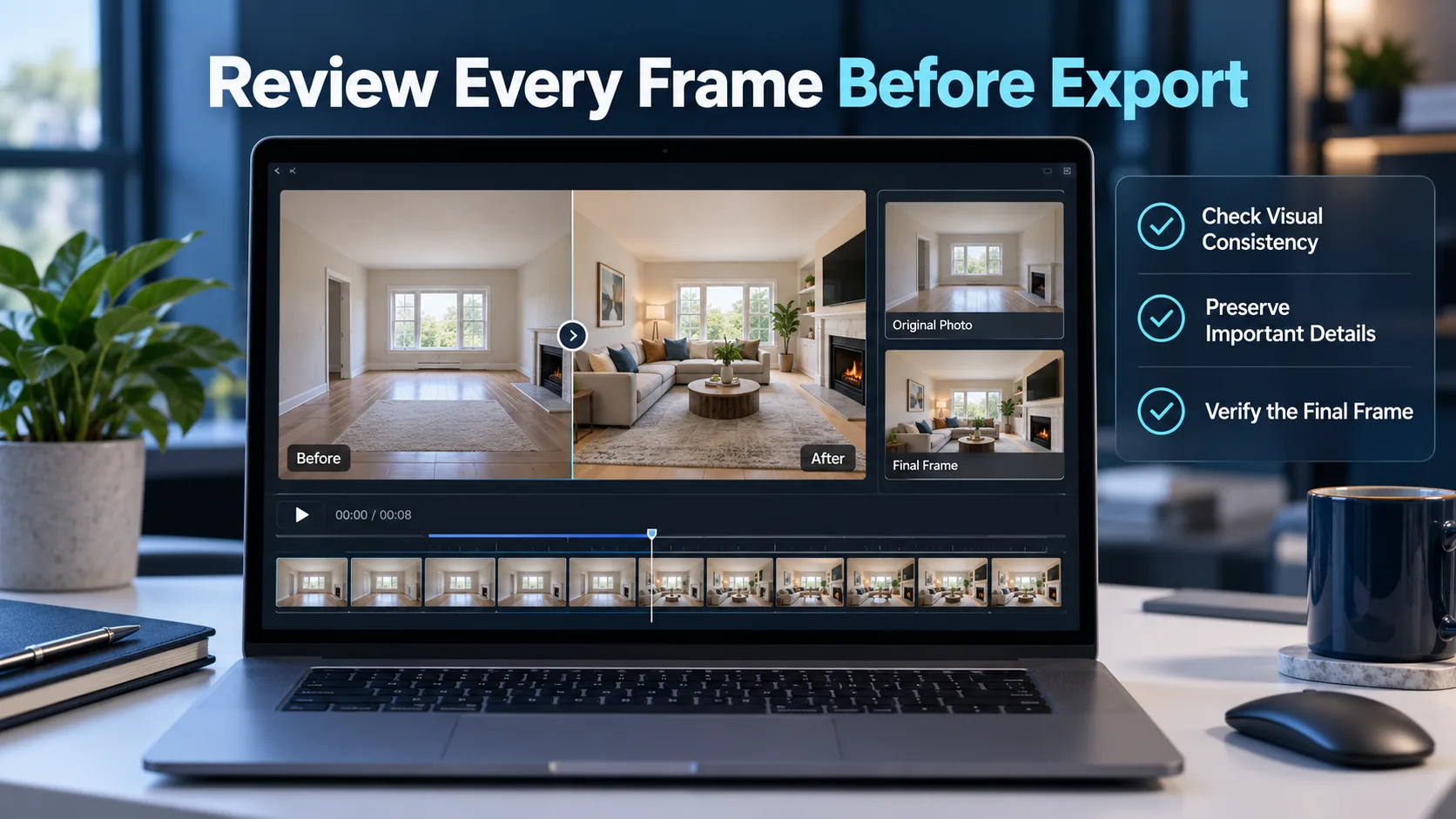
Watch the midframes carefully. Reject a result if at any point:
- A person's face morphs into a different identity mid-beautification
- A product's logo gets stretched, repeated or disappears altogether
- A room's windows appear to move or the floorboards warp
- The resulting image contains elements not present in either source image
If the before and after look too different, try using a more subtle transition for the final result. To preserve the integrity of both source images, consider using a split screen or wipe style transition
Make sure to include descriptive before and after labels for your own sanity. Double check that you have permission to use the images, music and likenesses in your final production.
Final Thoughts
A good before and after video does not necessarily require the room to melt into another. In some cases, a subtle approach where the images are revealed at a particular angle is better to demonstrate the transformation that is taking place. Begin by aligning the two photographs and then decide on the type of comparison or transition that you need. Consider the purpose of your before and after video.
Xelta’s two frame VFX allows you to experiment with a dynamic edit. Focus on the attributes that will allow you to create the illusion of consistency throughout the video. If, however, the imagery in the middle creates a distorted image of your face, a product, or anything else, it is best to go back and opt for a more simplistic approach. The best before and after video is the one that will have your audience mesmerized and convinced of the intended message.
For more examples of Xelta's creative video tools, exploreXelta AI on YouTube.