


Xelta logo
Image
Video
Photo Lab
Audio
3D
SI
Bankai
Microdrama
Cinematic Studio
AI Influencer
Reglow
AI Music
Canvas Pro
&WhatsApp & Telegram
Virtual Try On
Xelta Cut
Enterprise
Merchant Ads
Reelix
Pricing
Home/Blog/AI Video Enhancer: Fix Soft Footage, Noise and Low Contrast

AI Video Enhancer: Fix Soft Footage, Noise and Low Contrast

A practical guide for editors repairing soft, noisy, or low-contrast video. It explains inputs, workflow steps, review risks, tool selection, and where Xelta fits.

Create
Xelta LogoXelta
July 13, 2026
8 minute read
AI Video Enhancer: Fix Soft Footage, Noise and Low Contrast
Share

AI Video Enhancer: Fix Soft Footage, Noise and Low Contrast

For enhancing soft, noisy, or low-contrast video, the visible output is only one part of the decision. Inputs, review steps, rights, and correction effort determine whether enhancing soft, noisy, or low-contrast video is practical after the first demo.

For editors repairing usable footage before it enters a final cut, enhancement should recover readability and consistency, not invent a new image. A useful project begins with original footage, exposure reference, noise profile, target display, and creative intent and aims for balanced footage with cleaner contrast and fewer distractions. The central risk is stacking sharpening, denoise, and contrast until skin, shadows, or motion look synthetic. Xelta's AI creation platform can support enhancing soft, noisy, or low-contrast video, but the brief, source approval, and publishing judgment must remain explicit for editors repairing usable footage before it enters a final cut.

This article explains how to plan enhancing soft, noisy, or low-contrast video, what to test, where errors appear, and how to review the work without relying on unsupported performance claims.

What a workable enhancing soft, noisy, or low-contrast video setup actually requires

For editors repairing usable footage before it enters a final cut, evaluate enhancing soft, noisy, or low-contrast video by natural detail and consistent playback, correction control, and review fit. Begin with original footage, create one test draft, and inspect natural detail and consistent playback. The Xelta AI video generator can support enhancing soft, noisy, or low-contrast video, while final approval remains a human decision.

From original footage to balanced footage with cleaner contrast and fewer distractions

A dependable enhancing soft, noisy, or low-contrast video workflow separates source truth from creative treatment. The source truth is carried by original footage, exposure reference, noise profile, target display, and creative intent; the treatment determines pacing, framing, motion, audio, and format. The output is useful only when noise pattern, shadow detail, skin texture, color, sharpness, flicker, and compression can be examined independently. For editors repairing usable footage before it enters a final cut, this separation makes revisions faster because the team knows whether to change the source, the instruction, or the edit.

The controls that separate a demo from a production tool for enhancing soft, noisy, or low-contrast video

A buyer or operator evaluating enhancing soft, noisy, or low-contrast video should score the complete production path. Check whether the enhancing soft, noisy, or low-contrast video workflow accepts the available inputs, produces a draft suited to the intended channel, and supports noise pattern, shadow detail, skin texture, color, sharpness, flicker, and compression. The strongest benefit is not unlimited variation; it is the ability to create a meaningful alternative while keeping noise pattern, shadow detail, skin texture, color, sharpness, flicker, and compression under control.

The controls that separate a demo from a production tool for enhancing soft, noisy, or low-contrast video

A step-by-step operating model for enhancing soft, noisy, or low-contrast video

  1. Diagnose softness, noise, and contrast separately Tie enhancing soft, noisy, or low-contrast video to a real viewer or publishing decision. Use original footage, exposure reference, noise profile, target display, and creative intent. Produce a one-sentence objective and named reviewer.

  2. Correct exposure and white balance Remove ambiguity from original footage, exposure reference, noise profile, target display, and creative intent before production begins. Use the approved result of step 1. Produce a clean, approved source package.

  3. Apply measured noise reduction Make balanced footage with cleaner contrast and fewer distractions assessable scene by scene. Use the approved result of step 2. Produce a timed scene or edit map.

  4. Restore local contrast Expose the hardest risk before it reaches the full timeline. Use the approved result of step 3. Produce a representative enhancing soft, noisy, or low-contrast video test that exposes the hardest constraint.

  5. Add restrained sharpening Compare changes against natural detail and consistent playback rather than novelty. Use the approved result of step 4. Produce a small set of deliberately different versions.

  6. Compare with the original at normal playback Confirm noise pattern, shadow detail, skin texture, color, sharpness, flicker, and compression before release. Use the approved result of step 5. Produce an approved balanced footage with cleaner contrast and fewer distractions master plus a record of rejected issues.

A realistic assignment for editors repairing usable footage before it enters a final cut

Consider a dim event interview cleaned for a social recap while keeping the natural venue atmosphere. The weak approach to enhancing soft, noisy, or low-contrast video begins with a broad request for a polished video and leaves the system to invent missing context. That creates avoidable uncertainty around noise pattern, shadow detail, skin texture, color, sharpness, flicker, and compression.

A stronger approach starts with original footage, exposure reference, noise profile, target display, and creative intent. For enhancing soft, noisy, or low-contrast video, the team defines one viewer outcome, tests the hardest requirement, and creates only enough variants to compare a real decision. The resulting balanced footage with cleaner contrast and fewer distractions is then reviewed against the source rather than against personal taste alone. This enhancing soft, noisy, or low-contrast video example is a worked scenario, not a claim about guaranteed performance.

Failure patterns that create expensive revisions for enhancing soft, noisy, or low-contrast video

The first failure is stacking sharpening, denoise, and contrast until skin, shadows, or motion look synthetic. A second is changing the source, prompt, timing, and visual style at the same time; the team then cannot tell which change improved or damaged natural detail and consistent playback. Another error in enhancing soft, noisy, or low-contrast video is approving an attractive frame without checking the complete playback and the intended channel.

Practices that protect quality without slowing the team for enhancing soft, noisy, or low-contrast video

Use a compact enhancing soft, noisy, or low-contrast video brief with audience, outcome, source assets, duration, format, and reviewer. Break difficult work into testable parts, especially where natural detail and consistent playback can fail. Name enhancing soft, noisy, or low-contrast video versions by purpose rather than vague labels such as final-two or latest-new.
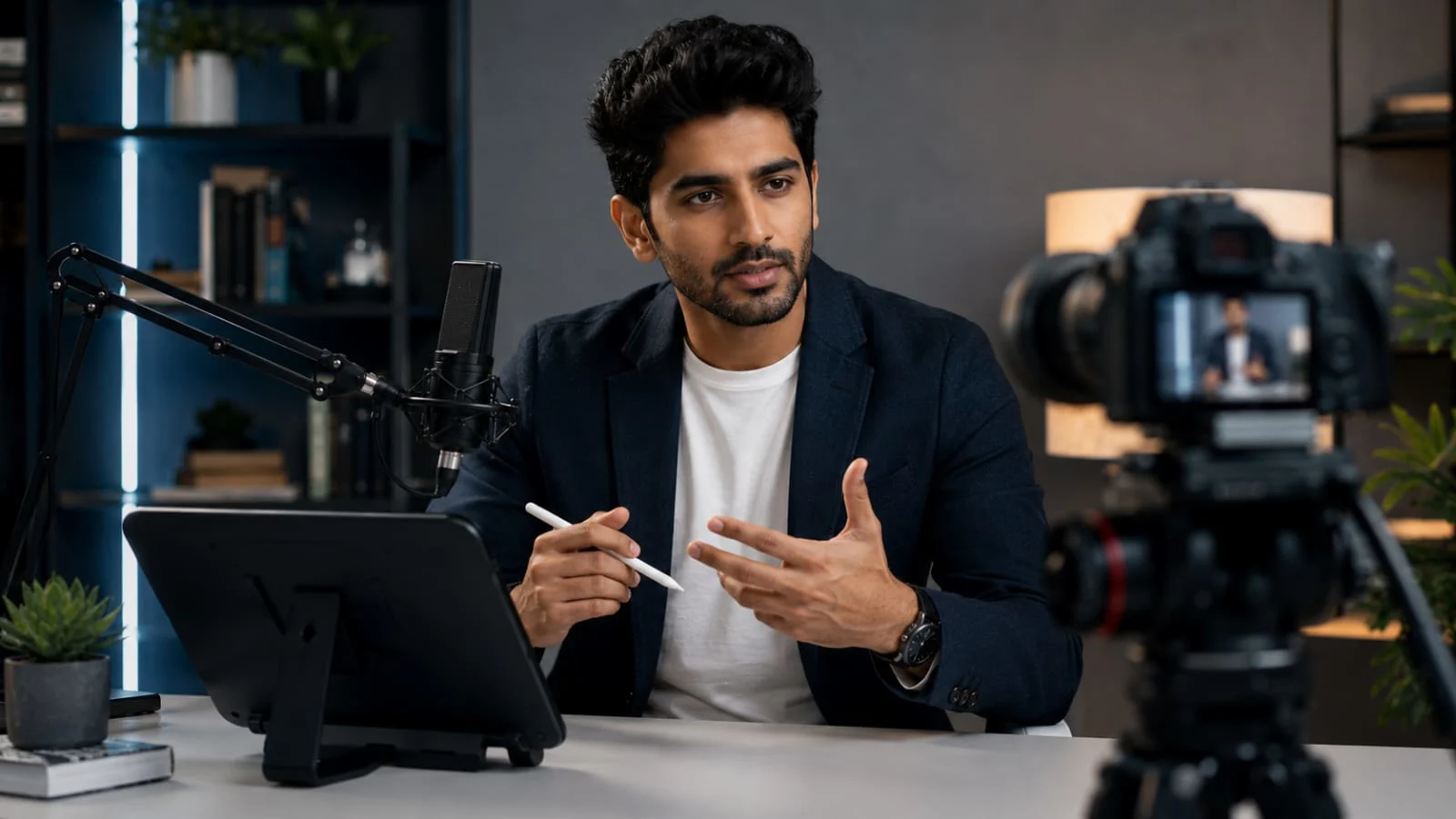
Practices that protect quality without slowing the team for enhancing soft, noisy, or low-contrast video

Choosing among global filter, AI enhancement pass, and manual shot-level correction

A global filter may be suitable for a low-risk, isolated task. A AI enhancement pass offers deeper control over one part of the job but may require manual handoffs. A manual shot-level correction is better when the team needs repeatable inputs, several versions, and a shared review path.

Choose the enhancing soft, noisy, or low-contrast video route by correction cost, source sensitivity, and publishing risk. The best route for editors repairing usable footage before it enters a final cut is the one that protects natural detail and consistent playback with the least unnecessary movement between tools.

How to judge progress before final export for enhancing soft, noisy, or low-contrast video

During the pilot, track the reason for every revision. For enhancing soft, noisy, or low-contrast video, useful revision categories include source problem, instruction problem, generation artifact, edit problem, rights question, and stakeholder change. This makes natural detail and consistent playback measurable without inventing a universal performance benchmark.

The role Xelta can play for enhancing soft, noisy, or low-contrast video

Xelta can enter after original footage, exposure reference, noise profile, target display, and creative intent has been approved. A user working on enhancing soft, noisy, or low-contrast video can choose a relevant video workflow, create a first direction, and prepare controlled alternatives while keeping the final decision outside generation. For enhancing soft, noisy, or low-contrast video, Xelta's low-light enhancement workflow is the most specific destination selected from the uploaded Xelta sitemap.

For enhancing soft, noisy, or low-contrast video, Xelta's useful role is reducing repetitive setup when another scene, hook, format, or version is required. The team still needs to check noise pattern, shadow detail, skin texture, color, sharpness, flicker, and compression. Source quality and clear instructions remain decisive in enhancing soft, noisy, or low-contrast video, and the first draft may require several focused revisions.

From source input to a reviewed Xelta draft for enhancing soft, noisy, or low-contrast video

A first session would typically start with original footage, exposure reference, noise profile, target display, and creative intent. For enhancing soft, noisy, or low-contrast video, the user defines the intended output and channel, adds approved references, and creates a short representative draft. The first useful result should be complete enough to expose whether natural detail and consistent playback is holding up, not polished enough to bypass review.

Iteration in enhancing soft, noisy, or low-contrast video should be controlled by changing one weak scene, timing decision, visual constraint, or format at a time. Editors repairing usable footage before it enters a final cut can use Xelta's YouTube channel as an additional learning touchpoint while building a enhancing soft, noisy, or low-contrast video checklist, without treating the channel as proof of a specific product result.

Input: original footage, exposure reference, noise profile, target display, and creative intent. Action: Create one representative direction for enhancing soft, noisy, or low-contrast video. First draft: balanced footage with cleaner contrast and fewer distractions. Iteration: Correct the element that weakens natural detail and consistent playback. Human review: Check noise pattern, shadow detail, skin texture, color, sharpness, flicker, and compression. Final use: Publish only the approved balanced footage with cleaner contrast and fewer distractions in its intended channel.

From source input to a reviewed Xelta draft for enhancing soft, noisy, or low-contrast video

What still needs an experienced reviewer for enhancing soft, noisy, or low-contrast video

Clear source truth usually matters more to enhancing soft, noisy, or low-contrast video than prompt length.

Testing the hardest requirement first exposes the real correction cost in enhancing soft, noisy, or low-contrast video.

A technically clean balanced footage with cleaner contrast and fewer distractions can still fail factual, legal, accessibility, or brand review.

A sensible way to start for enhancing soft, noisy, or low-contrast video

The next useful move is to fix the dominant defect first instead of applying every enhancement at once. Use the enhancing soft, noisy, or low-contrast video pilot to improve the brief, source package, and review criteria. Once the team can explain why the resulting balanced footage with cleaner contrast and fewer distractions passes the checks, it has a foundation that can scale without hiding quality problems.

Frequently asked questions

What should editors repairing usable footage before it enters a final cut prepare before beginning work on enhancing soft, noisy, or low-contrast video?

Before beginning enhancing soft, noisy, or low-contrast video, prepare original footage, exposure reference, noise profile, target display, and creative intent. Define the intended viewer action, delivery format, and reviewer so the first draft can be judged against natural detail and consistent playback rather than personal preference.

What is the smallest useful test for enhancing soft, noisy, or low-contrast video?

A useful enhancing soft, noisy, or low-contrast video test is one representative assignment containing the hardest requirement. Keep the test short enough to review carefully, but complete enough to expose whether natural detail and consistent playback and the main publishing constraints are under control.

How should a brief for enhancing soft, noisy, or low-contrast video be structured?

A enhancing soft, noisy, or low-contrast video brief should define the audience, outcome, source assets, runtime, format, constraints, and approval owner. Separate facts from creative direction so reviewers can trace problems in noise pattern, shadow detail, skin texture, color, sharpness, flicker, and compression to the source, instruction, or edit.

Which review checks matter most for enhancing soft, noisy, or low-contrast video?

The primary enhancing soft, noisy, or low-contrast video checks are noise pattern, shadow detail, skin texture, color, sharpness, flicker, and compression. Review the complete playback and final export for enhancing soft, noisy, or low-contrast video, because a selected frame cannot reveal every continuity, timing, audio, or format problem.

Why does the first draft of enhancing soft, noisy, or low-contrast video often need revision?

A first enhancing soft, noisy, or low-contrast video draft can reveal missing inputs, conflicting instructions, and difficult production decisions. Revision is expected in enhancing soft, noisy, or low-contrast video because a model or automated editor cannot infer every brand rule, factual boundary, or approval preference from limited context.

How many variations belong in a pilot for enhancing soft, noisy, or low-contrast video?

A enhancing soft, noisy, or low-contrast video pilot should create only enough variations to compare a real decision, such as the opening, pacing, visual direction, or format. For enhancing soft, noisy, or low-contrast video, two or three deliberate alternatives are more useful than a large undifferentiated batch.

What makes enhancing soft, noisy, or low-contrast video look generic?

Generic enhancing soft, noisy, or low-contrast video output often comes from broad audience definitions, interchangeable source material, and style labels without a specific communication goal. In enhancing soft, noisy, or low-contrast video, real product details, clear scene jobs, and a defined viewer problem make the result more distinctive.

How can a team keep enhancing soft, noisy, or low-contrast video consistent across versions?

Keep enhancing soft, noisy, or low-contrast video consistent by using the same approved references, naming system, constraints, and review criteria. Change one major variable at a time and record accepted decisions so the next version does not reset natural detail and consistent playback.

What should be documented during enhancing soft, noisy, or low-contrast video?

Document the enhancing soft, noisy, or low-contrast video brief, source files, important instructions, selected workflow, version history, review notes, rights information, and final export settings. That record helps explain why one balanced footage with cleaner contrast and fewer distractions was approved and another was rejected.

When is a manual workflow better than automation for enhancing soft, noisy, or low-contrast video?

Manual work is preferable when enhancing soft, noisy, or low-contrast video needs precise physical control, legally sensitive source material, or corrections that are harder than creating the asset directly. For enhancing soft, noisy, or low-contrast video, a hybrid process can preserve specialist judgment while still automating repetitive preparation.

Can enhancing soft, noisy, or low-contrast video remove the need for an editor or reviewer?

No. Enhancing soft, noisy, or low-contrast video can prepare options and reduce repetitive work, but an editor or reviewer is still responsible for meaning, pacing, truthfulness, brand fit, rights, accessibility, and the final publishing decision.

How should teams compare tools for enhancing soft, noisy, or low-contrast video?

Compare enhancing soft, noisy, or low-contrast video tools with the same representative input and acceptance checklist. When comparing enhancing soft, noisy, or low-contrast video, score correction path, source fidelity, output control, review effort, rights, and export quality instead of relying on unrelated showcase examples.

Which source-quality problems affect enhancing soft, noisy, or low-contrast video?

For enhancing soft, noisy, or low-contrast video, incomplete briefs, compressed media, inconsistent references, unclear audio, outdated product information, and missing permissions can all weaken the result. For enhancing soft, noisy, or low-contrast video, improving the source package often produces a larger gain than adding more decorative prompt language.

How can enhancing soft, noisy, or low-contrast video be reviewed efficiently?

Review enhancing soft, noisy, or low-contrast video against a named version and assign an owner to each review category. Ask reviewers to identify the scene, timecode, or requirement that failed so feedback on noise pattern, shadow detail, skin texture, color, sharpness, flicker, and compression remains specific and non-contradictory.

Which legal or commercial risks apply to enhancing soft, noisy, or low-contrast video?

The risks around enhancing soft, noisy, or low-contrast video may involve source ownership, likeness consent, music or voice rights, product claims, privacy, platform rules, and model-specific terms. The responsible owner should verify those enhancing soft, noisy, or low-contrast video issues before commercial publication.

How does aspect ratio affect enhancing soft, noisy, or low-contrast video?

Aspect ratio changes the composition, safe zones, text placement, and sometimes scene timing in enhancing soft, noisy, or low-contrast video. In enhancing soft, noisy, or low-contrast video, a crop is not always a true adaptation, especially when faces, products, or interface details sit close to the frame edge.

What is a useful quality benchmark for enhancing soft, noisy, or low-contrast video?

Benchmark enhancing soft, noisy, or low-contrast video against the approved source and acceptance checklist. The result should communicate the intended outcome and pass the checks for noise pattern, shadow detail, skin texture, color, sharpness, flicker, and compression; a universal score would ignore the actual audience and channel.

Where can Xelta fit into enhancing soft, noisy, or low-contrast video?

Xelta can support the creation and iteration stage of enhancing soft, noisy, or low-contrast video after the source package and brief are approved. For enhancing soft, noisy, or low-contrast video, a team can build a representative draft, compare controlled alternatives, and then apply human review before final use.

Which limitations should users expect with enhancing soft, noisy, or low-contrast video?

Users should expect the first enhancing soft, noisy, or low-contrast video output to need refinement, especially when source material is weak or the scene is complex. Generated text, identity, timing, rights, and factual claims in enhancing soft, noisy, or low-contrast video still require careful checking.

What should happen after a successful pilot for enhancing soft, noisy, or low-contrast video?

After a successful enhancing soft, noisy, or low-contrast video pilot, convert the accepted decisions into a reusable brief, input checklist, review standard, and naming system. Expand only after the team can reproduce balanced footage with cleaner contrast and fewer distractions and explain the remaining manual work.

Related Links

Xelta AI creation platformXelta AI video generatorXelta's low-light enhancement workflow

Trending

How to Turn Fashion Photos Into AI Lookbook Videos

How to Turn Fashion Photos Into AI Lookbook Videos

Oct 31, 2026

AI Video Generator for SaaS Demos: Explain Features Without Screen Recording

AI Video Generator for SaaS Demos: Explain Features Without Screen Recording

Oct 31, 2026

How to Prompt Dialogue and Sound Effects for AI Video Models

How to Prompt Dialogue and Sound Effects for AI Video Models

Oct 30, 2026

Related Articles

Fashion Photos Into AI Lookbook Videos workflow for fashion ecommerce and brand teams
AI Video Creation

How to Turn Fashion Photos Into AI Lookbook Videos

AI Video Generator for SaaS Demos workflow for SaaS product marketers and sales enablement teams
AI Video Creation

AI Video Generator for SaaS Demos: Explain Features Without Screen Recording

Dialogue and Sound Effects for AI Video Models workflow for creators and production teams writing AI video prompts
AI Video Creation

How to Prompt Dialogue and Sound Effects for AI Video Models

AI Video Generator for Online Courses workflow for course creators and education marketers
AI Video Creation

AI Video Generator for Online Courses: Lesson Intros and Visual Explainers

Background

Built for the next
generation of
digital artists.

Xelta LogoXelta.AI
Google Play QR Code
Google Play
App Store QR Code
App Store

AI Generation

  • AI Image Generator
  • AI Video Generator
  • AI Audio Generator
  • AI 3D Generator
  • Microdrama
  • Microdrama 2.0
  • Cinematic Studio
  • Photo Lab
  • AI Influencer

Edit

  • Video Editing
  • Moodboard AI
  • Background Remover
  • VFX Effects
  • AI MultiCam
  • Back Stage
  • Story Tweak

Design Studio

  • Future Canvas
  • Gen Avatar
  • Sketch to Motion
  • AI Wallpaper
  • Sketch To Image
  • Home Design
  • Video Analyzer

Voices

  • Voice Dub
  • Voice Lip Sync
  • AI Voices
  • Voice Studio
  • Audio Enhancer

Tools

  • Website Builder
  • Design Use Case

Resources

  • Blogs
  • Events
  • Pricing
  • Community
  • Reelix
  • Games

Video Models

  • Seedance 2.5
  • Seedance 2.0
  • Kling 3.0
  • Veo 3.0 Introduction
  • WAN 2.6
  • Grok Imagine 1.5
  • Gemini Omni Flash

Creative Tools

  • Virtual Try On
  • Bankai
  • Reglow
  • Canvas Pro
  • Xelta Cut
  • AI Music
  • WhatsApp & Telegram
  • Superintelligence

AI Films

  • Script & Character
  • AI Lords
  • Anime Microdrama
  • Movie Trailer
  • Comic Flow
  • Microcourse
  • Video To Anime

Ad Studio

  • Instant Ad
  • Ad Maker
  • Prime Ad
  • Street Ad
  • UGC Ads
  • Giant Ads
  • Product Ad
  • Merchant Ads
  • Marketing & Ads

SocialVerse

  • Reel Creator
  • Social Autopost
  • Social Use Case

Company

  • About Us
  • Press Releases
  • Careers
  • Contact
  • Global Footprints

Legal

  • Terms & Conditions
  • Privacy Policy
  • Security
  • Refund Policy
  • FAQs
  • Sitemap
  • Credits Usage

Image Models

  • Gemini 2.5 Flash Image (Nano Banana)
  • Flux Kontext Pro
  • Seedream 5.0 Pro
  • GPT Image 2

© 2026 Xelta. All rights reserved. Built for the
next generation of creators.

Follow us on: