

Key Takeaways
- The introduction to a course shouldn’t be too flashy.
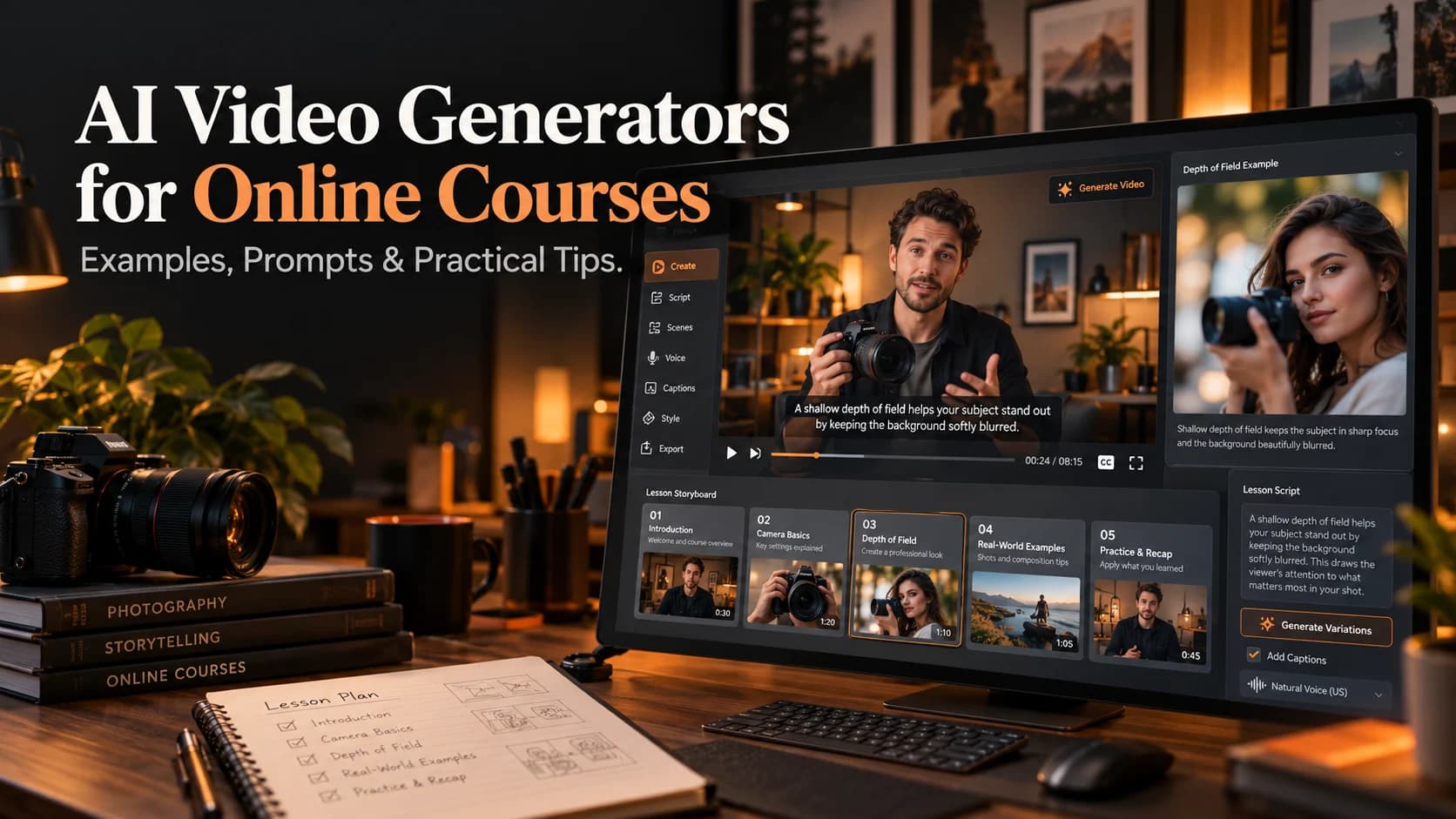
- AI video generators can be used to create concise videos to introduce lessons, demonstrate examples and provide visual explanations based on prompts or reference images.
- Introduce your students with a clear introduction.
- Animate any video with motion and/or transitions.
Table of Contents
- 1.Examples & Tips
- 2.Quick Answer
- 3.What Should a Lesson Intro Actually Do?
- 4.When Is a Visual Explainer Better Than a Talking Head?
- 5.How Do You Plan One Clip Before Generating?
- 6.How Can You Build the First Video Draft?
- 7.What Prompt Works for a Photography Explainer?
- 8.When Do You Need a Whole Lesson, Not Just a Clip?
- 9.How Do You Make the Video Clear and Accessible?
- 10.Final Thoughts
Examples & Tips
The introduction to a course shouldn’t be too flashy. Instead, it should give students an overview of what they will learn. Using AI video generators for online courses can help create a short intro video, or demonstrate something that may be difficult to film. However, you can also generate realistic errors.
For example, if you were teaching photography, having a nice video which does not accurately represent how focusing works would cause confusion for your class.
Quick Answer
AI video generators can be used to create concise videos to introduce lessons, demonstrate examples and provide visual explanations based on prompts or reference images. Begin by identifying a single learning objective for your lesson. Create a storyboard and generate only the relevant clips to help explain the learning objective. Ensure all visuals are correct and add captions that are easy to read. The instructor will have ownership of the final lesson.
What Should a Lesson Intro Actually Do?
Introduce your students with a clear introduction. Tell them what the lesson is about and what problem they will be able to solve.
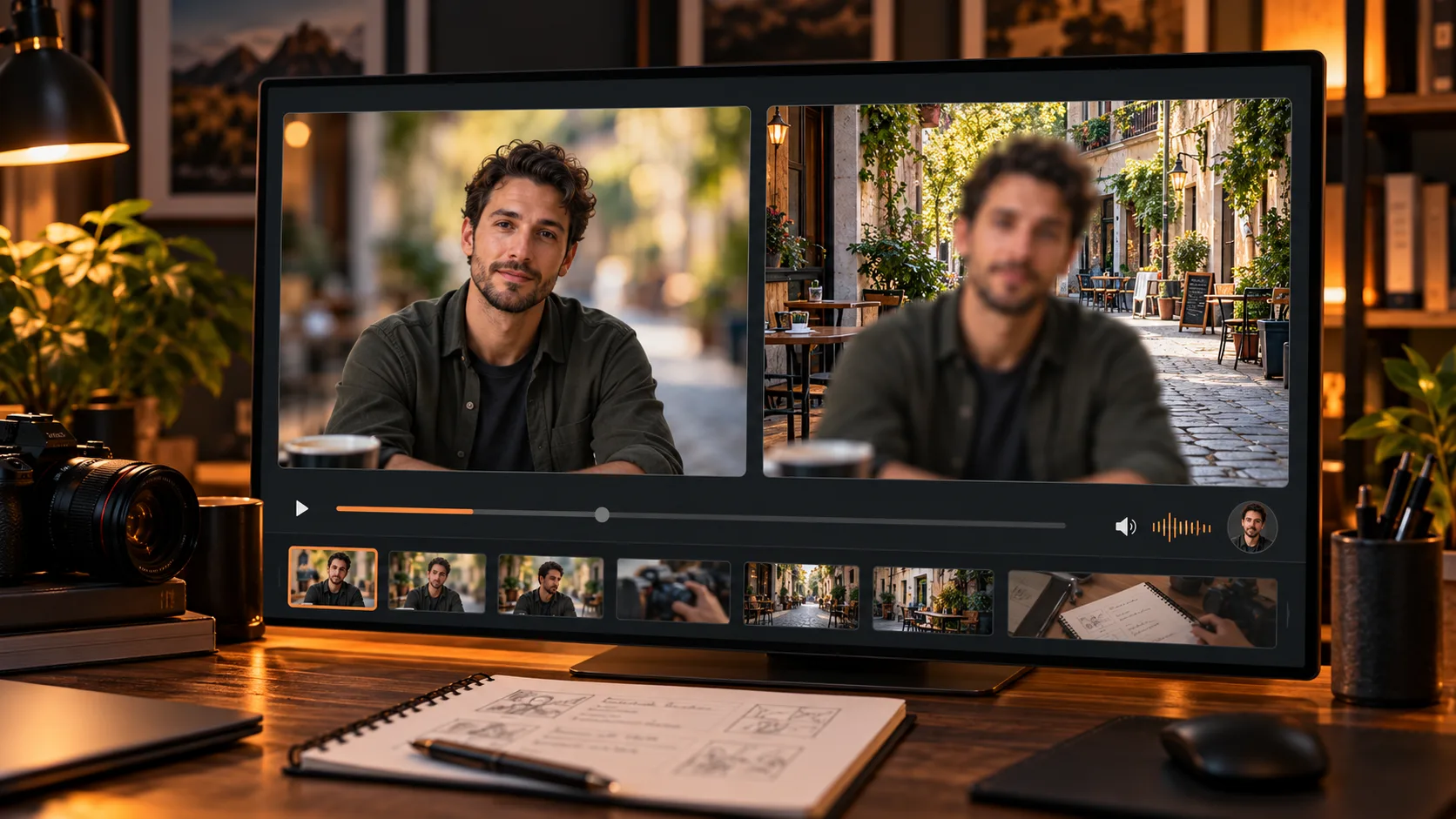
An introduction to a beginner photography course may involve showing two images. One image will have a blurred background and one will be a clear background. Then you can ask:
This sets up a question that will be answered in the next lesson. Having a flashy animated logo and upbeat music can be very slick but doesn’t help the student learn about depth of field.
Using a creative production workspace will give you some visual assets to use in your introduction. However, you must write the learning outcome first.
When Is a Visual Explainer Better Than a Talking Head?
Animate any video with motion and/or transitions. This could be a camera panning around an object, showing a comparison between two things or a basic process.
Record actual screen captures to demonstrate software and ensure accuracy of the real demonstration.
| Course element | Better starting format | Reason |
|---|---|---|
| Lesson introduction | Short visual plus instructor narration | Establishes the question |
| Software walkthrough | Recorded screen | Shows actual controls |
| Conceptual example | AI-generated clip or diagram | Makes an abstract idea visible |
| Assessment instructions | Clear slides or spoken explanation | Prioritises precision |
Avoid letting the generator draw technical labels. Put formulas, arrows and definitions in an editable layer, where a subject expert can correct them.
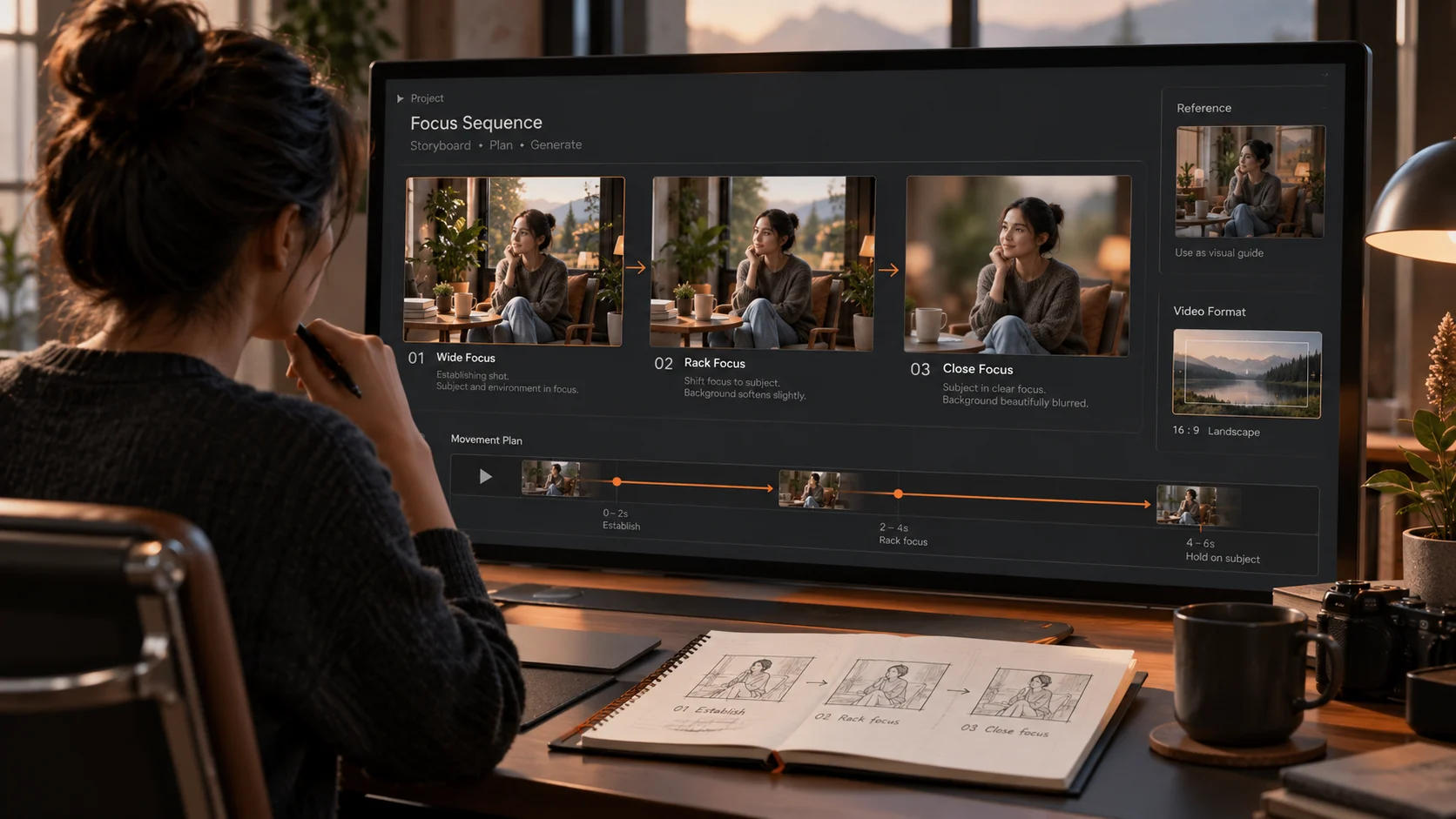
How Do You Plan One Clip Before Generating?
Learners will identify that there is a shallow depth of field in this portrait.
The learner should be able to identify that there is a sharp subject (face) in the foreground and a blurred background. They may want to include an alternative version too.
The visual does not have to show the learner how to adjust their aperture settings but once they have been caught by the visual you can explain why.
Consider where you are going to place your visual. If your course player is horizontal then you will likely want a different layout than if it were vertical like on social media. You will also want to leave space for captions.
How Can You Build the First Video Draft?
A text-and-image-to-video tool supports prompts or reference images, depending on the selected model.
Available controls, including aspect ratio and resolution, can vary by model. Inspect the settings and credit charge before proceeding.
- Prepare the source: Choose a rights cleared portrait or an original illustration.
- Define the movement: Request a controlled change, not a sequence of unrelated shots.
- Select the format: Match the learning platform's player and caption layout.
- Generate a draft: Save your prompt and model settings for comparison.
- Check the teaching point: Does the viewer see the intended contrast?
- Correct narrowly: Change one instruction or use a real demonstration if the result remains misleading.
Don't turn the generation phase into a competition for the most cinematic shot. A stable example that makes the difference obvious is usually more useful than elaborate motion.
What Prompt Works for a Photography Explainer?
A controlled example:
Create a short realistic landscape scene. A person should be sitting but remain still throughout. Start with the person being in focus and the background slightly blurred. Move so that the background comes into focus and the person is now blurred. All should be done in one take, in natural light. There should be no titles, zooming and new people.
This can show how the focus has changed. This would not be exactly changing the depth of field.
If you are focusing on the aperture part then include some proven footage or manually created diagram to show this relationship. Be specific on what this scene shows.
When Do You Need a Whole Lesson, Not Just a Clip?
A notes-to-video lesson workflow is more appropriate for delivering your lesson narration.
You will have access to information including notes, scripts and lesson files. You will also be able to choose a narration voice, presenter style, supporting images and automatically generated captions.
This can be helpful if you have already approved materials for use in your lesson. However, it does not mean that the tool has verified the accuracy of your lesson.
Just as with a manually created lesson, you should pay close attention to the audio, timing and diagrams.
How Do You Make the Video Clear and Accessible?
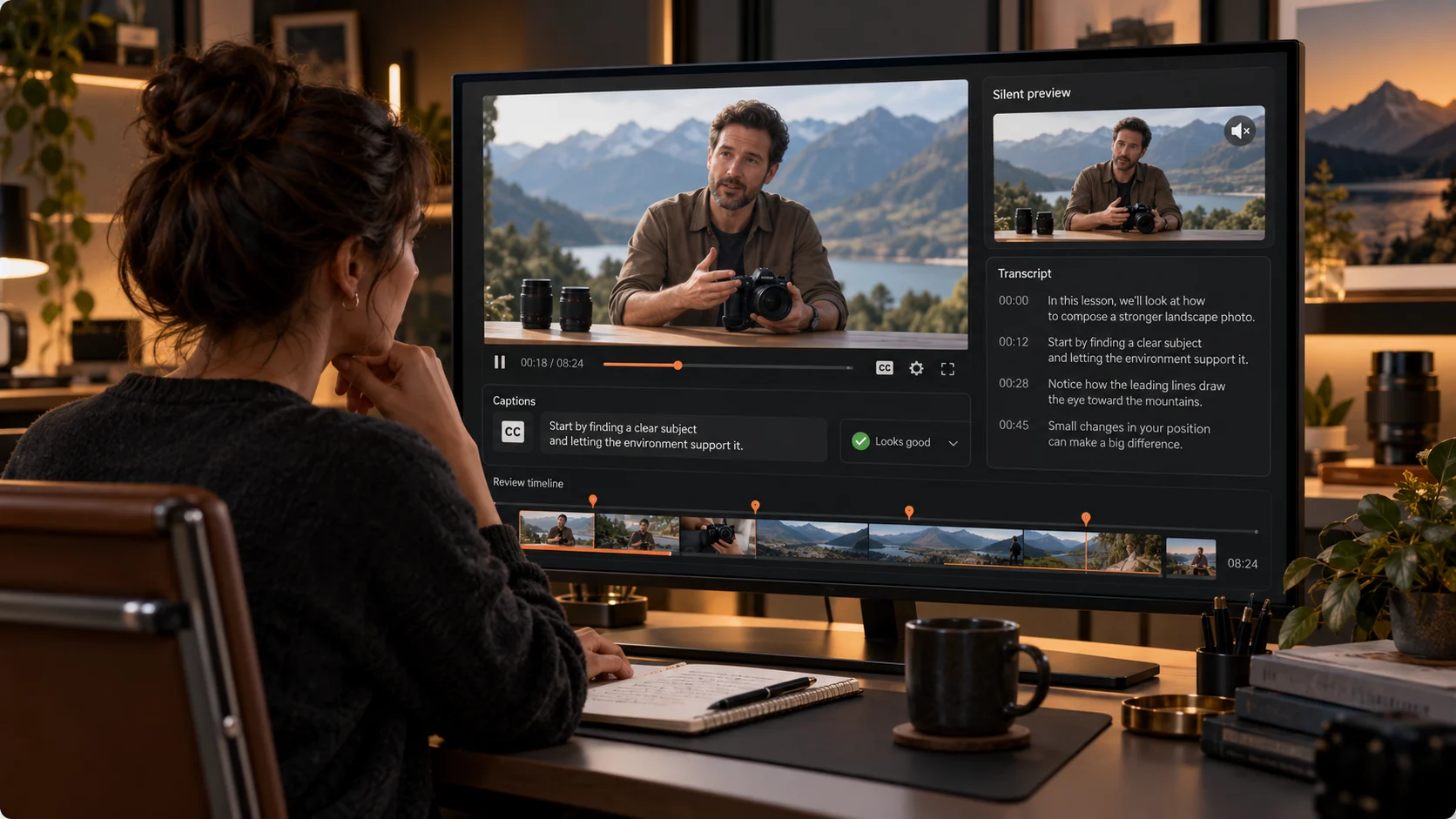
Watch the draft video without sound. Can students work out what the video is about?
Will students be able to gain key learning from the video? Is the narration helping?
Check the captions are correct. If you used auto captions there may be issues with technical terminology being incorrectly captioned. The timing may not be accurate.
Provide a transcript. Key information should be described in the video through the narration or other accessible means. Avoid fast transitions, very small text and irrelevant movement.
Ask someone who knows nothing about the topic a simple question. If they can’t explain the concept then you need to change your approach to teaching.
Final Thoughts
Short videos will give you the best results. The introduction video should ask the correct question, and the explanation video should help the learners understand the differences. You don’t have to make them seem like lessons.
To start, decide what your students will be able to explain once they’ve watched the video. If it is important that the video has accurate footage use real footage, if it would really help then use a generated video.
Make sure your script, resources and any amendments are all in one place so you don’t repeat errors in your next lesson. Check your captions and terminology. This is extremely important for learners who cannot rely on the audio/video completely.
If your students fully understand the concept then your course will be successful.
For more examples of video creation workflows, explore official video tutorials.