


Key Takeaways
- You need a sales video for your product, but the interface is changing next week.
- Using an AI video generator you can create ‘how it works’ videos for your SaaS features.
- Think of the idea your viewer must understand, then decide whether animation or evidence does the better job.
- Consider a hypothetical support tool that lets a manager assign requests to teams.
Table of Contents
- 1.AI Video Generators for SaaS Demos: Tips & Examples
- 2.Quick Answer
- 3.Is a Screen Free SaaS Demo Really a Demo?
- 4.Which SaaS Features Suit AI Generated Visuals?
- 5.How Do You Plan a 40 Second SaaS Explainer?
- 6.What Prompt Creates a Clear Feature Explainer Scene?
- 7.How Do You Build the Video Without Inventing Features?
- 8.How Do You Join the Scenes and Prepare Different Formats?
- 9.When Should You Use a Real Screen Recording Instead?
- 10.Final Thoughts
AI Video Generators for SaaS Demos: Tips & Examples
You need a sales video for your product, but the interface is changing next week. Taking screenshots of everything would mean you have to re edit the demo on Friday.
Alternatively, using an AI video generator for SaaS can help. You can explain the issue the customer has and show how it works, while not making it look like you are showing buttons that may not be there soon.
Quick Answer
Using an AI video generator you can create ‘how it works’ videos for your SaaS features. These can be created using an approved script which will allow you to produce animated videos, flow charts and voice over narration. This is best used for describing the benefits of your features, how they work and introducing your product. Ensure that you use approved copy for your features and clearly describe concepts in your visuals. If your viewer needs to see how your software works, ensure you use real screenshots.
Is a Screen Free SaaS Demo Really a Demo?
Sometimes. The traditional product demo will follow the user's clicks through the product. However, a video that does not include a screen will explain how the product works and why they should care. This is more like an explanation of a specific feature, or a promotional walkthrough.
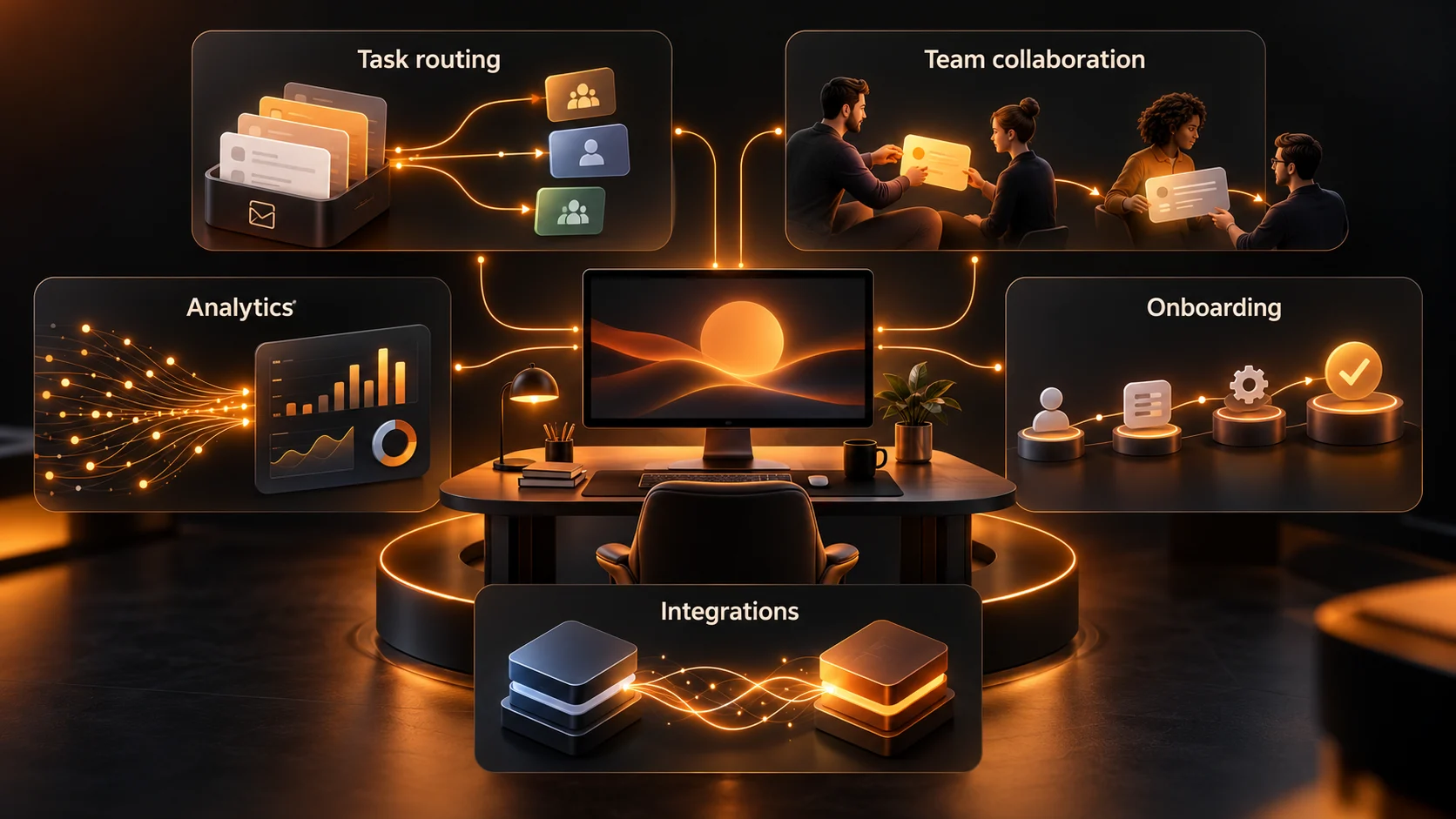
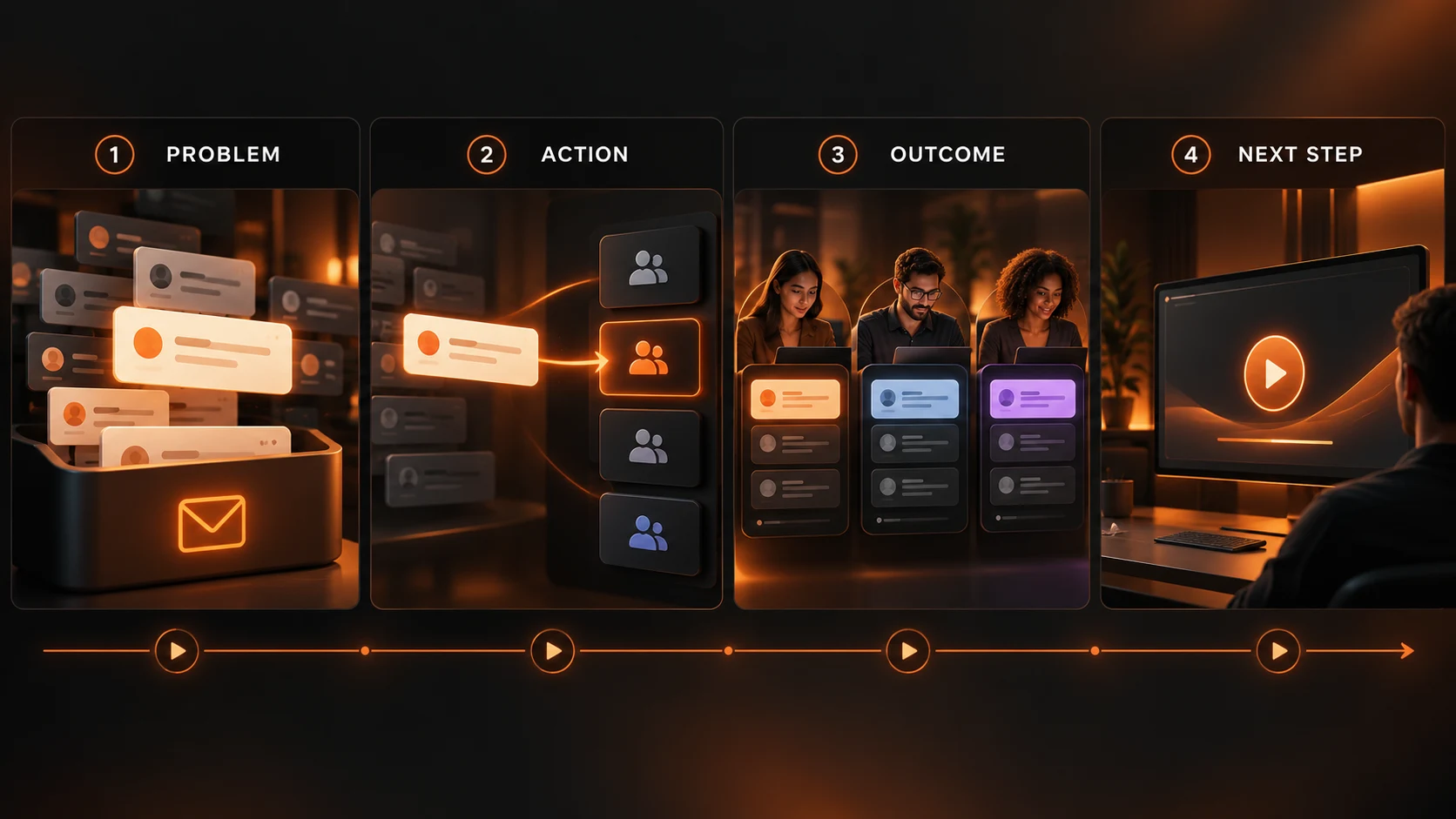
An example could be a support platform that helps teams allocate incoming requests. You can animate message cards travelling from an inbox to the correct team.
You shouldn’t add any extra features such as an Auto-Resolve button or suggest the software will automatically answer customer questions, unless this has been confirmed.
This is especially important if people are comparing features. Having a nice animation doesn’t mean this feature will work in your integration/report/settings.
Which SaaS Features Suit AI Generated Visuals?
Think of the idea your viewer must understand, then decide whether animation or evidence does the better job.
| Feature to explain | Suitable visual | When to show real software |
|---|---|---|
| Task routing | Cards moving between teams | Configuring assignment rules |
| Team collaboration | Handoffs and approval stages | Showing exact permissions |
| Analytics | Illustrative data flowing into a report | Demonstrating real metrics or filters |
| Onboarding | A customer journey from signup to first outcome | Teaching a setup procedure |
| Integrations | Two systems connected conceptually | Proving a named integration works |
A creative video workspace is useful for producing conceptual scenes. Keep the product documentation alongside the script so creative decisions do not turn into new feature claims.
How Do You Plan a 40 Second SaaS Explainer?
Consider a hypothetical support tool that lets a manager assign requests to teams. Before production, the product owner confirms that assignment exists. Nothing else is assumed.
| Time | Visual | Narration |
|---|---|---|
| 0-8 seconds | Requests accumulating across a shared inbox | "When every request lands together, it is easy to lose track." |
| 8-18 seconds | One request card highlighted, then moved to a team | "Give each request a clear owner." |
| 18-30 seconds | Team members viewing their assigned queues | "Your team can see what belongs to them." |
| 30-40 seconds | Simple branded end frame | "See how request assignment works in a live demo." |
The script promises assignment, not instant resolution or improved response time. Those outcomes would require evidence.
The end frame offers a genuine product walkthrough, keeping the explainer honest about what it hasn't shown.
What Prompt Creates a Clear Feature Explainer Scene?
Focus on one visual concept at a time.
The example scene could look like this:
This shows a clean 16:9 scene that has been designed as an example of a fictional support workflow. The design shows one simple message card flowing between a shared inbox graphic and a team column. It uses a simple layout with a cool blue/white colour palette. The scene has only one animation and plenty of negative space to allow captions to be added separately. There are no real product logos and no real menu items, dashboards, percentages or statements. This is a concept animation and not an actual piece of software.
A text-and-image-to-video generator can produce a draft from a prompt or reference image.
Model specific controls and credit costs may differ, so confirm the selected settings before generating.
Review the clip at normal speed. If the card splits into two, the transition changes meaning; simplify the motion or use an editable diagram instead.
How Do You Build the Video Without Inventing Features?
Start with three source documents: an approved feature description, a list of prohibited claims and the intended call to action.
Then follow a compact production sequence:
- Write one verified sentence. "Managers can assign requests to teams" is safer than "AI automatically resolves every ticket."
- Sketch four frames. Draw the problem, action, outcome and next step before generating footage.
- Create separate short scenes. Keep subjects, colours and motion consistent; don't depend on generated lettering.
- Add narration and editable text. Use approved wording, pronounce product terms correctly and caption the spoken content.
- Request a product review. Ask someone who knows the software to mark each statement as supported, unclear or incorrect.
Don't upload customer records, unreleased screenshots or internal dashboards to a third party generator without checking your organisation's data rules.
How Do You Join the Scenes and Prepare Different Formats?
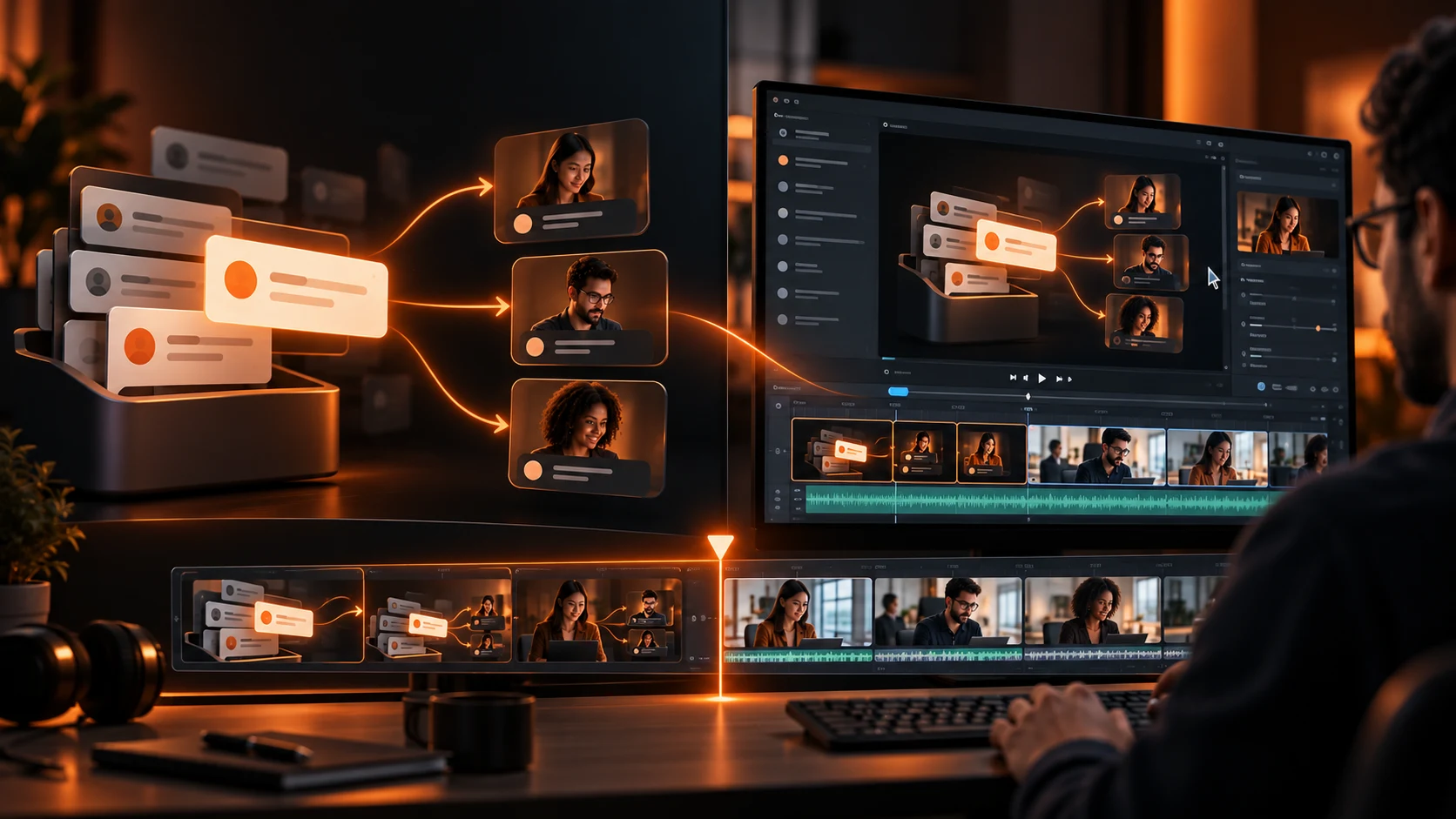
Once each scene is approved, a video stitching workflow can combine multiple clips into a sequence.
Inputs will be created from video and screen recordings. For this instance concept scenes will be created.
Create a horizontal version for your landing page and if required a vertical cut for social media.
Move diagrams and captions around the landscape file to ensure that the main action is always visible.
Include a transcript and accurate captions. This will help viewers understand your claim even if they have no sound on. Key visuals will be described to those that cannot see.
When Should You Use a Real Screen Recording Instead?
Show real product videos when you really need to be accurate. For example showing how it’s set up, how permissions work, what the API returns, or what filters are available in the reporting.
The interface can be very realistic but completely incorrect.
Use a high quality hybrid video. Start with an animated intro to explain the issue, then show a short real screen recording.
Make sure you mention that the mockups are examples. Keep your documentation or live demo close to the video.
Final Thoughts
When done correctly, screen free SaaS videos can be an extremely helpful resource. They can provide a simple narrative around a complex workflow, help reduce reliance on variable layout, and provide a marketing team with a few options to try out. However, they should NEVER show examples of buttons, integrations or performance data which are not real.
Write the narration first, showing one clear example of what your product can do, and how it helps solve a problem your customers face. Keep the visual transitions simple and any key text in editable overlays.
Ensure that the product owner reviews the final edit. If your buyers need to understand how the feature works, then provide real footage or a live demo after the explainer video.
Having an authentic video will make the next conversation easier.
For more creative video examples, explore official video tutorials.