

Quick Answer
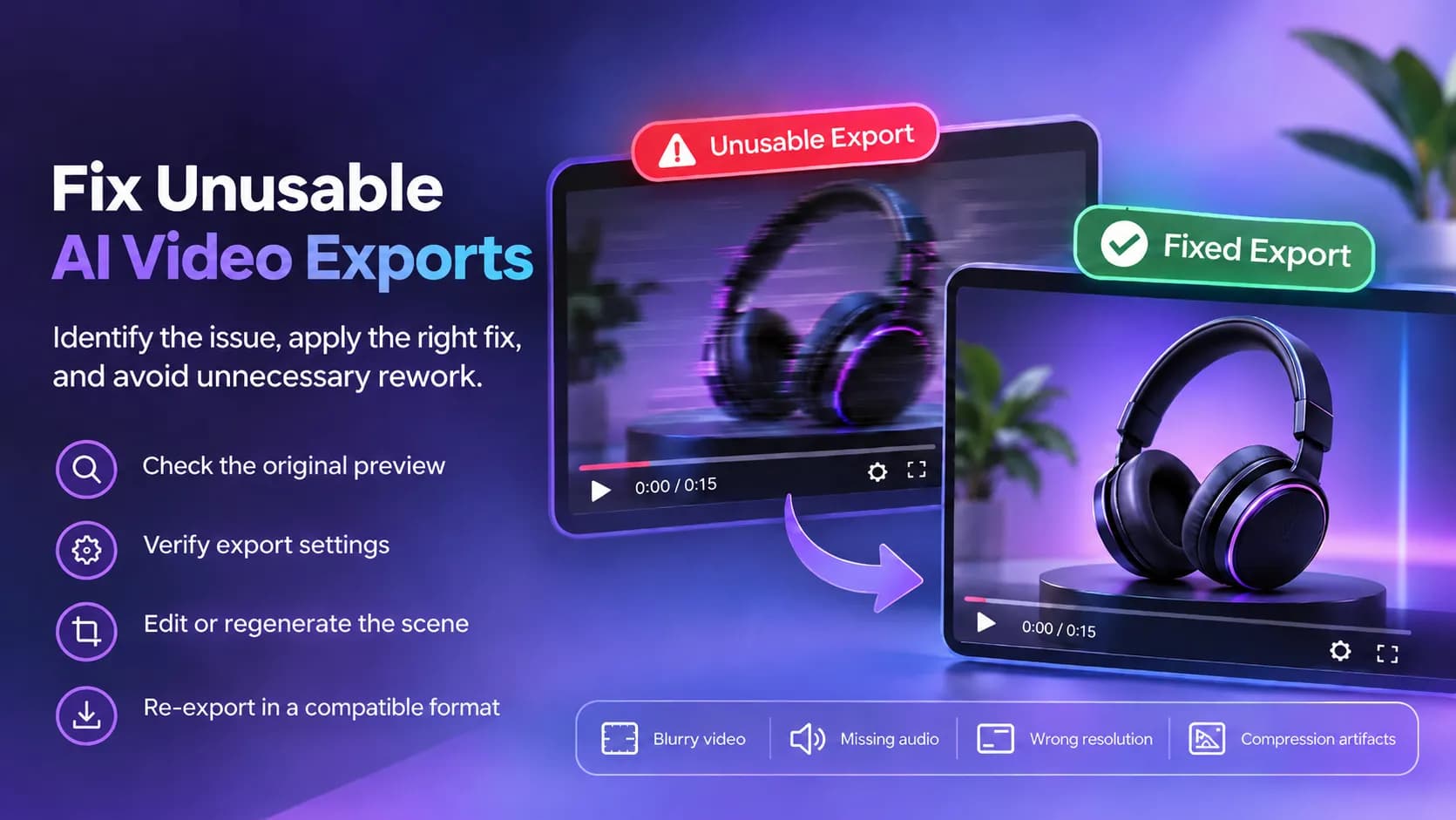
Unusable AI video files are a frequent issue that does not need to be fixed by creating a whole new video. If the preview file looks great but the generated video is blurred, in the wrong aspect ratio, without sound, distorted, or cannot be played at all, there is a need to verify such things as resolution, aspect ratio, codecs, frame rate, and sound settings. An AI video generator should be used to regenerate faulty videos.
What Makes AI Video Exports Unusable?
Generally, there are three distinct categories for failed or defective exports:
Generation errors, export/rendering errors, and platform compatibility issues. Each category contains solutions that range from simple adjustments to comprehensive revisions.
Generation Errors
A generation error creates a problematic or otherwise unacceptable visual in an otherwise acceptable video. For example, the generation of a video might result in distorted product imagery, warped perspective, unrealistic character animation, or other issues. A simple resizing of an exported video will not address these types of concerns.
Instead, the best approach to address a generation error is to either edit or regenerate the problematic material.
Export/Rendering Errors
Rendering errors create issues in generated videos that were not present in the initial AI creation. A failed export can result in distorted, lost, or missing audio or other similar issues. The most logical course of action in this scenario would be to verify that the settings for the current export are correct prior to attempting any other revisions.
If the current export settings are correct, it is possible that the issue belongs to the video itself and may require regeneration.
Platform Compatibility Issues
Sometimes, an AI video might seem acceptable on one device but completely unviable on another. The issue might stem from an incompatible codec, aspect ratio, or other similar concerns. The resolution is usually as simple as exporting the video in a different but compatible format.
The Real Decision Behind Ai Video Generator Online
Before making any changes, it is critical to compare the generated video with the exported file. It will allow you to determine whether the issue was present in the initial generation or appeared later.
| Problem | Likely cause | Recommended action |
|---|---|---|
| Distorted subject | AI generation error | Regenerate the affected scene |
| Blurry exported video | Resolution or compression | Review export settings |
| Missing audio | Audio track or encoding issue | Check source audio and re-export |
| Video will not open | File corruption or unsupported codec | Re-download, re-export, or convert |
| Incorrect video dimensions | Aspect ratio mismatch | Adjust framing and export |
| Flickering objects | Motion-generation inconsistency | Revise the prompt and regenerate |
Important: Do not assume that every failed export needs a new AI-generated video. Determine whether the original content is usable first.
How To Fix AI Video Exports
There is a clear, step-by-step method for determining the best way to fix a defective AI video. By addressing certain concerns, it becomes possible to salvage an otherwise acceptable video and significantly reduce the amount of repetitive work.
Step 1: Examine the Generated Video
Begin by comparing the exported video with the initially generated video. If the generated video appears similar to the exported file, it is reasonable to assume that the issue belongs to the export rather than the generation.
Step 2: Confirm Resolution and Aspect Ratio
The subsequent step is to confirm the resolution and aspect ratio of the video.
For example:
- 16:9 for standard landscape videos
- 9:16 for vertical social videos
- 1:1 for square content
It is essential to pick an appropriate aspect ratio for a specific website.
From there, select the resolution that best suits the needs of the project. A higher resolution setting will not improve the quality of an inherently low-quality video.
Step 3: Confirm File Format and Playback
At this point, it is advisable to confirm whether the file is playable in an external video player.
MP4 files that utilize H.264 video and AAC audio are typically acceptable but may vary depending on the needs of the project. Once more, compare the exported video with the initially generated video.
If the exported video plays correctly on a different device, the issue is likely an export issue. If the exported video is not playable, it is necessary to revisit the export settings and ensure that they match the requirements of the intended platform.
Step 4: Regenerate Only the Problematic Portion
If the issue was caused by the generation process, it is best to isolate the problematic portion of the video and regenerate it.
For example, a marketing team might want to generate a close-up view of a product. The regeneration should explicitly state a close-up view, smooth camera movement, and the appearance of the product color and packaging.
It should also state that the background remains stable and objects do not change shape unexpectedly. The revised instruction will allow the AI to understand precisely what should move and what should stay in place.
Step 5: Examine the Revised Video
After making the necessary edits or revisions, it is necessary to examine the resulting video. The video should meet the requirements for publication. Only then can the video be assumed to be completed.

When To Regenerate Instead Of Editing
Regeneration should be considered whenever the content of a video is incorrect or otherwise unacceptable. For example, a marketing team might want to generate a product demonstration video, but the regenerated video displays an incorrectly shaped product.
In this case, the issue is not with the export settings or file format. The editing process will not fix the issue. Instead, the team should consider regenerating the video and explicitly describing the product dimensions and proportions. However, if the product demonstration video displays incorrectly due to an incompatible file type, regeneration is not only unnecessary but counterproductive.
This principle highlights the importance of distinguishing between content and technical issues.
Any concerns with the content of the video should be addressed through editing or regeneration, whereas technical concerns should be addressed through editing or file conversion.
How Can Xelta Help With Video Rework?
The Xelta AI platform includes a selection of AI creation and editing tools that are designed for professional-grade video creation. Xelta users can construct a prompt or provide an image, and the Xelta Video Generator will create a series of video stills or a quick motion video that is based on the input.
In this way, it is possible to create and refine an initial concept before moving on to the next step. If an AI video generator produces an image or video that contains unacceptable distortions, it is usually best to revise the prompt and regenerate the defective portion of the video.
In cases where the AI Video Generation Tool produces an acceptable video that requires trimming or re-framing, the AI Video Editor will suffice. Xelta’s video editing tool includes a variety of clip editing features and aspect ratios that are similar to other professional-grade video tools.
At the same time, each tool serves a different purpose. An editing tool does not fix corrupted files, missing information, or unacceptable distortions. A similar note can be made regarding AI video generator outputs.
Preventing Export Problems Before Publication
It may be the most straightforward way to limit any need for rework through including export validation in the regular production procedure.
Prior to approving the video:
- Determine the correct format and dimensions prior to exporting.
- Examine the whole video, rather than some of its frames.
- Save the source files and project versions.
- Export once prior to making other exports.
- Make sure audio, subtitles, logos and products are accurate.
- Play the exported video from start to finish.
- Validate it on the publication platform.
For professional video content it should be done separately.
The fact that the export was validated successfully doesn’t necessarily indicate the readiness of the video for publication.
Final Thoughts
An AI video export is not always defective beyond repair. The best way to approach such a situation is to determine where an error originated before making any changes.
It is entirely possible that changes to the export settings or file conversions will fix a defective export. On the other hand, an unacceptable generation might require regeneration or editing.
As always, beginning with a single defective export and analyzing it is the most reliable way to fix an unacceptable AI video.
For official demonstrations and more creative workflow examples, explore Xelta AI on YouTube