

Key Takeaways
- Not every video made for YouTube will necessarily look nice when put on Instagram Reels.
- Aspect ratio refers to the ratio between the width and height of the video image.
- Reframing means adjusting an existing composition to fit another aspect ratio, usually by cropping, scaling, or repositioning the footage.
- Xelta supports text-to-AI video generation and image-to-AI video generation, with a variety of aspect ratios and resolutions depending on the modelThe Xelta AI video generator can serve as a springboard to create variations of your intended format-specific videoKnow What Video Format Comes FirstDecide on which platform your video will primarily live on.
Table of Contents
- 1.Quick Answer
- 2.What Do 9:16, 1:1 and 16:9 Mean for AI Videos?
- 3.Why Does Reframing Cause Problems in AI-Generated Videos?
- 4.How Can You Generate All Three Video Formats With Xelta AI?
- 5. How to Adjust Your Prompts According to Different Aspect Ratios?
- 6.How Can Safe Zones Help Prevent Cropping Issues?
- 7.What Are Some Common Mistakes to Avoid When Creating Multi-Format AI Videos?
- 8.Final Thought
Quick Answer
Not every video made for YouTube will necessarily look nice when put on Instagram Reels. It could crop out your product, lose critical background information, or even position the subject matter on the border of the screen. Instead, you want to consider AI video aspect ratios at the time of production. Using Xelta AI, you can produce AI videos from text prompts or images, select your desired output format, and review them before publishing.
To produce AI videos in 9:16, 1:1, and 16:9 aspect ratios without much reframing, you will have to select your desired aspect ratio before producing all three versions. Make sure that your subjects do not get cropped out of the picture, and be as specific about camera movement as possible.
What Do 9:16, 1:1 and 16:9 Mean for AI Videos?
Aspect ratio refers to the ratio between the width and height of the video image. The aspect ratio will determine the space that will be allocated to the subject matter, action, background, and text.
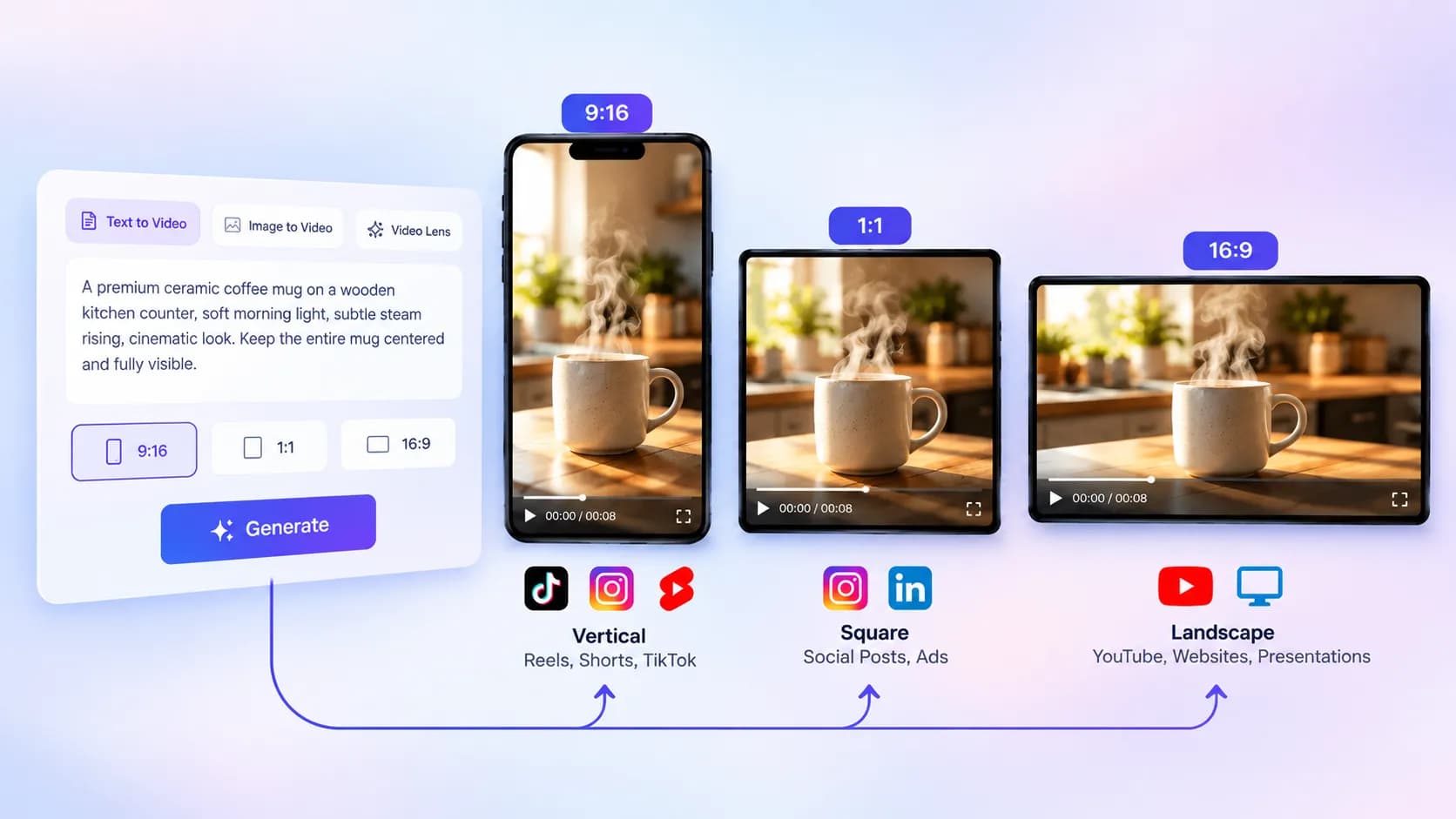
There are three main formats.
| Aspect ratio | Common use | Framing recommendation |
|---|---|---|
| 9:16 (Vertical) | Instagram Reels, YouTube Shorts, TikTok | Keep the main subject clearly visible in a narrow vertical frame |
| 1:1 (Square) | Square social posts and advertisements | Use balanced, centered compositions with limited side movement |
| 16:9 (Landscape) | YouTube videos, websites, presentations | Allow wider backgrounds and controlled horizontal movement |
For instance, a person who is walking in the city will look natural in 16:9 as the wider aspect ratio captures the surroundings. In 9:16, the same scene will require a closer camera shot to ensure that the person is visible.
The aspect ratio should determine the original composition of the shot.

Why Does Reframing Cause Problems in AI-Generated Videos?
Reframing means adjusting an existing composition to fit another aspect ratio, usually by cropping, scaling, or repositioning the footage.
A problem appears when important visual information exists outside the new frame. Consider a product advertisement showing a smartwatch beside its packaging. A wide composition may display both objects comfortably. Cropping it vertically could remove the packaging or part of the watch.
AI-generated motion adds another complication. Even when the subject starts in the center, camera movement can push it outside the visible area. The most reliable prevention method is to design the scene around the final viewing format.
How Can You Generate All Three Video Formats With Xelta AI?
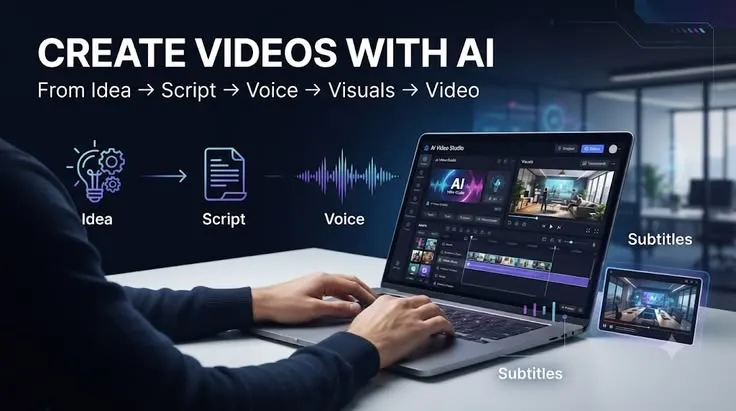
Xelta supports text-to-AI video generation and image-to-AI video generation, with a variety of aspect ratios and resolutions depending on the model The Xelta AI video generator can serve as a springboard to create variations of your intended format-specific video
Know What Video Format Comes First Decide on which platform your video will primarily live on. Does the campaign call for higher engagement on Instagram Reels or does the campaign predominantly feature a YouTube video? Design the initial composition according to the 9:16 (vertical) or 16:9 (horizontal) ratio, respectively. Generate variations for other platforms accordingly.
Include Descriptive Prompts for the Subject in Your Prompt Detail out the subject, actions if any, camera angles, and background as much as possible. For example,
“A premium ceramic coffee mug made of porcelain on a wooden kitchen countertop with morning light shining through gentle wisps of steam being released with a slow camera push in. Center and frame the entire mug, making sure to leave ample space around the product for context and keep colors consistent and realistic.” Your prompt should give the video generation model more context on the intended composition rather than simply asking it to generate a cinematic product image.
Choose What Aspect Ratio to Use Select your desired aspect ratio based on the video generation model you will be using in the Xelta AI video generator. Generate your vertical (9:16), square (1:1), and horizontal (16:9) variations if the ratio options are available. Consistently use the same description, lighting, and general direction when prompting for different aspect ratio videos.
Observe the Movement and Composition of the Generated Video Instead of only looking at the first frame, observe whether any objects are pushed out of the frame or if unnecessary camera movement interferes with the intended look of the video. Was the subject partially hidden at certain points? Did the camera move in unexpected ways that made the product look less desirable?
Finalize Edits for Each Format Video
Compare and contrast the three generated videos. Pick out the best among the variations for each format video. For any other video editing needs, Xelta’s Video Lens workflow provides video analysis and creative output features that can aid in reviewing and repurposing the videos for different formats.
Confirm the final aspect ratio and composition before publishing the videos online.

How to Adjust Your Prompts According to Different Aspect Ratios?
Using the same prompt for each aspect ratio may lead to undesirable framing differences. Instead, try to keep the concept the same while only varying the camera direction within the prompt. Using the coffee mug example from above:
Prompt for 9:16 (vertical):
Vertical close-up composition with the entire handle of the coffee mug facing forward. Keep the mug centered with minimal panning movements horizontally
Prompt for 1:1 (square):
Balanced composition with the entire mug facing forward while keeping visual breathing room on all sides with minimal camera movements.
Prompt for 16:9 (horizontal):
Wider kitchen countertop composition with the mug slightly to the left, facing forward. Show off the environment with a gently controlled camera movement.
The product and general concept are consistent throughout, but the framing and camera directions are changed to fit the intended aspect ratio.
How Can Safe Zones Help Prevent Cropping Issues?
A safe zone refers to the area within a video frame that will remain visible to viewers despite any UI elements, cropping, or adjustments done by the platform. When designing multi-format videos, keep the primary subjects and text within a flexible central safe zone. Less important elements such as the background can be placed closer to the edges, as they may get cut off when viewed on different platforms.
The safe zone may vary depending on the platform and aspect ratio. In general, a landscape (horizontal) format video converted to a vertical format video will have significant areas of the horizontal video cropped off to fit the narrower vertical view. This can cause issues if two people are standing far away from each other in the generated video – keeping them both within the safe zone may not be possible if the video has to be made narrower.
Texts and call-to-action overlays should also be kept within the safe zone of the destination platform.
What Are Some Common Mistakes to Avoid When Creating Multi-Format AI Videos?
Some approaches to video editing can lead to undesirable consequences for multi-format videos:
- Making everything in 16:9: A wide horizontal video may not have enough visual information to be cropped to narrower aspect ratios
- Keeping visual objects at the edge: Important elements and subjects may get cut off when generating narrower or taller videos.
- Using extreme camera movements: Excessively panning or zooming movements can disrupt the visual flow of square or vertical videos.
- Embedding text directly into AI-generated videos: Overly complex or incorrect text rendering may occur, or the text may get cut off when moving between different aspect ratios.
- Assuming similar prompt variations for each video will lead to desirable results: Prompt variations for each video may lead to changes in background, subjects, lighting, and camera movements.
It’s best to always use approved reference images when creating multi-format videos whenever possible, and to always review every generated video variation before finalizing the video.
Final Thought
The best way to approach AI video generation for multi-format campaigns is to make aspect ratio a consideration during the creative brief rather than an afterthought. Determine the primary video format, keep the subject’s important visual indicators intact, and only vary the camera directions for other videos. With Xelta AI, you can begin building your multi-format-specific drafts and tweaking them according to an organized multi-format video generation and review process. The goal is not to avoid every aspect ratio-specific adjustment but to generate videos fit for their intended platforms with fewer unnecessary adjustments. For more practical AI video creation ideas and demonstrations, explore Xelta AI on YouTube.