AI Infographic Generator
The completed infographic can seem complete, yet the information can be wrong. The label could have a misspelled word, and the arrow can point in the wrong direction. Trends can be suggested by chart, but the data does not support them. That is why it is dangerous to ask an AI infographic generator to design and present information together. With Xelta AI, you can experiment with design possibilities for your infographic. The text and data would still need to be edited.
An AI infographic generator can help you visualize a plan of processes, comparisons, and explanations. Take the information that has been approved, and create an infographic that uses a layout that fits the requested question. An illustration or graphic design can be made based on this plan. Specific labels and charts can be placed into an infographic file that can be edited at any time. This design can then be viewed at the size it will be published in.
An AI infographic generator can help you create an infographic out of your idea, process, comparison, or explanation. The input data needs to be factual information, and you have to pick a particular layout that will showcase the data. Besides, you have to define specific prompts for generating images and visual ideas for the infographic. Using the Xelta AI's image generator, you can experiment with the imagery and composition to achieve the desired concept. Then, you have to put all the elements together in an online infographic editor. You have to double-check all the labels, arrows, statistics, and scale of the charts since the AI images generator sometimes produces inaccurate data. Lastly, make sure the design looks good on mobile devices; add alt text to images and then publish the infographic online.
What Should an Infographic Explain at a Glance?
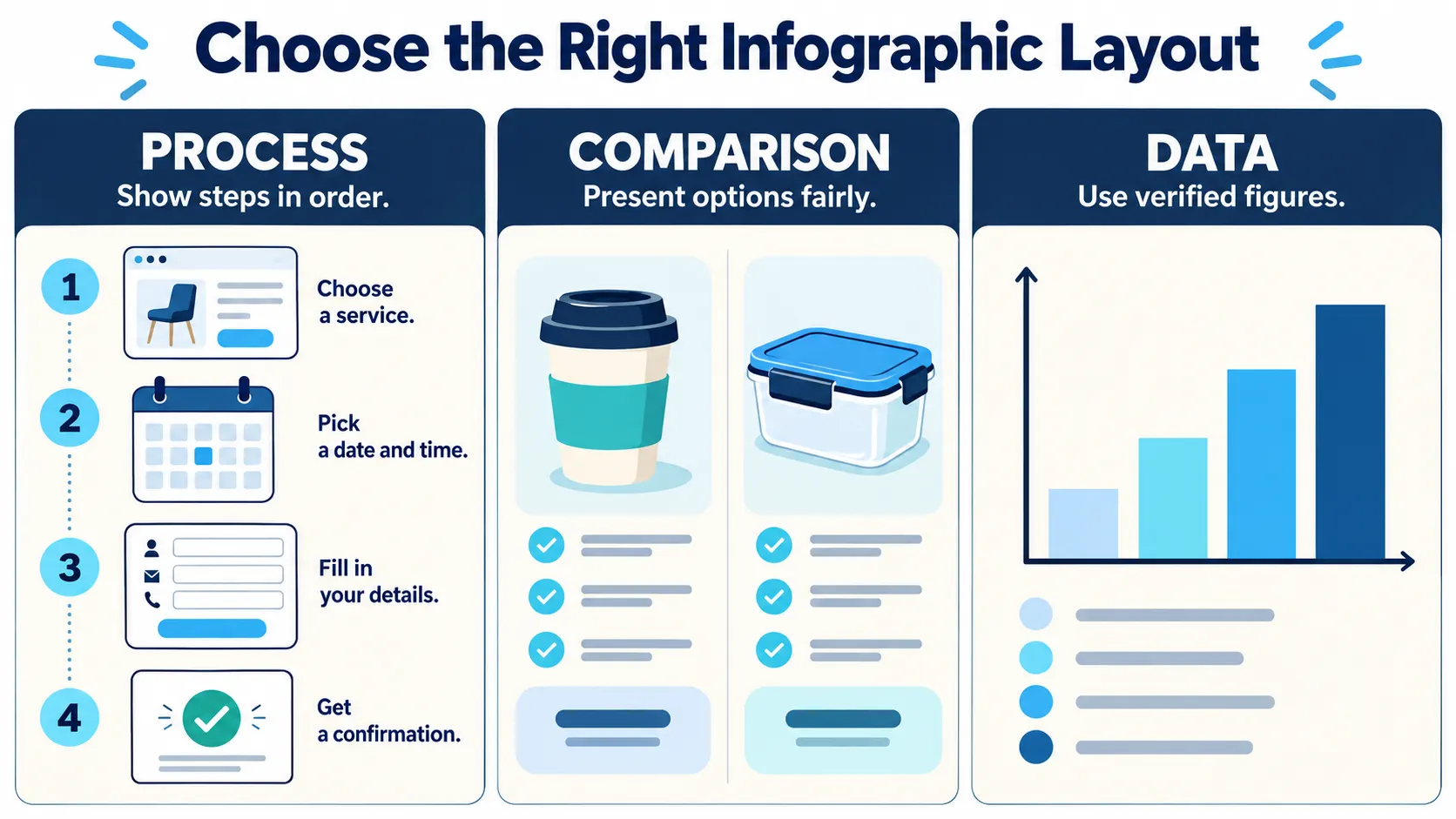
An infographic should have a clear focus: on a process, comparisons or a measurement of some sort. Having all three will turn it into a busy poster.
Say you're a business that offers online booking. It's an infographic about the booking process. The goal is to communicate the order of actions: pick a service, select a time, provide personal information and receive a confirmation. Your audience doesn't want a beautiful collage of telephones and digital calendars, they need a precise indication of the steps in the booking process. And if the steps aren't clear, you've failed at creating an infographic.
| Information | Useful layout | Common failure |
|---|---|---|
| Steps | Numbered vertical flow | Arrows in the wrong order |
| Two choices | Side-by-side panels | Unequal detail |
| Data over time | Chart from verified figures | Invented scales |
What Do You Need Before Writing a Prompt?
The creation of the document should begin with words not colours. Build your headline and each step in a simple text document. Check that every instruction accurately reflects the current procedure. Where a payment is required to book, include this. Do not allow an image to imply “instant approval” with no proof.
Build your text first, then decide if your infographic or document requires any embellishment. If you are including statistics, keep a copy of the spreadsheet. If a procedure is complicated and needs lots of text, maybe a written set of instructions with images would be better.
How Can Xelta Help With the First Draft?
Xelta's AI image generator works with prompts and reference images. You can use it to explore the icons, backgrounds or visual composition but not to check statistics or obtain guaranteed accurate typography.
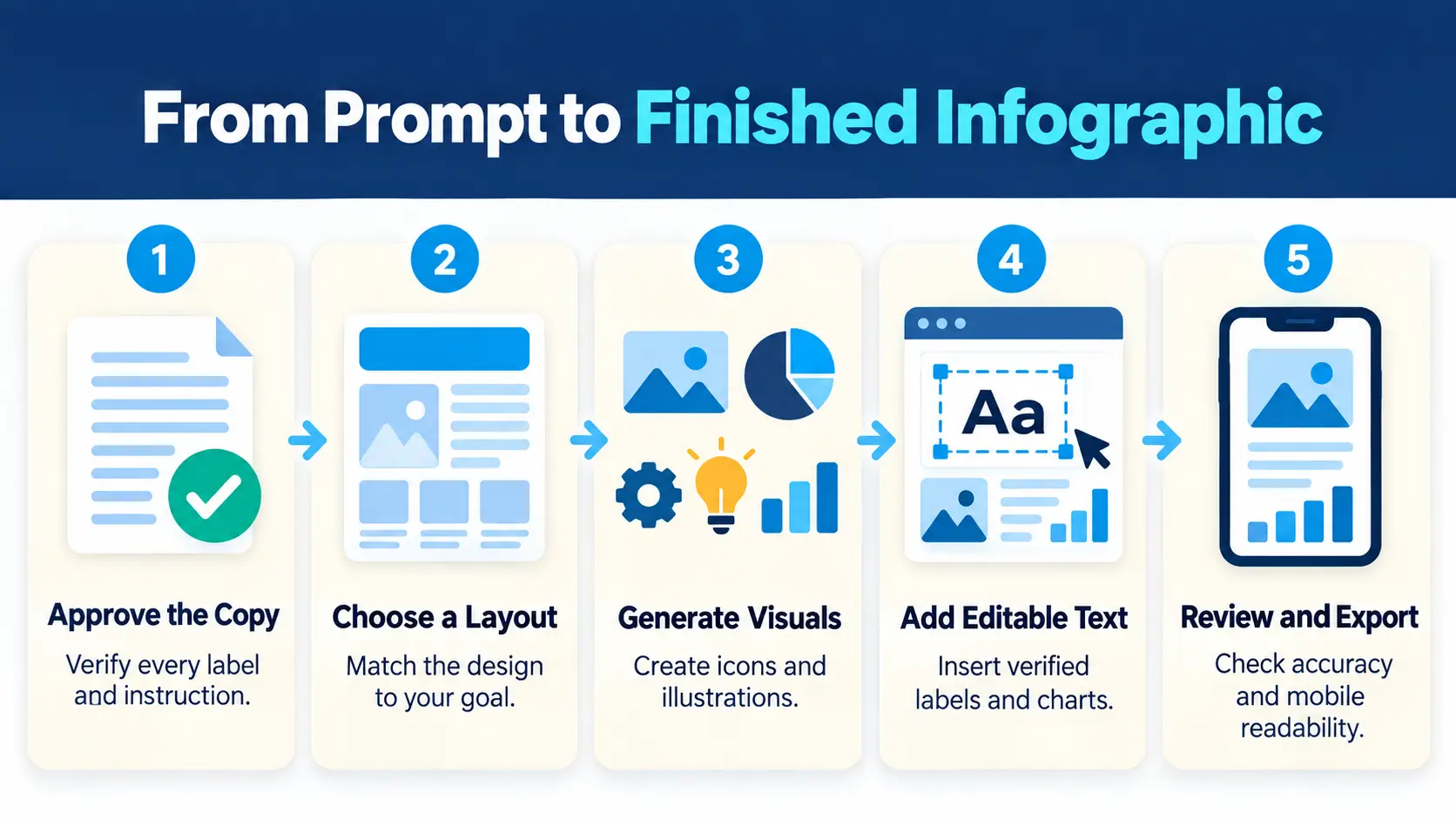
Try this workflow:
- Approve the copy. Set the headline and short steps.
- Choose a format. Allow space for readable labels.
- Generate illustrations. Request visuals without built-in lettering.
- Assemble the infographic. Insert real text, arrows and charts in an editable editor.
- Review on a phone. Confirm the meaning survives a smaller screen.
If a step changes tomorrow, editable text beats regenerating the whole poster.
Which Infographic Prompts Work for Different Jobs?
Example 1: A Four-Step Process
Create four matching flat illustrations for the on line booking guide; a service card, calendar, short form and confirmation icon. Use the navy and pale cream, keep the line weights consistent to create a sense of balance and leave lots of room. No text, numbers, charts or screenshots.
Place these next to verified instructions in a vertical flow. Add the step numbers yourself so that they can be edited without reproducing the images.
Example 2: A Product Comparison
Design a symmetrical graphic background to compare two different reusable packing options. Two equal size panels with neutral colors but include only the necessary information about the different packaging options and leave enough of white space. Do not add logos, percentages, any statements, and other text.
Only the relevant information about the products according to your research should be included in the presentation since an emphasis on one option because of a better layout may mislead the audience.
What If You Haven't Chosen a Visual Style?
Xelta's Moodboard AI constructs coordinated visual references plus allows users to refine individual tiles. It's a way to finalize colours, icons and illustration style, before production.
It's not a chart builder. Maintain the factual hierarchy, scales and final typography in your editable design file.
What Should You Check Before Publishing?
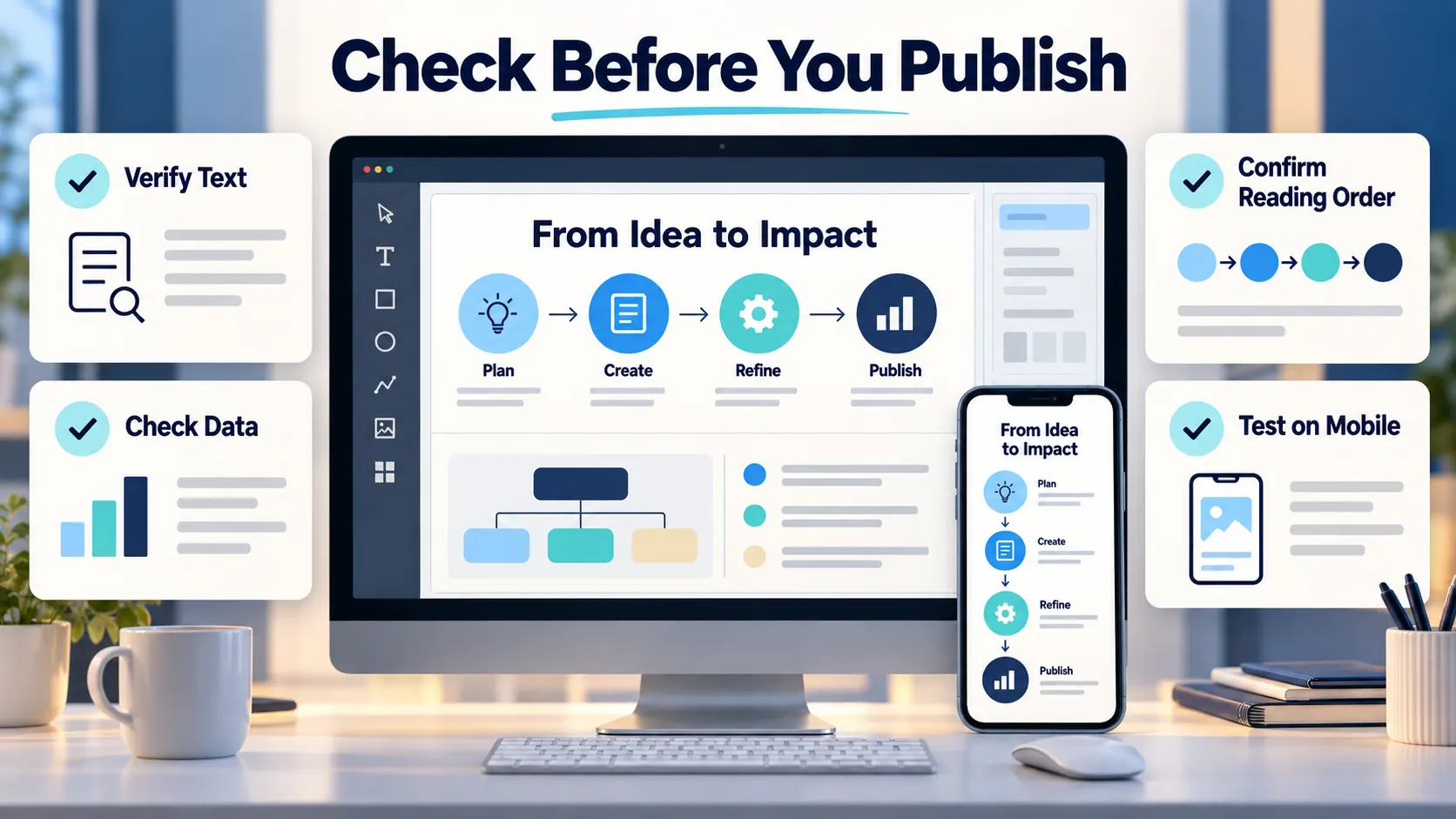
Read the graphic without looking at the draft. Can your instructions be followed? Check that each label and number matches a source.
Next, make sure that the contrast, font sizes and cropped edges are correct on a phone. Write a descriptive alt text and give a text alternative when instructions or other text are captured in the image.
Final Thoughts
A good infographic should not require a complex illustration. It should convey information in a more efficient and understandable way than a lengthy text. To do this, it must be based on a specific question and information that can be defended against criticism. AI can assist you in exploring variations of infographic page layout, but it should not interpret the data, invent values for charts or conceal complex instructions under eye catching graphics.
Allow AI to create icons, color palettes and layouts, but design the labels and charts that can be tweaked to fit the information exactly. Before publishing, ask an outsider what he understood from your infographic without additional explanation. If he misunderstood the sequence of information or missed the primary takeaways, rework the information architecture before reworking the graphics. A new stylish backdrop will not help you here.
For official image creation examples and visual inspiration, exploreXelta AI on YouTube.
Frequently asked questions