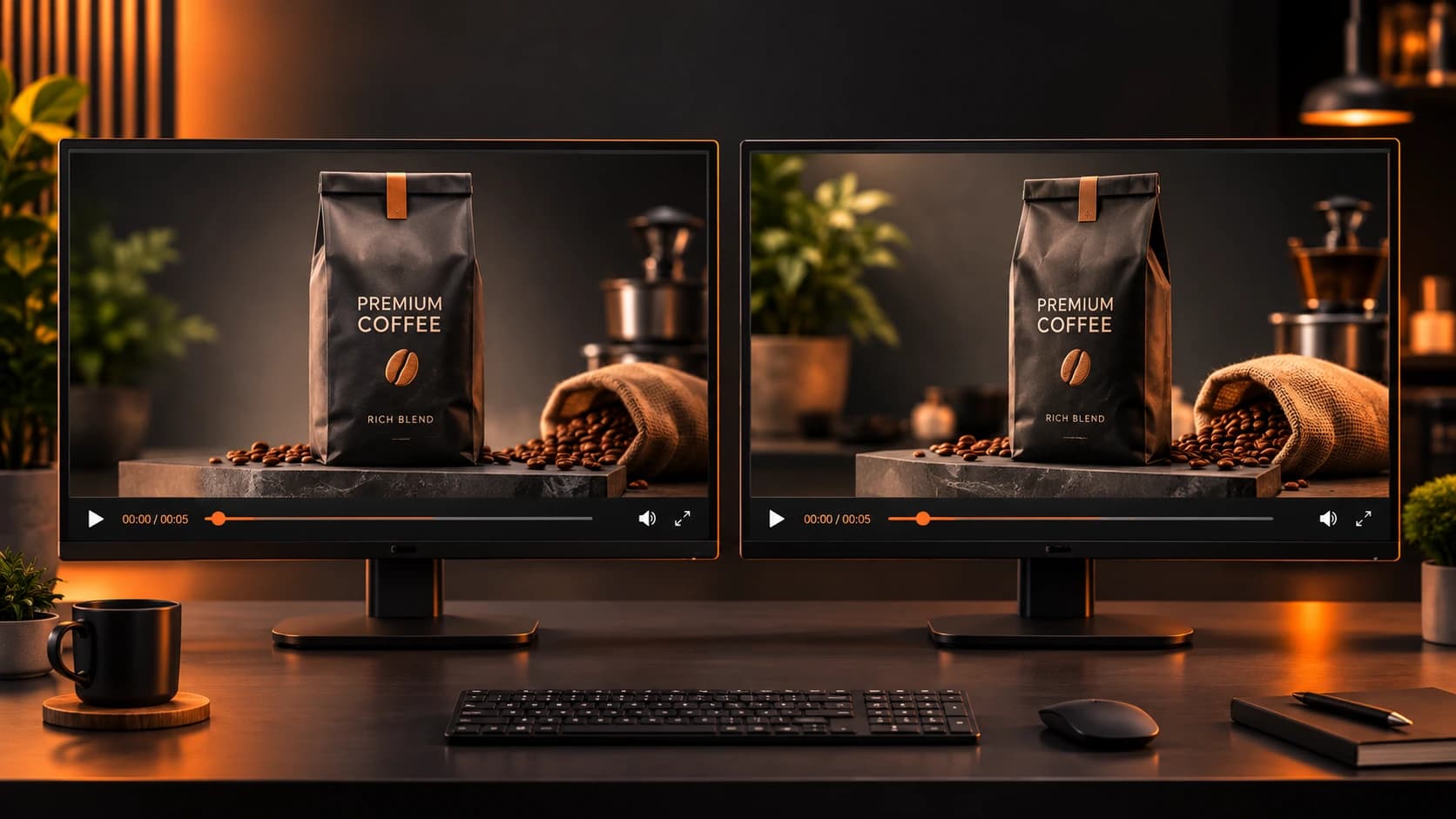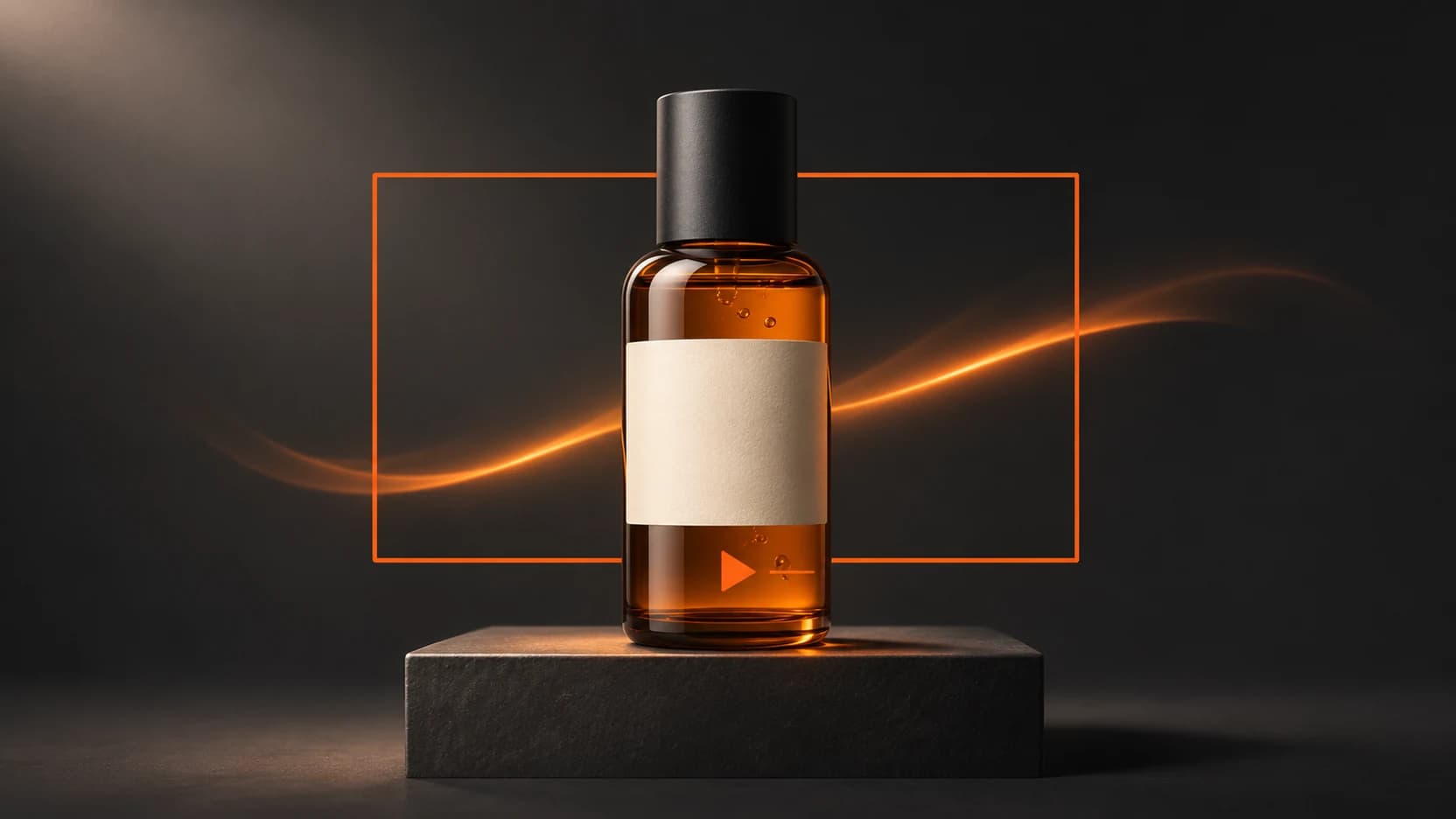
Upload a clear image. Ensure that you have selected a model which can take images as input. Specify a simple motion. Check that the first, middle and final frames match the approved image. If there have been changes to text, faces or shapes, try reducing motion in the video, or animate the approved image in an editor.
Select an appropriate image
For vertical Reels, consider how the image will be cropped. Allow space in the image for the motion and text. For wide banners on websites, ensure that the subject is visible in any mobile cropping. Tightly cropped images will not allow enough space for motion and can be used in static content only.
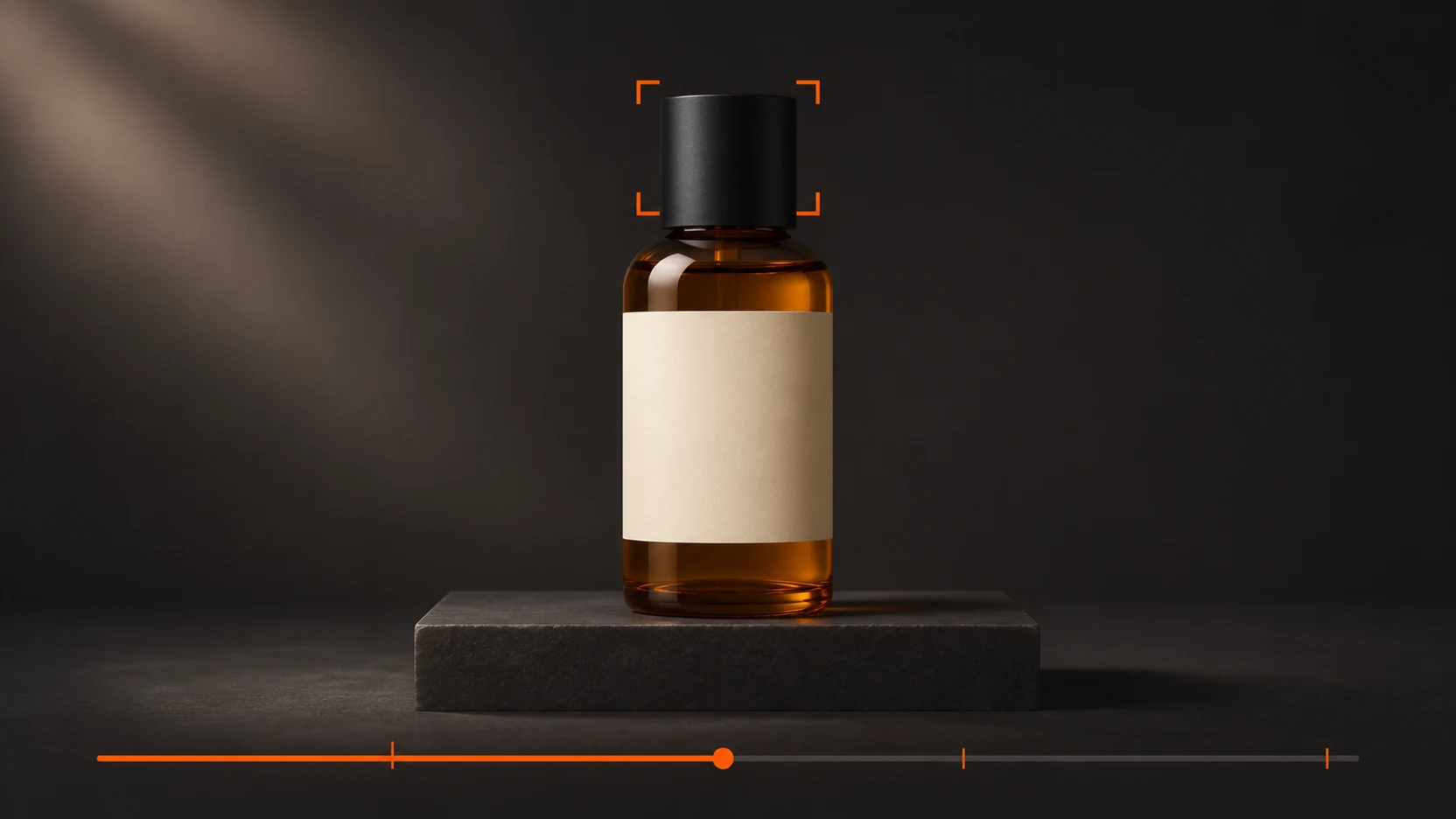
Select an image with one clear subject and clear edges. Note 2-3 specific details that must remain unchanged within the image, such as text on the label, lid shape and colour of packaging. Keep the approved image close by.
Consider the content of the image. If the image is taken directly in front of the product, the model will not have verified details from the back. If you need to show the back label, ensure that you have an approved image from that perspective, or reshoot the turn.
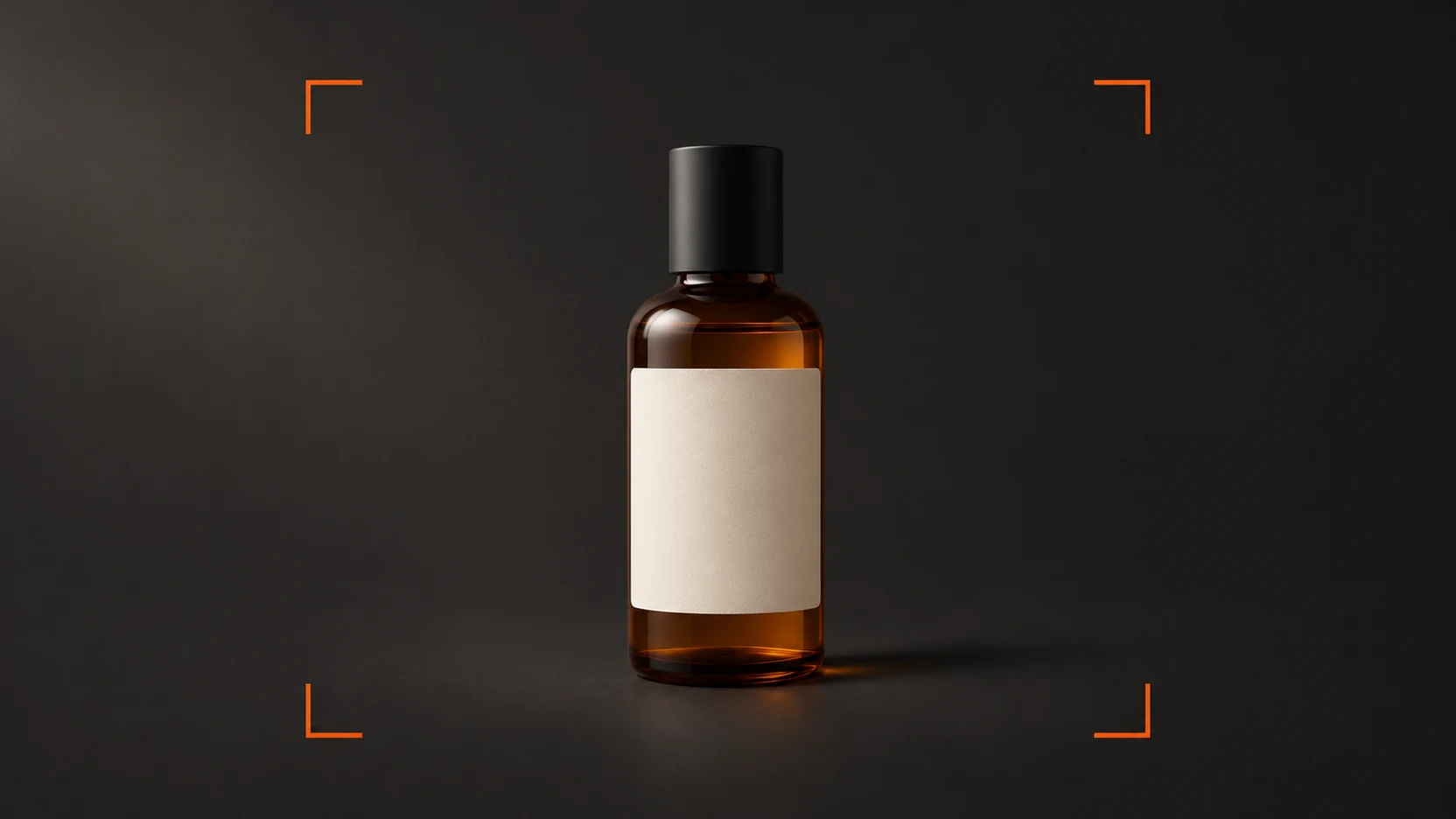
How to Turn a Photo Into an AI Video
Within your AI video creation tool, select an appropriate model (one which can take image inputs) and upload your image. Select your aspect ratio and short length (where applicable). Creating a short video will allow you to more easily see the effect of motion on the image.
Create a simple prompt. Include what motion you would like, how much and what should remain still. If creating a product video, you may wish for a slow zoom in, with the product and lighting remaining still. Create a simple motion with this prompt. Once you have created one, if you would like to create a second version, you can experiment with changing lighting or background motion.
If you’re not sure how to continue an illustrated scene, you can create suggestions using Future Canvas. Once you’ve decided on a continuation, animate it. Check that it matches the source image (particularly important if you need to include the same characters/scene in further shots).
Suggested prompts
All prompts below assume that you have uploaded the image. Adapt to suit the content within your image.
1. Product Zoom In
Zoom in slowly. The bottle should remain in the correct upright position, and the front label should be facing the camera. The label text, lid shape, bottle colour and soft lighting should remain unchanged. The final frame should show the whole bottle, and you may wish to pause on this frame slightly.
Check that:
If any of the label text, logo, facial features or product shape have changed, shorten the zoom in. If you need the details to be precise, animate the approved image in an editor.
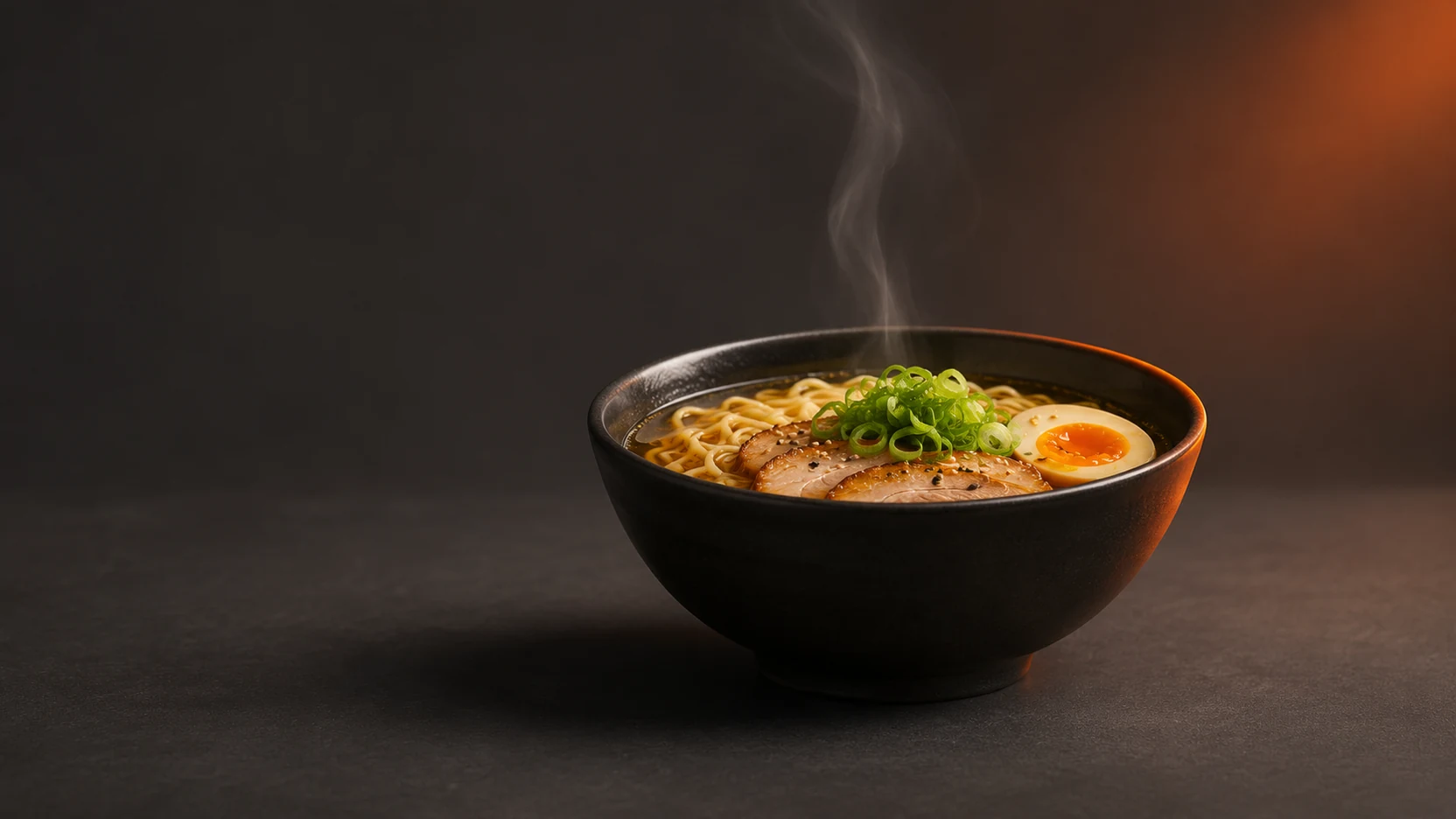
2. Slight Steaming
The camera remains still. Thin steam gently rises from the bowl, becoming faint above. The bowl, ingredients, garnish, cutlery, and backdrop should remain in the same place. Lighting, colours of food items should also be consistent with the image.
Check that:
If the garnish or amount of food appears different to the image (particularly in areas where steam obscures the food), in future attempts reduce the amount of steaming.
3. Slight Facial Expression Change
Camera remains level with subject’s eyes. The subject blinks once, and smiles slightly. Face remains still. Facial features, hair style, clothing and background should remain unchanged.
Check that:
During blinking and at the end of the smile, carefully check that facial features including eyes, teeth, hairline and glasses (if applicable) have not changed. Ensure that you are animating an image with permission to use for this purpose.
Review the Clip Before Exporting
| What to review | What to do if it fails |
|---|---|
| Label text, logo, facial features, or product shape change | Reduce the motion. If the detail must stay exact, animate the approved still in an editor. |
| Movement starts abruptly or the frame jumps near the end | Keep the stable portion if it still communicates the intended action. |
| A generated angle reveals an unverified product detail | Use an approved image of that angle or replace the shot with recorded footage. |
| A crop cuts off the subject or leaves no room for copy | Reframe the source for the intended placement and preview it with the copy in place. |
If there is a clean section in the video, trim using an AI video editing tool. Specific pricing, dates and calls to actions can be added as editable text in the final edits so that they can be proofed and updated.
Conclusion
Given one approved image, create a simple motion. Create a short video, and check that the most dynamic frame matches the approved image. Once details have passed checking, you can export. For inspiration for your next scene, search AI video examples on LinkedIn.
Frequently asked questions