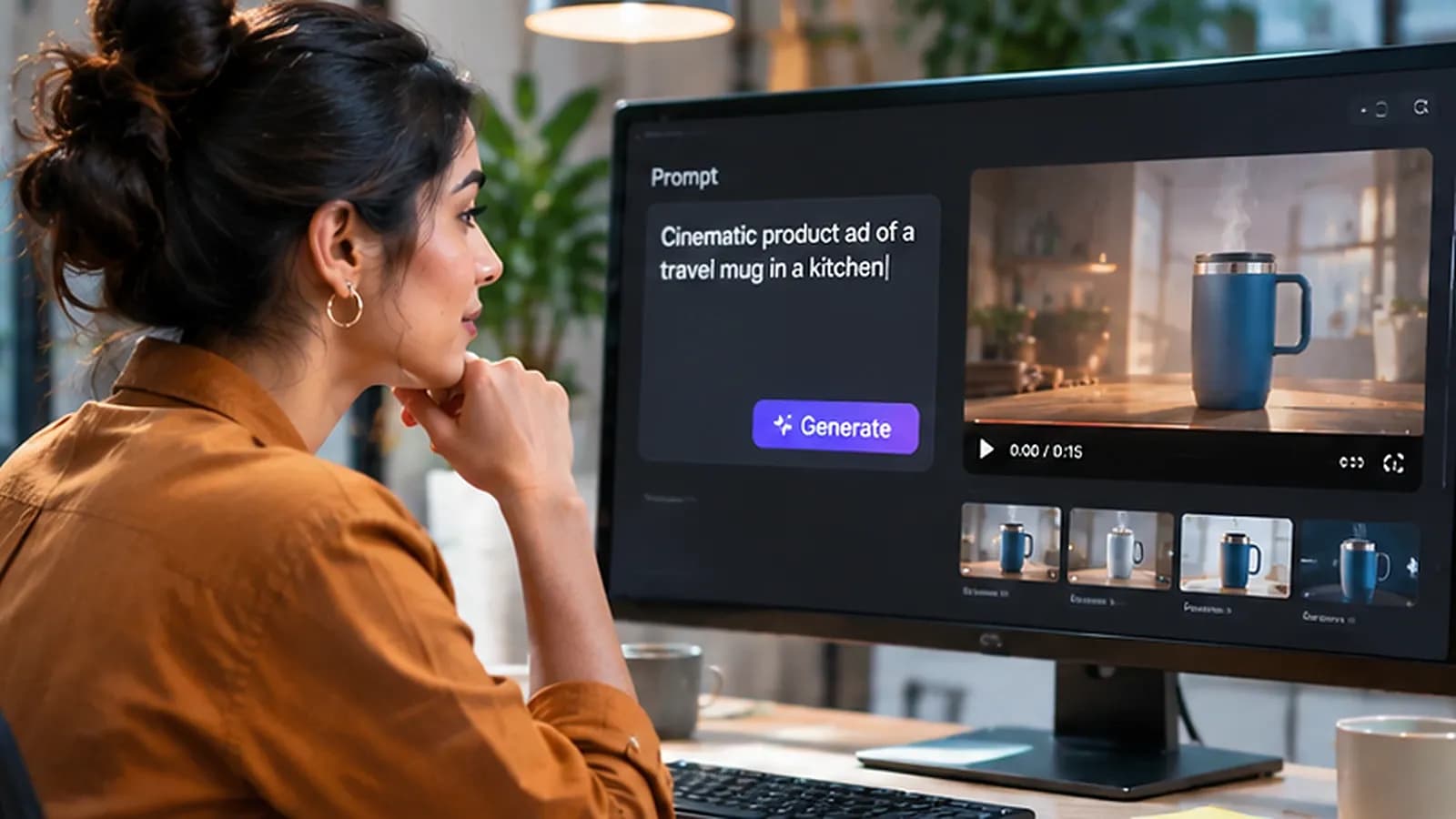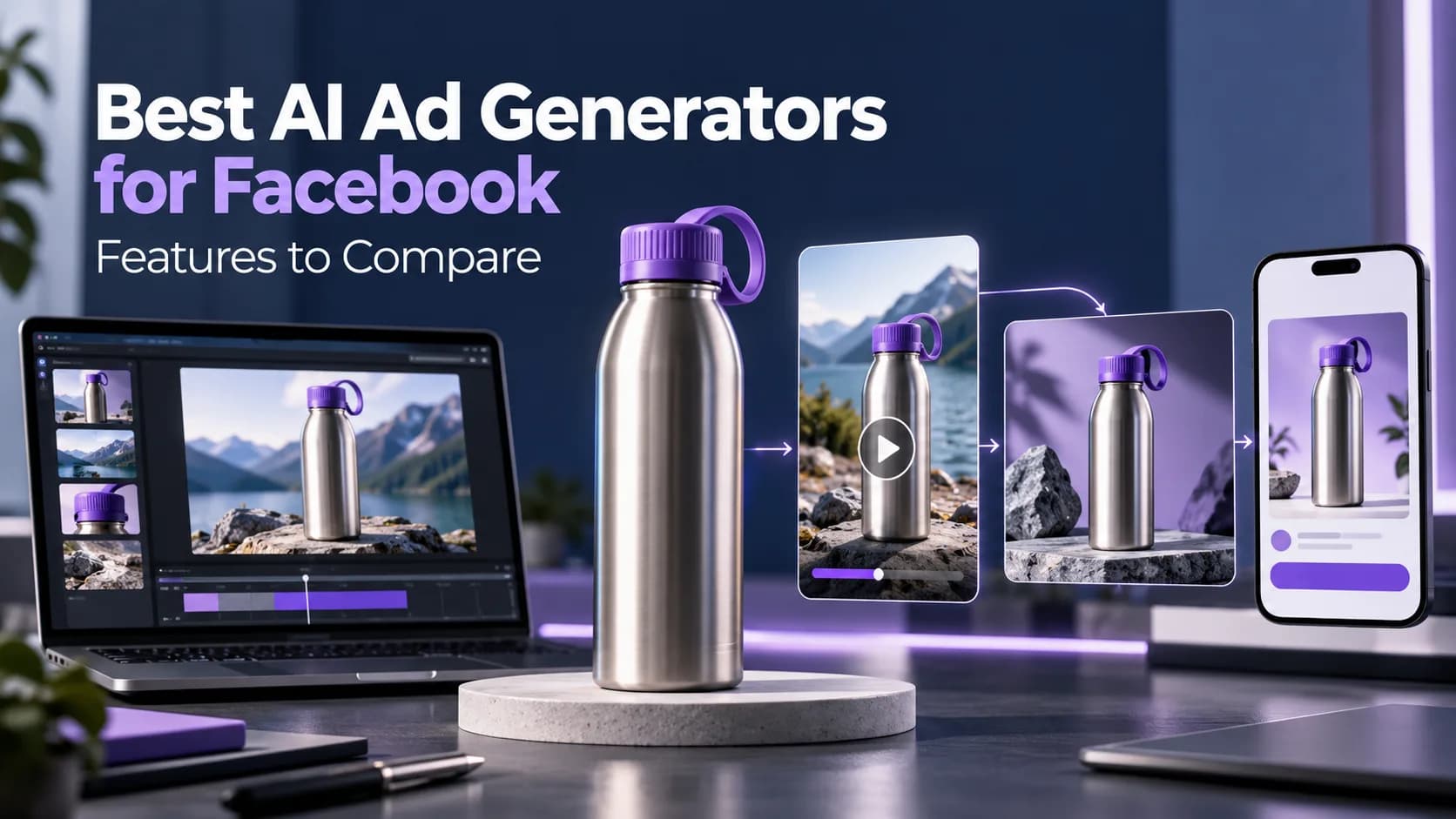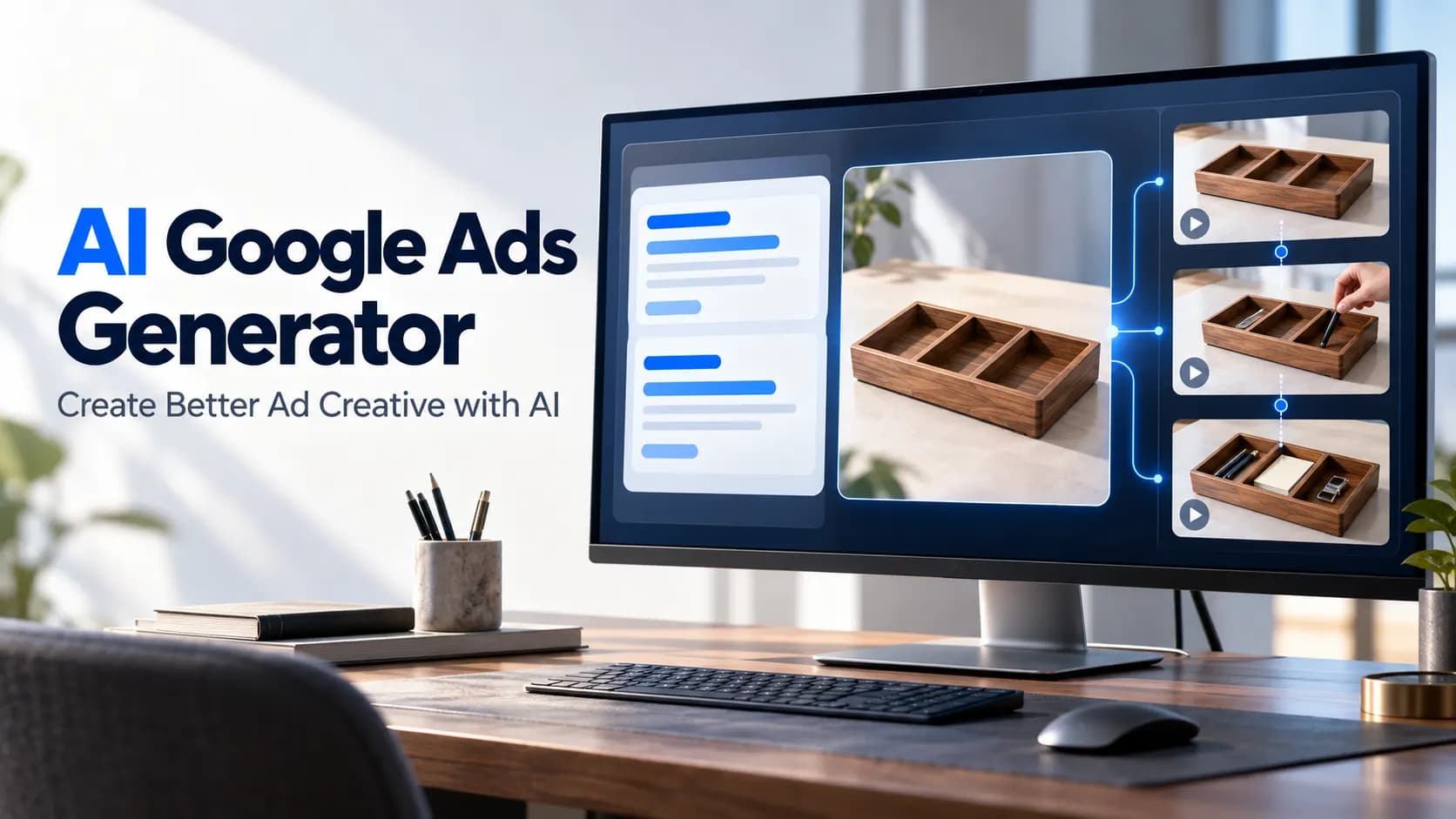
An ad studio allows you to create ad creatives based on a brief. Include one product image/ link, target one audience, and include one action. Review the storyboard and final ad. Ensure product information, claims and targeting is correct before publishing. Errors may occur in AI generated ads.
What is an Ad Studio?
Within the ad studio, you create ads from a brief. From the brief, you can create a storyboard. Different creatives can be made from this storyboard. Then a final creative will be produced so people can view.
In Xelta, performance data can be viewed within the platform or in an external analytics tool.
Explore the AI ad studio to find suitable workflows to create your ad. Within your first campaign, aim to include only one product, message and placement.
Choosing a Workflow
With a product image
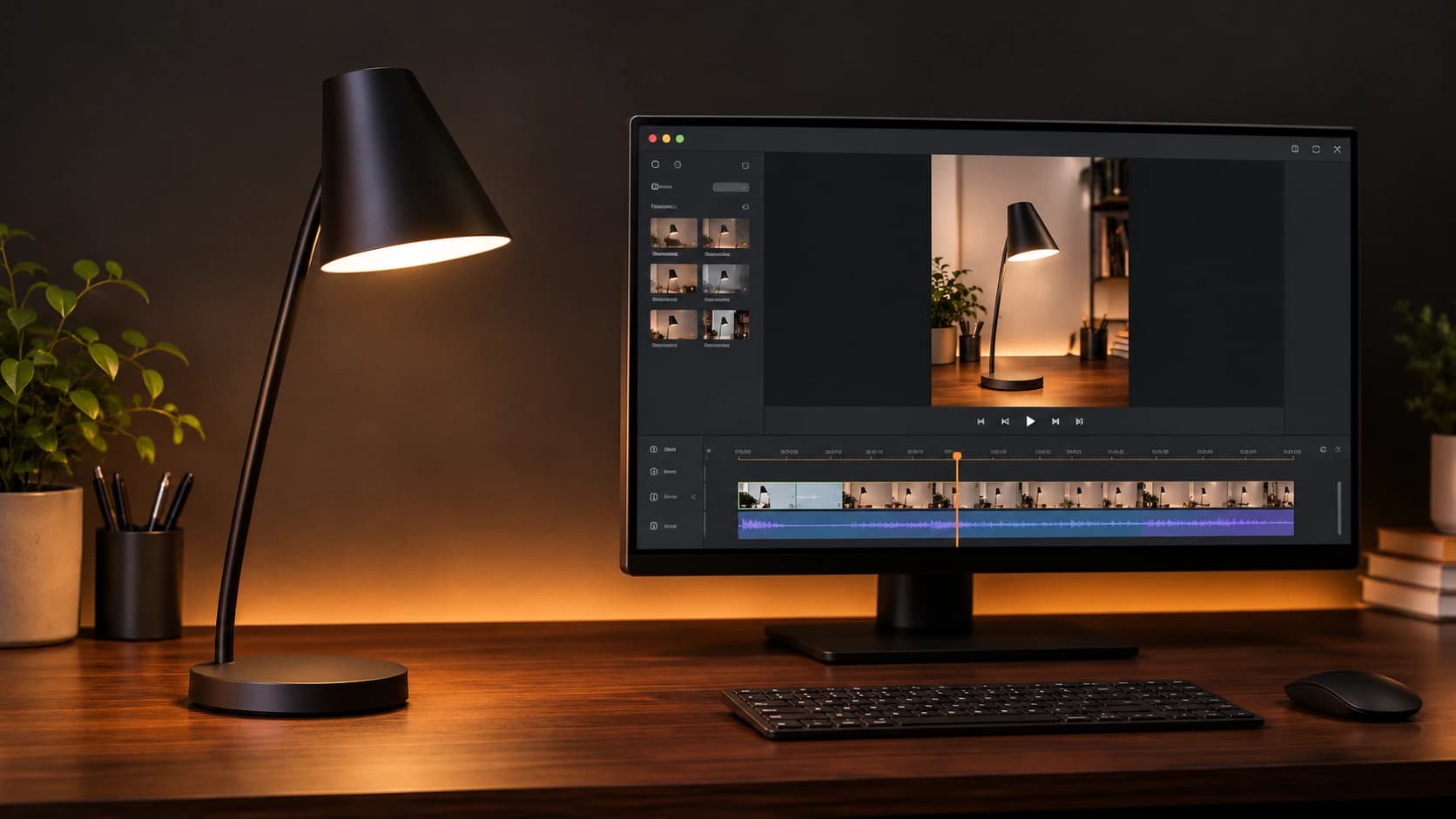
If you have approved product imagery, and an idea for your video, select the ‘AI ad maker’ option. Insert your product image, write a description for your ad, and select a duration. A brief and storyboard will be automatically created. These can be reviewed and a video created.
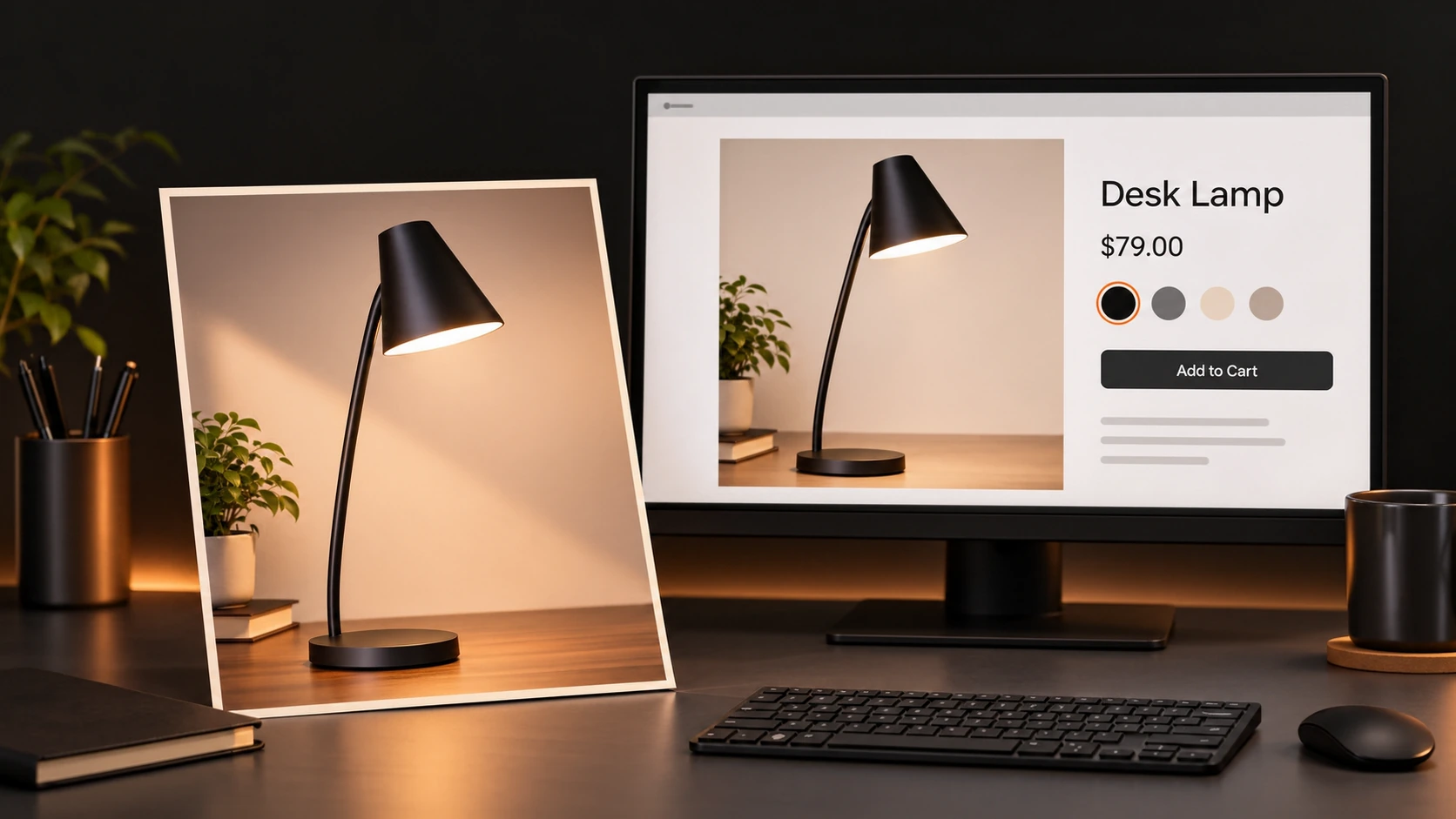
Select a product image that shows enough detail for people to identify the product. In this example, a three quarter image of a desk lamp showing details of the lampshade, design, and base would be suitable. You may wish to have approved reference images to hand to ensure the details in the images generated match.
With a product page
If you have a live product page, this will be a good starting point. Ensure that the product, including variant, is exactly the product you would like to promote. Ensure imagery, product details and offer are up to date. If there are multiple variants within the product page, be very clear in your instructions stating which variant to promote.
Using the product ad generator, insert a product link. Add an idea for your ad. A brief and storyboard will be created, these can be reviewed. Compare to the product page. If there are multiple finishes/ options in the product page, compare carefully.
Writing your ad brief
Including all relevant information in your brief will allow you to get the best results. Target just one audience with a quick to understand message. Within the message, include one action. Include any necessary product details.
Ad Brief (Product Video)
Replace the product, audience and action below with your approved details.
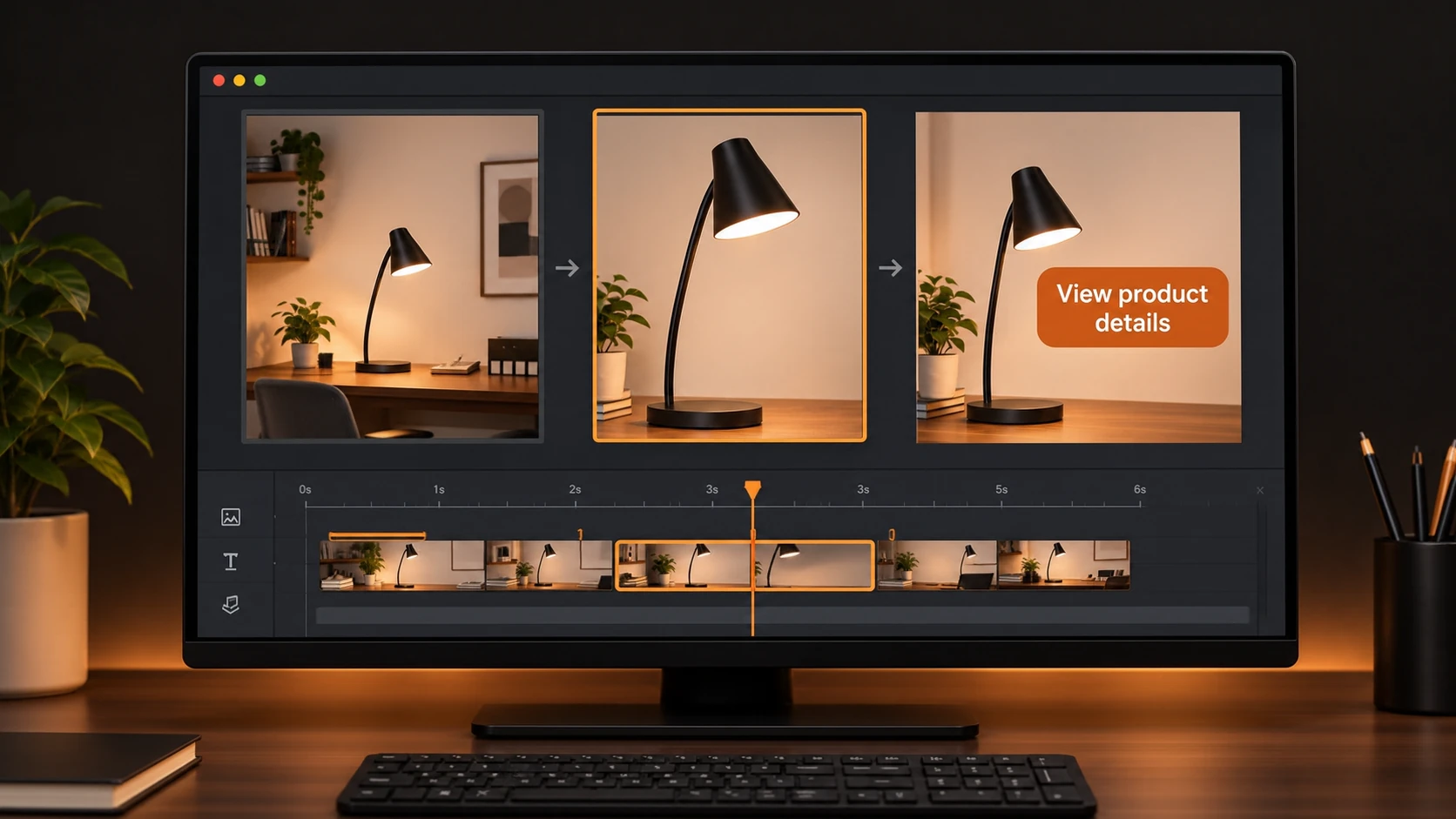
Short vertical video. Show to people putting together a small office at home. Show a matte black desk lamp (as pictured). Wide shot of small desk. Show lamp in the first frame. Close up of desk lamp, showing lampshade and base. End with desk lamp in place on the desk. Add text saying “View product details”. Ensure all images match reference image for the lamp. Simple transitions, and large text for easy readability on mobile devices. Focus on aesthetic.
Consider where users will be directed. If the product page allows customers to check sizing and available finishes, directing them to ‘View product details’ makes it clear why they should click through.
Review the Storyboard
Ensure that each frame has a purpose. In this example, the first frame sets the scene, the second shows the product and the final frame is a clear call to action. Check that no additional messages are included in any frames, and that the product can be clearly identified.
Check for claims in both text and visual. If a demonstration of dimming functionality is added in this ad, double check that this functionality is available on that particular model. If this is a key part of your campaign, consider recording a real demonstration. This means that people know where to find the control and how to use it. Generated images can however, be used to create the right atmosphere.
Use This Checklist Before Publishing
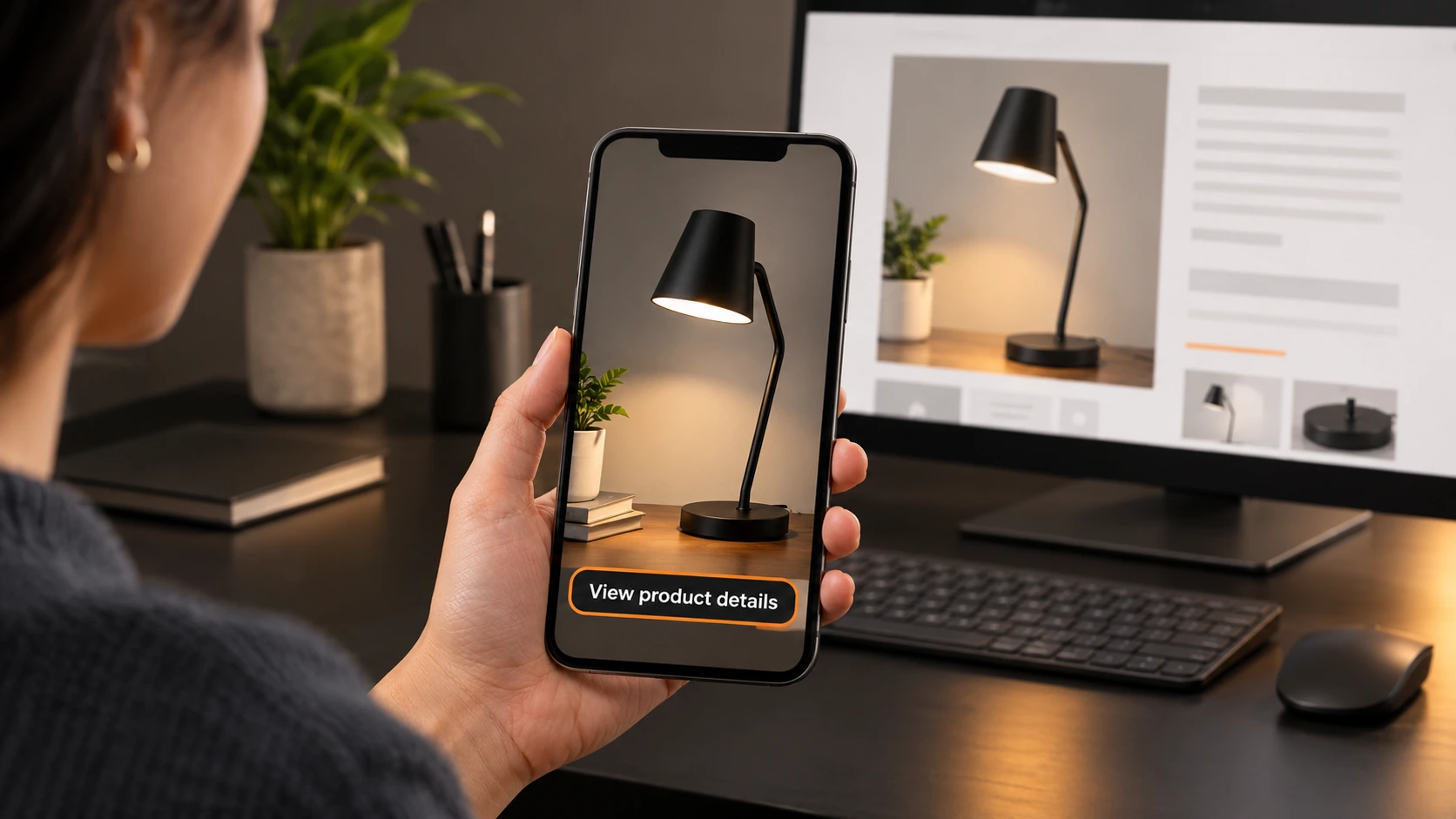
Watch the final video on a mobile device, and preview in context. Ensure:
- Product details - Match colour, shape, controls and packaging to approved references. Check in each image that includes the product.
- Accuracy -Prices, times, products and claims are correct.
Easy to view on mobile
Text size, length and positioning of buttons do not make it difficult to see important information.
- Sounds and permissions -Watch the video without sound. Are there any problems? Make sure you have the right permissions to use this content.
- Correct link -Click through to the landing page. Is the correct product and promotion shown?
If making an alternative version of this advert, make 1 change. (E.g. within the first frame). However, ensure that the same promotion and action is included to help interpret results.
Conclusion
Pick an easy product to check. Create a short storyboard. Create 1 piece of creative for 1 placement. For more ideas on how to structure your video and what timings to use, look at some examples of AI videos.
Frequently asked questions