

How to Create Videos From Text Using AI
A cinematic AI video does not come from adding the word "cinematic" to a short prompt. A cinematic video comes from describing the subject, action, environment, camera movement, lighting, mood, and visual style clearly enough for the AI model to understand the scene.
In this guide, you will learn how to create videos from text using AI, write stronger prompts, control camera direction, create better scene continuity, and refine your output. You will also see how an AI video platform such as Xelta can support the workflow from text prompt to finished video.
What Makes an AI Video Look Cinematic?
A cinematic video usually has more than high resolution or dramatic lighting. It has visual intention.
A strong cinematic clip normally includes:
- A clear subject
- One main action
- A specific environment
- Controlled camera movement
- Intentional lighting
- A defined mood
- Consistent composition
- Suitable pacing
For example, "a woman walking in a city" is too broad. It does not tell the AI how the scene should feel or how the camera should behave.
A stronger prompt would be:
A young woman walks alone through a rain-soaked city street at night, neon reflections on the pavement, slow dolly-in camera movement, shallow depth of field, soft cinematic lighting, realistic film texture, quiet and reflective mood, widescreen composition.
The second prompt gives the model a subject, action, location, lighting style, camera movement, mood, and visual direction.
How Text-to-Video AI Works
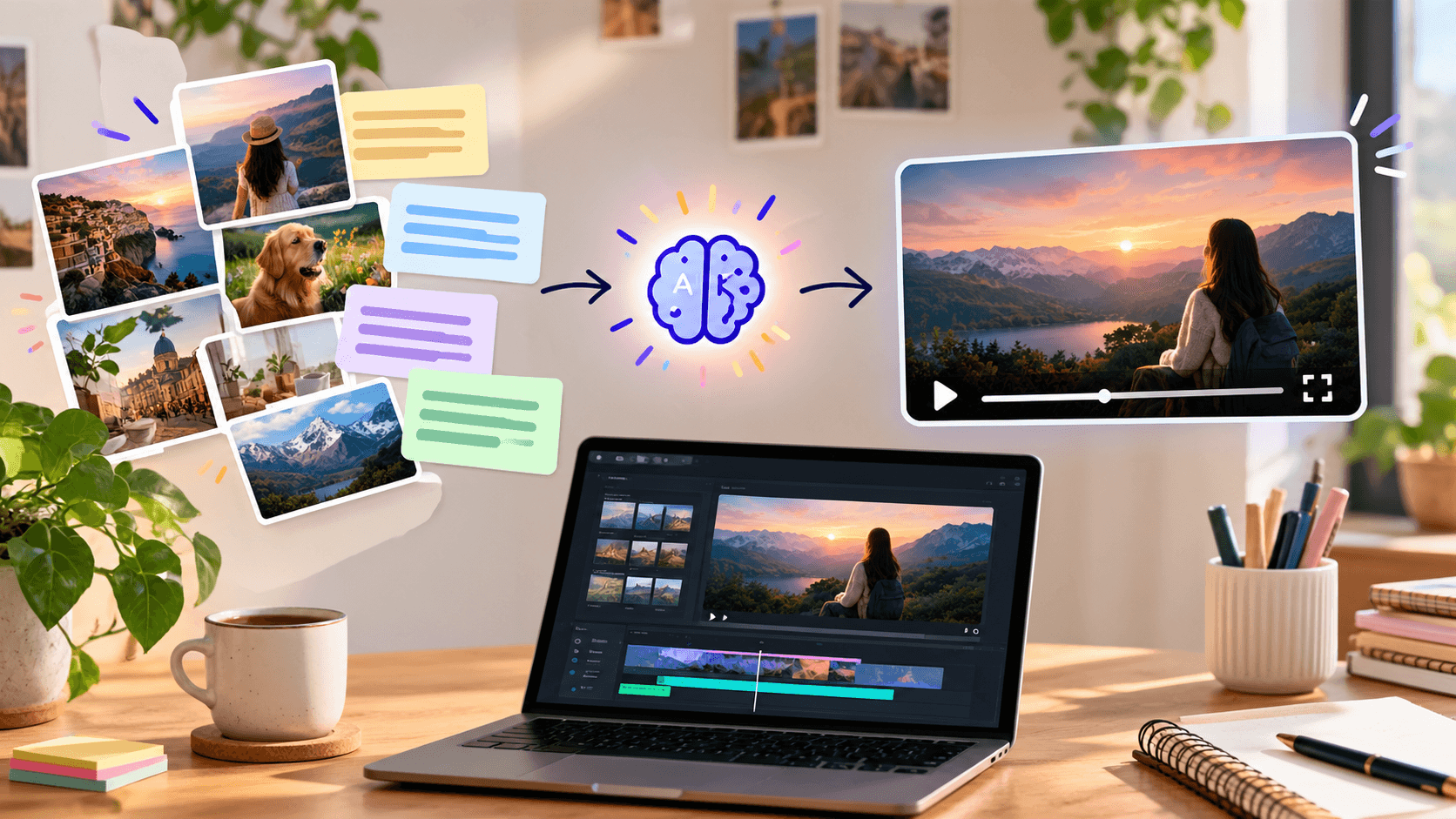
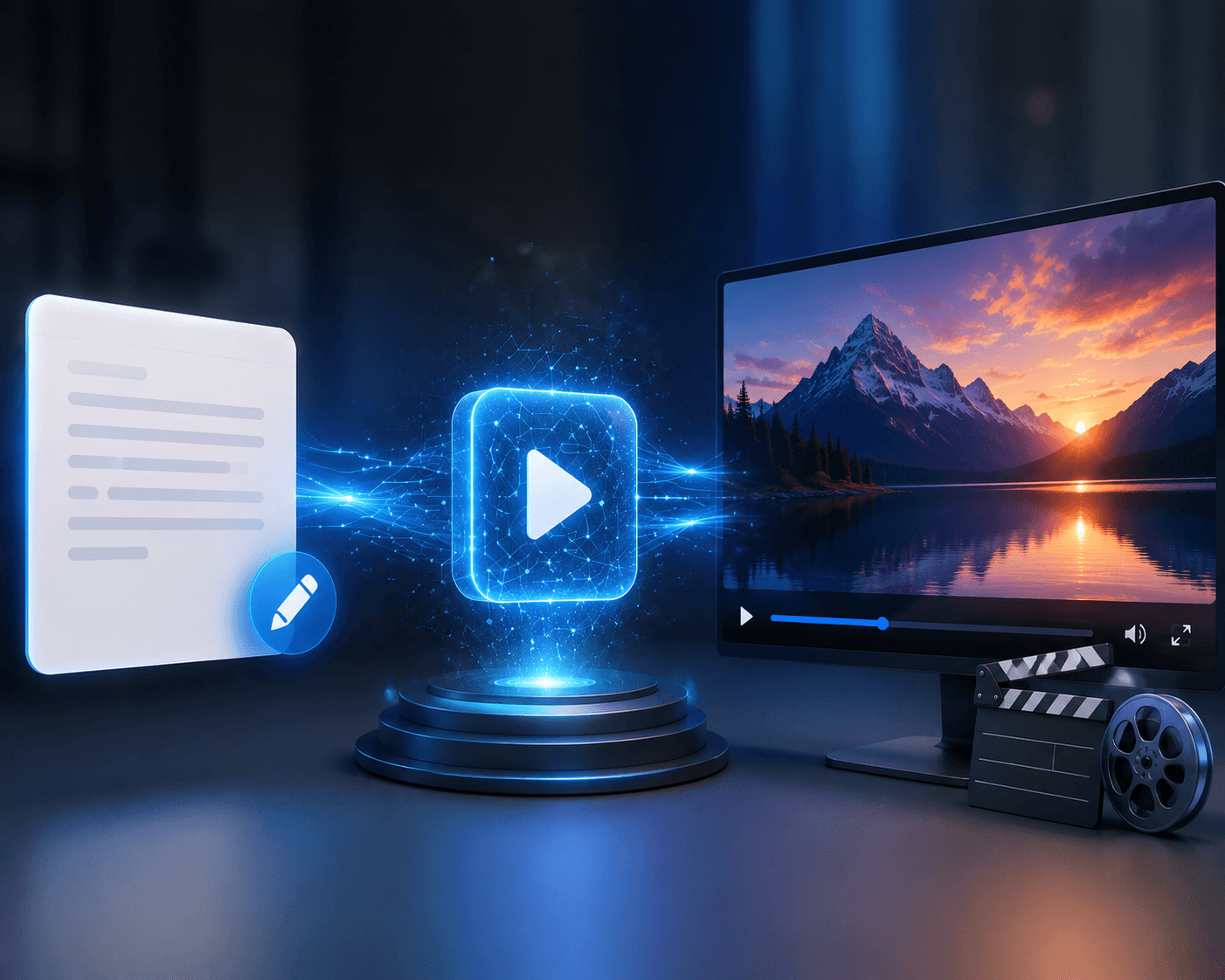
Text-to-video AI converts written instructions into visual frames and motion. The system interprets the prompt and generates elements such as characters, environments, objects, camera movement, lighting, and atmosphere.
Most text-to-video workflows follow this basic sequence:
Text prompt -> Scene interpretation -> Visual generation -> Motion generation -> Video output
The quality of the result depends heavily on how clearly the prompt communicates the scene. A text-to-video model may understand "a car driving through a city," but it may produce a more controlled result when the prompt explains the time of day, camera angle, speed, road conditions, lighting, and mood.
Xelta's AI Video Generator supports text-to-video and image-to-video workflows for marketing videos, social content, product visuals, advertisements, and storytelling.
Plan the Scene Before Writing the Prompt
Before entering a prompt, decide what the audience should see first, what should happen next, and how the scene should end.
A useful planning framework is:
1. Subject
Identify the main person, object, product, or environment.
Examples:
- A fashion model
- A sports car
- A luxury perfume bottle
- A filmmaker in a city
- A family entering a house
2. Action
Describe one main action instead of several unrelated actions.
Examples:
- Walks slowly toward the camera
- Turns to look over their shoulder
- Opens a mysterious door
- Places the product on a table
- Drives through a rainy street
3. Environment
Explain where the scene takes place.
Examples:
- A foggy forest at sunrise
- A modern apartment at night
- A crowded market in Mumbai
- A futuristic city rooftop
- A quiet beach during golden hour
4. Camera Direction
Camera direction has a major effect on the final result.
You can use terms such as:
- Slow dolly-in
- Wide establishing shot
- Low-angle tracking shot
- Over-the-shoulder shot
- Slow pan
- Handheld documentary movement
- Static close-up
- Crane shot
- Macro push-in
5. Lighting and Mood
Lighting helps communicate emotion and genre.
Examples:
- Warm golden-hour lighting for a hopeful mood
- Cool blue lighting for a futuristic mood
- High-contrast lighting for suspense
- Soft window light for a natural commercial
- Foggy backlight for a mysterious scene
Use This Cinematic AI Video Prompt Structure
A simple prompt formula can help you avoid vague results:
Subject + action + environment + camera movement + lighting + mood + visual style + video format
For example:
A professional chef prepares handmade pasta in a warm Italian kitchen, slow side-tracking camera movement, soft morning window light, gentle steam in the background, natural hand movements, realistic food textures, premium commercial style, shallow depth of field, 16:9 video.
This structure gives the AI enough information to create a focused scene without making the prompt unnecessarily complicated.
Step-by-Step Workflow for Creating a Cinematic AI Video
Step 1: Start With One Visual Idea
Do not begin with an entire film in one prompt. Start with a single scene.
Instead of asking for a complete three-minute story, describe one shot such as:
A lone astronaut walks across a red desert toward a distant space station.
This gives the model a clear visual target.
Step 2: Add the Main Action
Add only the action required for the shot.
A lone astronaut walks slowly across a red desert toward a distant space station while dust moves around their boots.
Step 3: Direct the Camera
Camera direction helps the output feel intentional.
Wide low-angle tracking shot that follows the astronaut from behind.
Step 4: Add Lighting and Atmosphere
Harsh sunset light, long shadows, airborne dust, warm orange atmosphere, realistic cinematic contrast.
Step 5: Choose the Format
Decide whether the video is for YouTube, a website, Instagram, TikTok, or a presentation.
Common formats include:
- 16:9 for YouTube and websites
- 9:16 for Reels, Shorts, and TikTok
- 1:1 for social media posts
- 4:3 for certain editorial or presentation formats
Step 6: Generate and Review
After generating the clip, review:
- Is the subject consistent?
- Is the main action clear?
- Does the camera move correctly?
- Are the hands and face realistic?
- Is the background stable?
- Does the lighting match the prompt?
- Is the video suitable for the intended platform?
Step 7: Refine One Element at a Time
If the output is weak, do not rewrite the entire prompt immediately. Change one part at a time.
You may adjust:
- Camera movement
- Subject action
- Lighting
- Background
- Character description
- Video duration
- Aspect ratio
- Visual style
This makes it easier to understand which change improved or damaged the result.
How Xelta Supports Cinematic Video Creation
Xelta brings text-to-video, image-to-video, editing, video stitching, motion control, VFX, audio, voice, and other creative tools into one workspace. Its official platform also lists multiple video models, including Seedance, Kling, Veo, WAN, and other generation options. (Xelta AI Video Generator)
This can be useful when a project requires more than one generated clip. A creator can develop a scene, test a visual direction, create additional shots, and continue refining the content through editing and video enhancement tools.
For cinematic marketing content, Xelta can also support advertisements, product videos, social media creatives, trailers, and branded storytelling. Its Veo 3 workflow can be explored when a project requires a cinematic text-to-video approach.
The important point is that the platform supports a workflow rather than a single prompt. The final quality still depends on creative direction, review, editing, and human decision-making.
Common Mistakes to Avoid
Writing Extremely Vague Prompts
A prompt such as "make a beautiful cinematic video" does not provide enough direction. Explain what the viewer should see, how the camera should move, and what mood the scene should create.
Adding Too Many Actions
Multiple actions can confuse the model. Focus on one subject and one primary movement per shot.
Ignoring Camera Movement
A cinematic look is not only about lighting. A slow tracking shot, close-up, wide shot, or low angle can change the entire feeling of the scene.
Changing the Character Description Between Shots
If you are creating multiple scenes with the same character, keep the face, hairstyle, wardrobe, age, and visual style consistent.
Expecting One Prompt to Create a Complete Film
Long-form storytelling usually requires multiple shots. Create short clips, review them, and combine them during editing.
Skipping the Editing Stage
AI generation is only one part of video creation. Trimming, stitching, sound design, voiceover, color adjustment, captions, and pacing can make the final video more effective.
Things to Evaluate Before Choosing an AI Video Tool
Before committing to an AI video platform, evaluate:
- Text-to-video quality
- Image-to-video support
- Available video models
- Aspect ratios and resolutions
- Character and product consistency
- Editing and stitching tools
- Voice and audio features
- Commercial usage terms
- Generation speed
- Credit usage and pricing
- Ease of refining prompts
The best tool depends on the project. A social media creator may prioritize speed and vertical formats, while a filmmaker may need stronger visual control, longer workflows, and advanced editing options.
Limitations of Cinematic AI Video
AI video generation still has limitations. Characters may change appearance, hands may look unnatural, objects may deform, and complex interactions may not always follow real-world physics.
Text inside generated footage can also appear distorted. For this reason, titles, captions, product labels, and important brand messaging are often better added during editing.
AI video is most effective when treated as a creative production assistant. Human direction is still important for story structure, continuity, visual accuracy, editing, and final quality control.
Conclusion
To create cinematic videos from text using AI, start with a clear visual idea and describe the subject, action, environment, camera movement, lighting, mood, and format. Generate one focused shot at a time, review the result, and refine the weakest element instead of changing everything at once.
Platforms such as Xelta can support the workflow by combining text-to-video, image-to-video, editing, audio, motion, VFX, and video stitching tools in one creative workspace.
The strongest AI videos are not created by the longest prompts. They are created through clear direction, deliberate shot planning, careful review, and thoughtful editing.
FAQs
How do I create a cinematic video from text using AI?
Write a prompt that describes the subject, action, setting, camera movement, lighting, mood, visual style, and video format. Generate the clip, review the result, and refine the prompt based on what needs improvement.
What should I include in a cinematic AI video prompt?
Include the main subject, action, environment, camera angle, camera movement, lighting, mood, visual style, aspect ratio, and any important continuity details.
Can AI create a complete cinematic film from one prompt?
AI can create individual scenes and short clips from text, but a complete film usually requires multiple prompts, consistent characters, editing, sound design, and human creative direction.
Is text-to-video better than image-to-video?
Text-to-video is useful for creating a scene from an idea. Image-to-video is often better when you need to preserve the appearance of a product, character, location, or reference image.
How can I make AI-generated videos look more realistic?
Use specific prompts, describe realistic movement, avoid too many actions, select suitable camera directions, use reference images when needed, and review the output carefully before editing.
What video format should I use for social media?
Use 9:16 for TikTok, Instagram Reels, and YouTube Shorts. Use 16:9 for YouTube videos, websites, and presentations. Square 1:1 formats can work for certain social media posts.
Can AI-generated videos be used for marketing?
AI-generated videos can support marketing campaigns, advertisements, product demonstrations, social media content, and brand storytelling. Always review the platform's current commercial usage terms before publishing.