

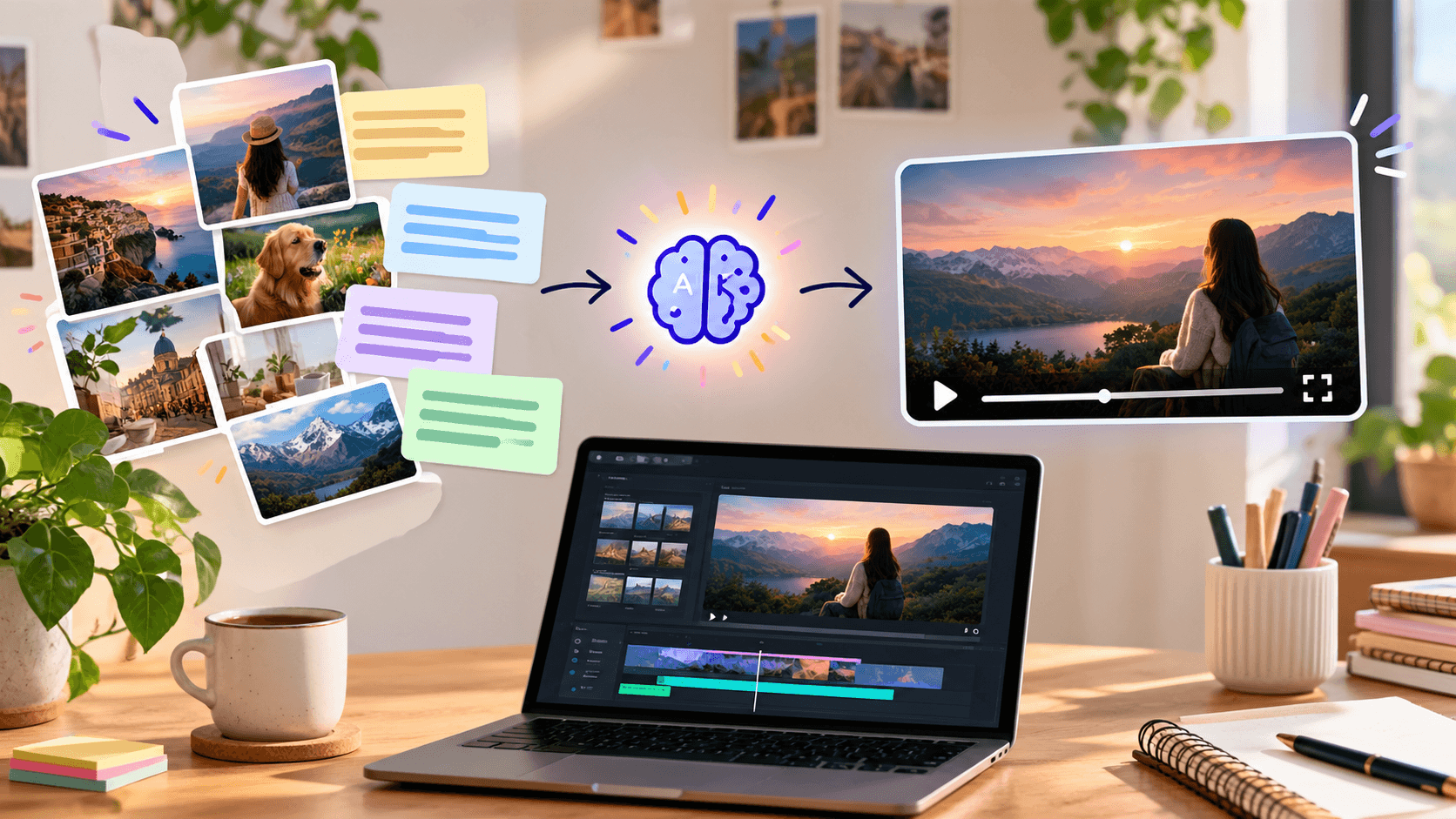
How to Write Better Prompts for Text-to-Video AI
AI video tools can turn a simple idea into a video within minutes. However, unclear prompts often create random scenes, unnatural movement, or visuals that do not match your expectations.
The key is not to write the longest prompt. The key is to describe your idea clearly.
A strong text-to-video AI prompt explains the subject, action, camera movement, setting, lighting, style, and video format. With the right details, you can create better videos for social media, advertisements, product promotions, and storytelling.
Quick Answer
To write better text-to-video AI prompts, describe one clear subject, one main action, the camera movement, the location, lighting, visual style, and video format. Avoid adding too many ideas at once. Start with a simple prompt, review the result, and improve one detail at a time.
A Simple Prompt Formula
Use this structure:
Subject + Action + Camera + Location + Lighting + Style + Format
Example
A young woman walks through a rainy city street. Slow tracking camera, neon lights reflecting on the wet road, realistic cinematic style, vertical 9:16 video.
This prompt is more useful than:
Make a beautiful cinematic video of a woman in a city.
The second prompt is too general. It does not explain what the woman is doing, how the camera should move, or what the scene should look like.
1. Describe the Subject Clearly
Begin with the main person, product, animal, or object in the video.
Weak Prompt
A product on a table.
Better Prompt
A white skincare bottle with a silver cap placed on a light stone table.
You can include important details such as color, clothing, material, appearance, or size. However, avoid adding unnecessary details that may confuse the AI video generator.
2. Explain the Main Action
The AI needs to understand what should happen in the scene.
Use clear action words such as:
- Walks
- Runs
- Opens
- Turns
- Rotates
- Smiles
- Picks up
- Moves slowly
Example
A perfume bottle rotates slowly while soft mist moves around it.
This is clearer than:
Create a stylish and premium perfume video.
Try to keep the action simple, especially when generating short videos. One clear action usually produces a more natural result than several actions happening at once.
3. Add Camera Movement
Camera movement helps control the mood and visual style of your video.
You can use instructions such as:
- Slow push-in
- Wide shot
- Close-up
- Low-angle shot
- Overhead shot
- Side tracking shot
- Slow orbit
- Static camera
Example
A black headphone rotates on a platform. Slow camera orbit, close-up product shot, dark studio background.
Use one main camera movement whenever possible. Adding too many camera instructions can make the video look unstable or confusing.
Runway’s official prompting guide also recommends describing both visual details and motion in text-to-video prompts.
4. Describe the Location and Lighting
The location gives your video context and helps create the right atmosphere.
Common examples include:
- Modern office
- Quiet bedroom
- Luxury studio
- Busy city street
- Beach at sunset
- Forest in the morning
Lighting also affects the mood of the scene.
You can use phrases such as:
- Soft morning light
- Warm golden-hour light
- Cool blue lighting
- Dramatic rim lighting
- Natural window light
- Bright studio lighting
Example
A creator sits at a clean desk inside a modern office. Soft window light enters from the left side.
Specific details are more useful than general words such as “beautiful lighting” or “amazing background.”
5. Mention the Style and Format
Tell the AI how you want the video to look.
Useful style descriptions include:
- Realistic product advertisement
- Cinematic movie style
- Minimal lifestyle video
- Luxury commercial
- Social media advertisement
- Documentary style
- 3D animation
You can also mention the required format:
Short vertical 9:16 video, realistic movement, no text on screen.
For important headlines, logos, and captions, it is usually better to add them during editing because AI-generated text may contain spelling or design errors.
Adobe’s official video prompting guide also recommends including the shot type, subject, action, location, and visual style.
Bad Prompt vs Better Prompt
Bad Prompt
Make a cool video for my shoe brand.
Better Prompt
A white running shoe stands on a dark platform while small dust particles move around it. Slow camera push-in, dramatic side lighting, premium sports advertisement style, six-second vertical 9:16 video, no text and no extra products.
The better prompt gives the AI clear information about the subject, action, camera movement, setting, style, duration, and restrictions.
Common Mistakes to Avoid
Adding Too Many Ideas
Do not ask for several locations, multiple characters, different actions, and many camera movements in one short prompt.
Create separate clips and combine them during editing.
Using Too Many Adjectives
Words such as “amazing,” “beautiful,” “epic,” and “high quality” do not give the AI enough visual information.
Instead of writing:
Beautiful lighting
write:
Soft golden sunlight coming from the right side.
Giving Conflicting Instructions
Avoid mixing styles that do not naturally match, such as realistic photography and cartoon animation, unless you clearly explain which style should be dominant.
Changing the Entire Prompt Every Time
Improve one element at a time. First adjust the camera movement, then the lighting, and then the action. This helps you understand which instruction improves the result.
Where Xelta Can Help
Writing a clear prompt is the first step. After that, you may need videos, images, voiceovers, editing, and social media content.
Xelta’s AI video generator helps creators and marketing teams create video content from text and visual inputs. It can be used for social media videos, product advertisements, creative campaigns, and other marketing projects.
Start with one simple prompt, generate a short clip, review the result, and improve it gradually. This is usually more effective than trying to create an entire advertisement in one prompt.
Conclusion
Better text-to-video AI prompts are clear, focused, and practical.
Always try to include:
Subject + Action + Camera + Location + Lighting + Style + Format
Avoid vague descriptions, conflicting instructions, and too many scenes. Once your prompt is clear, you can use Xelta to turn your ideas into high-quality videos and create content more efficiently.
FAQs
What Is a Text-to-Video AI Prompt?
A text-to-video AI prompt is a written instruction that tells an AI tool what type of video to create.
How Long Should an AI Video Prompt Be?
An AI video prompt should be detailed enough to explain the scene clearly. It should not be so long that the instructions become confusing.
How Can I Make My AI Video Look Realistic?
Describe the subject, action, lighting, camera movement, and environment clearly. Use specific details such as natural lighting, realistic movement, and shallow depth of field.
Should I Add Text Inside the Prompt?
You can request text, but AI tools may create spelling mistakes or distorted letters. It is safer to add important text during editing.
Is Text-to-Video Better Than Image-to-Video?
Text-to-video is useful when you want to create a scene from the beginning. Image-to-video is better when you already have a character, product, or visual reference that you want to maintain.