




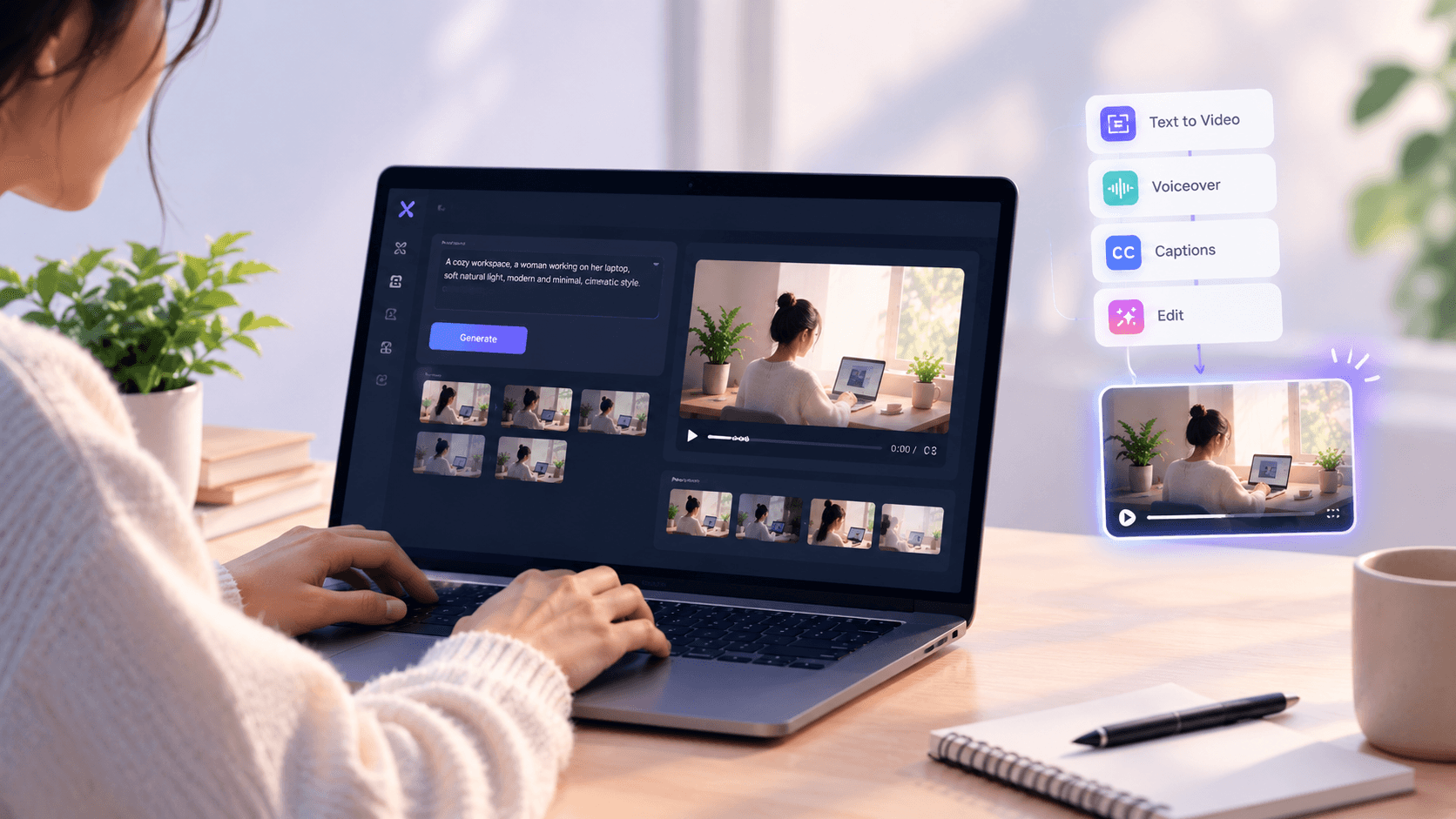
How to Make Videos Using AI Without Software
Making a neat video no longer needs a camera professional editing software, voice-recording equipment and many creative subscriptions. AI video tools can now help with everything from making scenes and moving images to making voiceovers, captions and edits.
But there is a difference: AI can make the cost and hard parts of video making smaller but just making a clip does not mean it becomes a finished video.
In this guide you'll learn how to make videos with AI using a way how to not waste credits on bad creations and how a single tool like Xelta can make it easier to not switch between many creative tools.
Quick Answer
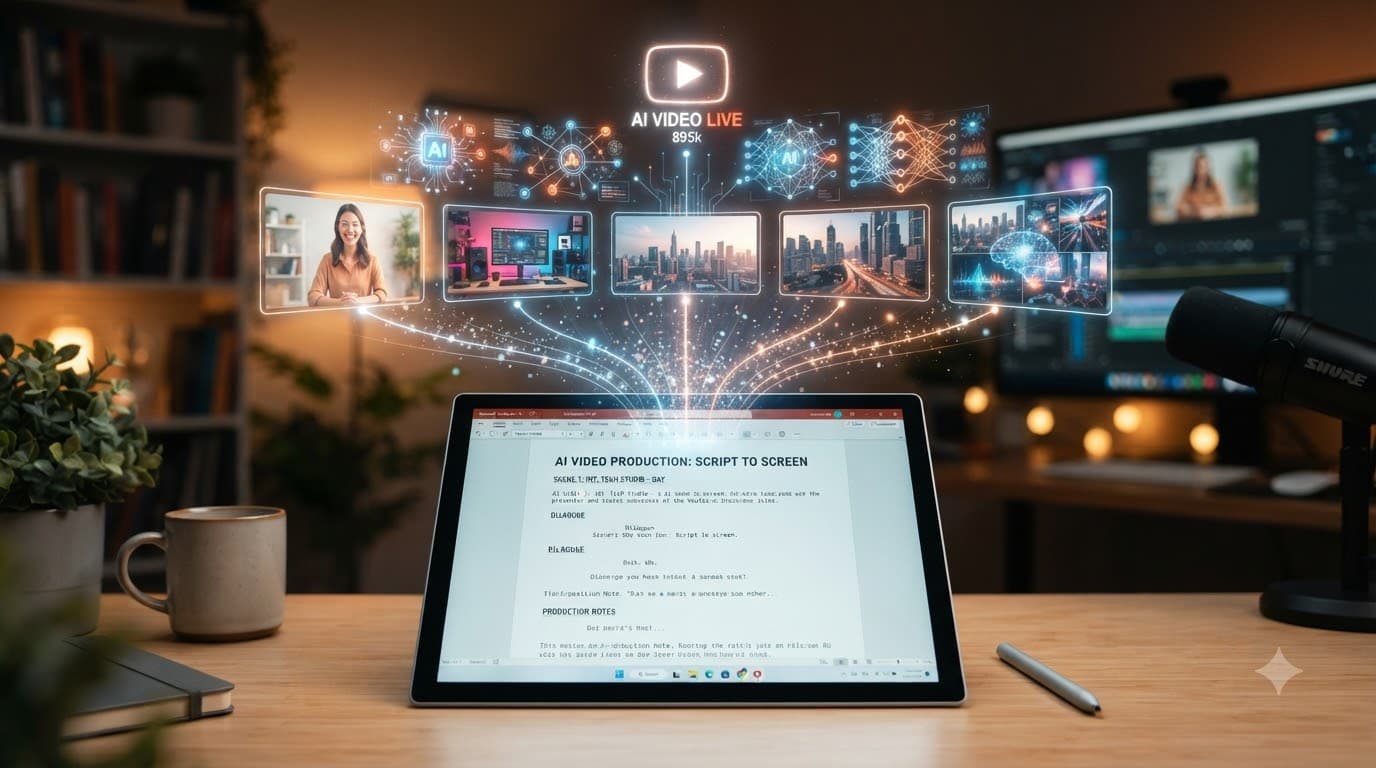
You can make videos with AI by starting with a script or idea turning it into scenes making pictures with text-to-video or image-to-video AI adding voiceover and captions editing the result and exporting it for your chosen platform. Online AI tools can handle several of these steps without needing software on your computer.
What You Actually Need to Make a Video With AI
video making can involve many different tools for shooting, editing, animation, voice recording, sound, captions and visual effects.
AI can make it easier to not need many of these tools.
For example a person making a 30-second product video could start with a written idea make product pictures move those pictures add an AI voiceover make captions and put the parts together inside an AI way.
New AI video tools are increasingly able to use text-to-video and image-to-video methods while some also have editing, voice, effects and other making features.
Xelta for instance brings together video making with editing putting together movement control, visual effects removing backgrounds and voice features.
The goal isn't to get rid of every choice.
The goal is to reduce the number of repeated making steps.
The AI Video Way That Takes the Place of a Traditional Making Setup
A simple AI video way looks like this:
Idea → Script → Scene Plan → Generation → Voice and Captions → Editing → Review → Export
Each step has a job.
Start With the Idea and Script
Before using an AI video maker decide what the video needs to explain.
For a social video find out:
-
Who the video is for
-
message
-
First part to catch attention
-
What you want people to do
-
Rough time
-
Platform
-
Shape of the video
A prompt like:
"Make me a cool marketing video."
does not give the AI direction.
A better idea could be:
"Create a 20-second product video for Instagram. Show a work area introduce the product in the first five seconds show one main use and end with a simple call to action."
The second prompt gives the AI a goal instead of leaving everything open for creativity.
Split the Script Into Scenes
One of the ways to make AI videos better is to not see the whole video as one creation.
Instead split the script into parts.
For example:
Scene 1: Present the problem.
Scene 2: Show the solution.
Scene 3: Show the product or idea.
Scene 4: Show the outcome.
Scene 5: End with a CTA.
Short and controlled scenes are easier to check and change than one prompt with many actions, places, camera moves and changes.
This also gives you control when a scene needs to be made again without affecting the rest of the video.
Make the Visuals
There are two ways to start AI video making:
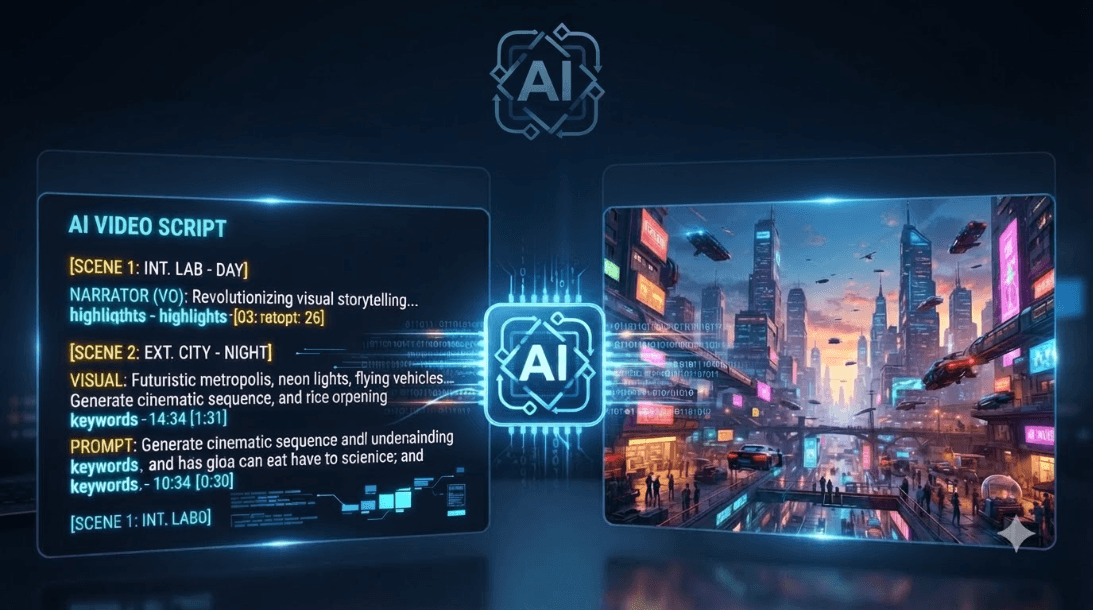
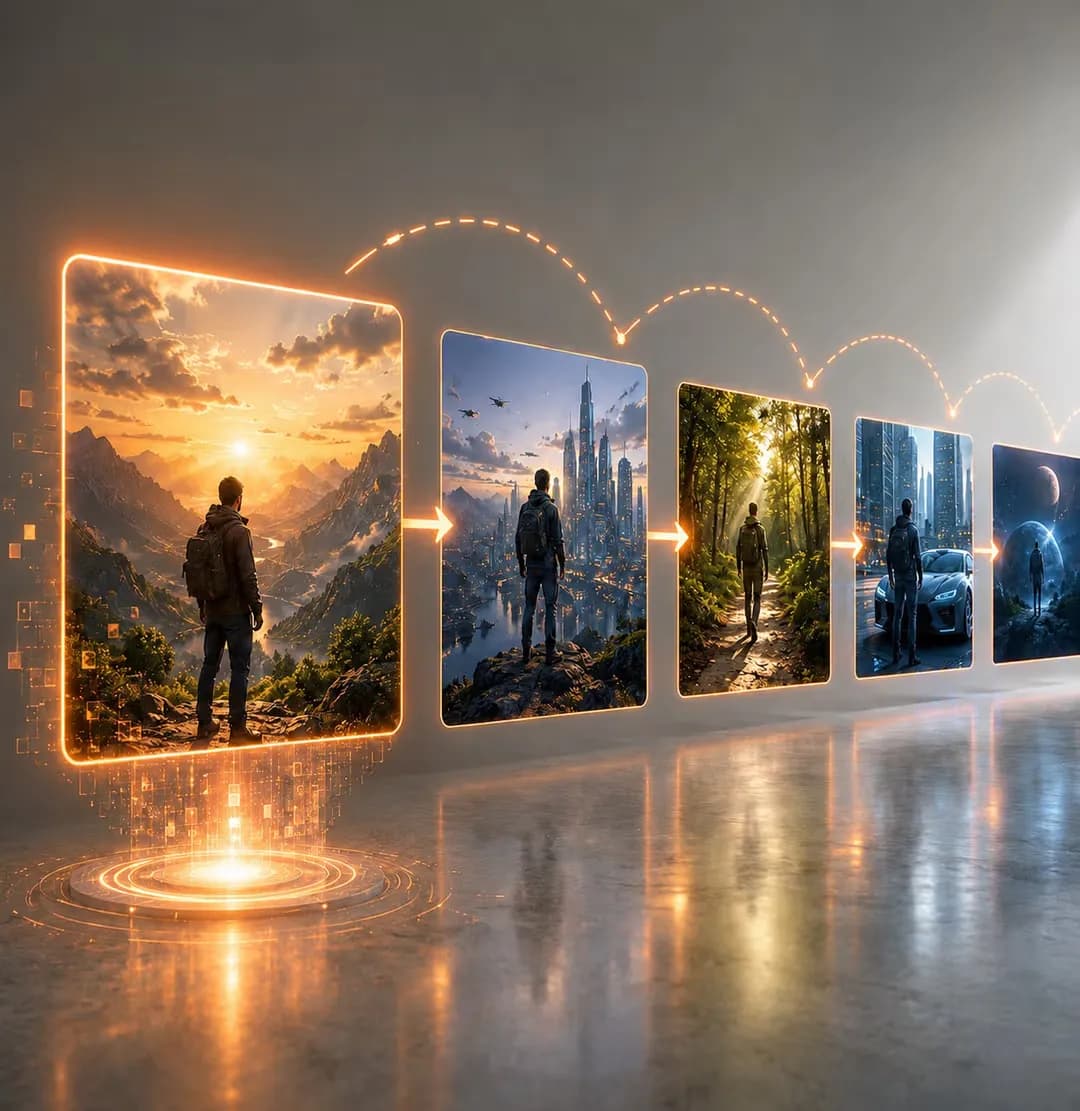
Text-to-video: Describe the scene and let AI make the footage.
Image-to-video: Start with a picture that already exists or is made by AI and use AI to add movement.
Text-to-video is good when you need to start a scene from nothing.
Image-to-video can be helpful when you already have a picture that needs movement but keeps its look.
For example:
"A premium wireless headphone on a wooden desk, warm studio lighting, slow camera push-in shallow depth of field, realistic product advertising style."
This prompt tells the AI about the subject, setting, movement, lighting and style.
That's better than asking AI to "make a cinematic headphone video."
Add Voice, Music and Captions
Making pictures is one part of a complete video.
Depending on the work you may also need:
Voiceover
Background music
Sound effects
Captions
Text on screen
Brand parts
AI tools can do some of these jobs.
For media captions can be very helpful because people might watch videos without sound.
Keeping these parts in the way can also make it easier to not move files between different programs.
###. Check the Result
This is where a persons opinion is still needed.
AI videos can sometimes have problems like:
Wrong text
movement
Things that don't match
Strange face or hand movements
Wrong product info
Unwanted background parts
Characters that are not the same
Timing that doesn't match the voiceover
Don't share the first try just because it looks good.
Check each scene against the idea.
Ask:
Is the image right?
Does the move make sense?
Does the scene share the message?
Does the voiceover match the pictures?
Would a person understand the video without help?
AI should make the first version faster—not take away the approval process.
How to Make Better AI Video Prompts
A good video prompt can follow this pattern:
Subject + Action + Environment. Camera + Lighting + Style + Limits
For example:
"A young person working at a modern desk looking at an AI-generated video on a laptop bright natural light from a window slow camera movement from over the shoulder realistic commercial look, clean modern desk, no visible text on the screen."
This tells the AI clear directions.
Don't add many different actions in one scene.
If a part needs someone to walk through a building open a door pick up a product talk to the camera and go to another place think about making those actions into scenes.
More detail isn't always better.
Specific details are more helpful than a prompt with unnecessary parts.
Where AI Saves Money—and Where a Person Still Needs to Check
The biggest money benefit of AI video making isn't that every video becomes free.
Instead AI can make the time spent on work less.
A normal way might need tools for:
Video footage
Picture making
Animation
Voice recording
Captions
Sound editing
Video editing
An AI way can bring some of these tasks together.
That can make it easier to not switch between tools move files, repeat work and spend time making versions of the same content.
Ai doesn't remove all costs.
Depending on the tool making a video might use credits using models might cost more and making higher quality or more videos might need a paid plan.
That's why the right question isn't just:
"Is the tool free?"
A better question is:
"How much does it cost to make one video that works and is approved?"
How to Check an AI Video Tool Before Paying
How We Checked
When looking at AI video tools think about these things.
Generation quality: Can the tool make pictures that match what you want?
Prompt control: Can you change the subject, movement, style and how it looks?
Editing features: Can you change the video without going to another program?
Workflow fit: Does the tool work for the videos you make?
Credits and cost: How much can you make with the credits you have?
Export options: Does it have the size and shape your platform needs?
Scalability: Can you use the way for one video and many versions?
Revisions: Can you make changes to individual scenes easily?
Free trials or free credits can help when checking these things before buying a plan.
Xelta gives users free credits so creators can try its AI ways before deciding if a bigger plan is right, for them.
How Xelta Fits Into an Affordable AI Video Workflow
The cost of video creation isn't limited to software subscriptions.
There's also a workflow cost*.
You might write a script in one application generate images in another animate them else create a voiceover with another service edit the footage in desktop software and then use another platform for captions.
That means accounts, more exports, more file transfers and more opportunities for inconsistencies.
Xelta positions itself as a in-one AI creative platform that brings image, video, audio, voice and other creative workflows together.
Its AI video tools support text-to-video and image-to-video creation while its creative workspace is designed to reduce the need to move between separate applications.
The practical advantage isn't simply having AI features.
Its being able to move from:
Idea → Generation → Editing → Voice → Effects → Final Video
within a connected workflow.
A Simple AI Video Workflow for Beginners
If you're completely new to AI video creation start small.
Step 1: Choose One Video Goal
Don't try to create a commercial immediately.
Start with a 10–30 social clip, product concept, educational visual or short explainer.
Step 2: Write a Short Script
Keep the message focused on one idea.
Step 3: Divide It Into 3–5 Scenes
Give each scene one purpose.
Step 4: Write a Prompt for Each Scene
Include the subject, action, setting, camera direction and visual style.
Step 5: Generate Short Clips
Review each generation before creating a batch.
Step 6: Add Voice and Captions
Make sure the narration and visuals support each other.
Step 7: Edit and Review
errors remove weak shots and check the pacing.
Step 8: Export for Your Platform
Choose the aspect ratio and resolution for the platform where the video will be published.
This workflow keeps experimentation manageable because you identify problems early instead of spending credits generating an entire video that later needs to be rebuilt.
Common AI Video Mistakes That Waste Credits
Generating Much at Once
Create a small test before producing dozens of clips.
Using Prompts
Give the AI enough visual direction to understand the shot you want.
Ignoring Aspect Ratio
Decide whether the video is intended for YouTube, Shorts, Instagram Reels, TikTok, LinkedIn or another platform before generation.
Expecting One Prompt to Do Everything
Complex videos usually benefit from scene-by-scene generation.
Skipping the Review Stage
AI output still requires human quality control.
Choosing a Tool Based on Its Demo
A beautiful sample doesn't prove that the workflow will work for your particular content.
Chasing "Free" of Measuring Usable Output
Credits, resolution, watermarks, generation limits, export restrictions and editing capabilities can matter more than the headline price.
The Way to Create AI Videos Without Expensive Software
You don't need to recreate a traditional production studio inside your computer.
Instead build a workflow around the parts AI can handle well:
Plan → Prompt → Generate → Review → Edit → Publish
For creators, marketers, educators and small teams this approach can make video production more accessible while keeping creative control with the human behind the project.
The important question isn't whether AI can make a video.
It can.
The useful question is whether your chosen workflow can consistently turn an idea into a usable accurate platform-ready video, without unnecessary software, subscriptions or manual work.
If you want to consolidate more of that workflow Xelta AI provides video, image, audio, voice, editing and other AI creative workflows in one platform.